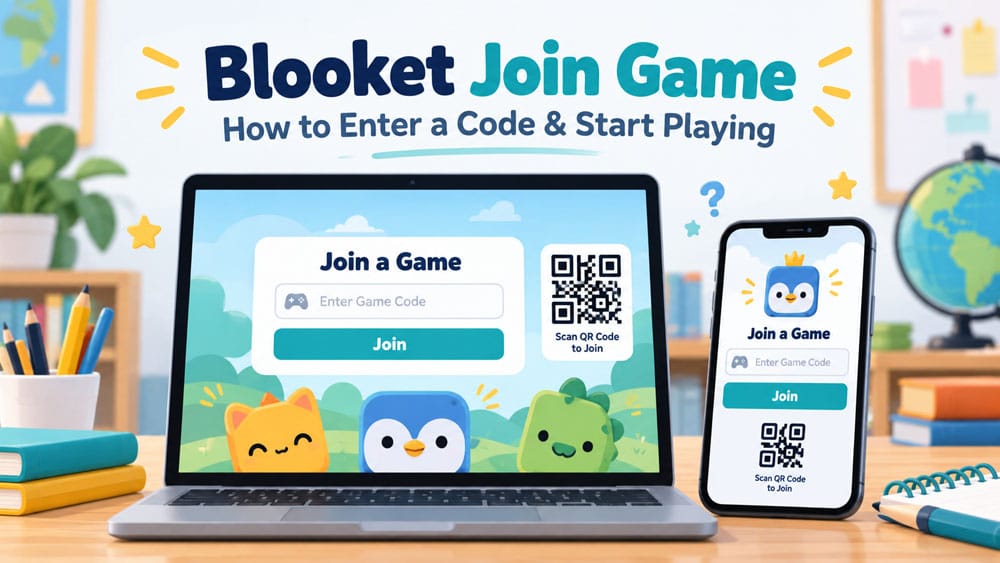
If your teacher, friend, or group host has invited you to a Blooket game, joining is usually very simple. In most cases, you only need a game code, a QR code, or a direct join link. You do not normally need to create a Blooket account just to participate in a live game, which makes the platform easy to use in classrooms and group activities.
The most common way to join is by using a Game ID. Your teacher or host will usually display the code on a screen, write it on the board, or share it through an online classroom. Once you have the code, open the official Blooket play page at play.blooket.com, enter the Game ID, and follow the instructions on the screen.
After the code is accepted, Blooket may ask you to enter a nickname. Some teachers allow students to choose their own names, while others turn on random names so that Blooket assigns one automatically. If you are playing in class, it is usually best to use the name or naming format your teacher asks for. This makes it easier for the teacher to recognize who is participating.
You may also be asked to choose a Blook before entering the lobby. A Blook is the small character or icon that represents you in the game. Once you select one, you normally move into the waiting area. At that point, the host controls when the actual game begins.
What Is Blooket?
Blooket is an educational game platform that combines quiz questions with different game modes. Teachers can create their own question sets or choose existing ones, then host a live activity for students. Instead of simply answering one question after another, players usually take part in a game where correct answers help them progress.
For students, the process is much easier than setting up the game. You usually do not need to search for the quiz yourself. The host chooses the activity and then gives you the information needed to join.
This is one reason Blooket works well in classrooms. A teacher can prepare the game, share one code with the class, and have students join from their own devices.
How to Join a Blooket Game With a Code
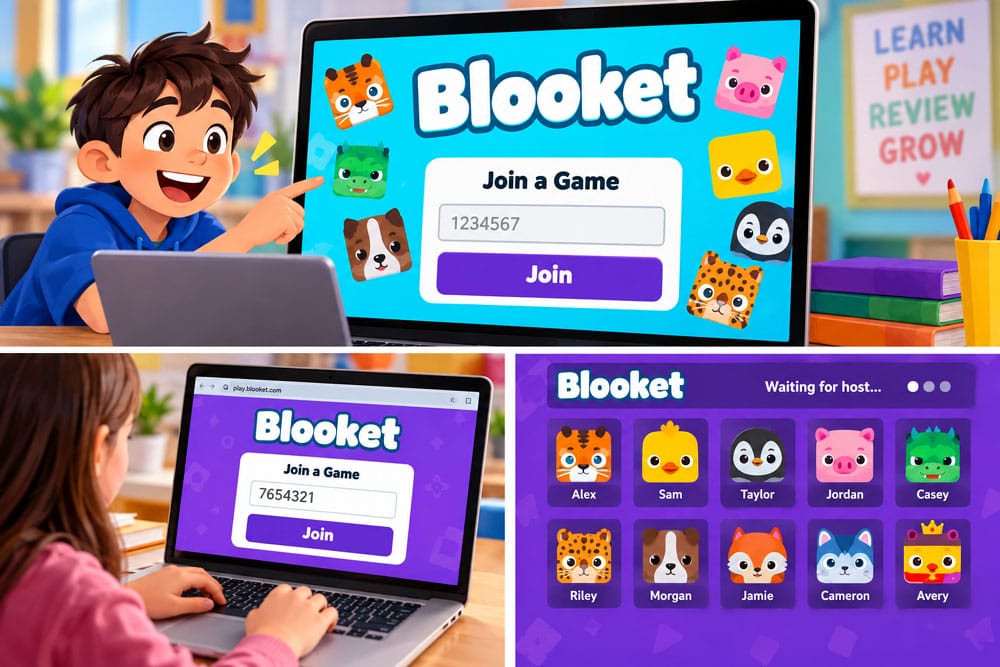
The easiest way to join is to start with the Game ID provided by the host. Open your browser and go to play.blooket.com. You should see a place to enter the Game ID. Type the code carefully and continue.
It is worth checking the code before submitting it. A single wrong number can send you to an error message or prevent the game from loading. If the code does not work, compare it with the one displayed by your teacher instead of trying random numbers.
Once the correct code is accepted, follow the instructions on the screen. You may need to enter a nickname, receive a random name, and choose a Blook. After that, you will usually enter the game lobby and wait for the host to begin.
One important thing to remember is that the teacher or host controls the session. Students cannot normally start the live game themselves. Even after everyone has joined, the game may not begin until the host clicks the start button.
Can You Join Blooket Without an Account?
Yes. For a normal live Blooket game, students generally do not need an account.
This is helpful for younger students and classrooms where creating separate accounts would take too much time. If your teacher gives you a Game ID, QR code, or direct join link, you can usually participate without signing up.
A Blooket account is more useful for students who want to save progress, collect Blooks, track certain statistics, or use other account-based features. But simply joining a teacher-hosted game does not normally require one.
This is an important point because some students reach the Blooket website and assume they must create an account before they can continue. In most classroom situations, that is unnecessary.
Joining With a QR Code
Teachers do not always use game codes. Blooket also supports joining through a QR code.
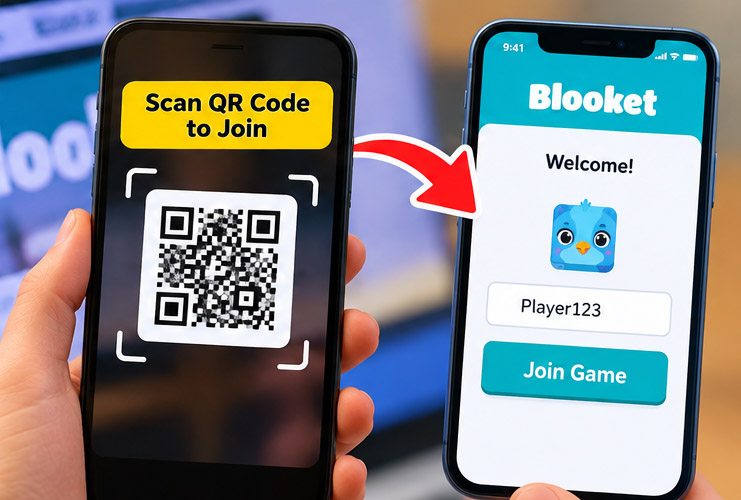
If your teacher displays a QR code, open the camera on your phone or tablet and point it at the code. Your device should recognize it and show a link. Tap the link, and it should take you into the Blooket joining process.
This can be faster than typing a Game ID, especially on a phone. It also reduces the chance of entering the wrong number.
If the QR code does not scan properly, ask the host for the Game ID or direct join link instead. All three methods are meant to help players reach the same hosted activity.
Joining With a Direct Link
A teacher can also send a direct Blooket join link. This is common in online classes because students can simply click the link instead of entering a code manually.
The link may be posted in a learning management system, classroom page, email, or another school communication platform. Once you click it, follow the normal joining instructions.
When using links, it is a good idea to make sure they come from a trusted source such as your teacher, school, or group host. There is no reason to use unknown third-party websites when the official Blooket joining options are already simple.
How to Join Blooket on a Chromebook or Computer
Joining on a Chromebook, Windows laptop, Mac, or desktop computer is almost the same.
Open a browser, go to the Blooket play page, and enter the Game ID provided by the host. Then enter your nickname if required, select a Blook, and wait for the game to start.
You do not usually need to download software just to join a Blooket session. The game runs through the browser, which is one reason it is widely used on school devices.
If your school uses managed Chromebooks, you may need to stay within the browser settings allowed by the school. If something is blocked, tell your teacher rather than trying to change security settings yourself.
How to Join Blooket on a Phone
Blooket can also be joined from a phone or tablet.
You can open the Blooket play page in your mobile browser and type the Game ID, or you can scan a QR code if your teacher provides one. Once you enter the correct session, the steps are similar to joining from a computer.
On a phone, a QR code can often be the fastest method because you do not need to switch between screens while copying a number.
If you are playing during class, follow your teacher’s rules about mobile devices even if the game itself works on your phone.
What Happens After You Join?
After joining, you will normally enter a lobby. This is simply the waiting area before the live game starts.
You may see your nickname, your selected Blook, and other players as they join. The host may wait until the entire class is ready before beginning.
If nothing seems to be happening, do not immediately refresh the page. The teacher may simply be waiting for other students. Once you are successfully in the lobby, it is usually best to leave the page alone until the game begins.
Can You Join After the Game Has Already Started?
Sometimes you can.
Blooket gives hosts the option to allow late joining. If the teacher has enabled that setting, you may still be able to enter after the game begins. If late joining is turned off, the code may no longer let you into the active session.
If you arrive late and cannot join, the best option is to ask the host. Repeatedly entering the same code will not help if the session settings do not allow new players.
Why Is My Blooket Code Not Working?
There are several reasons a Blooket code may fail.
The first thing to check is whether you typed it correctly. Small mistakes are common, especially when the code is being copied from a classroom screen.
It is also possible that the game has already ended or that the teacher has moved to a different session. Game IDs are connected to hosted activities, so an old code may no longer be useful.
Another possibility is that you are not using the official Blooket join page. If your goal is simply to enter a classroom game, use play.blooket.com instead of relying on random websites that claim to offer active Blooket codes.
A weak internet connection can also cause problems. If other websites are loading slowly or not opening at all, the issue may be your network rather than Blooket.
Browser extensions can sometimes interfere with websites as well. On a personal computer, you can check whether an extension is causing the problem. On a school device, it is better to tell your teacher or school administrator instead of removing extensions or changing settings without permission.
Some school networks may also block services that Blooket needs to function. If several students are having the same problem at the same time, that may be a sign that the issue is with the school network. In that situation, the teacher or IT staff should handle the troubleshooting.
What Does “Invalid Game ID” Mean?
If Blooket shows an invalid Game ID message, start by checking the code again.
Make sure you entered every digit correctly and confirm that the teacher is still hosting the game. If possible, use the QR code or join link instead. That can help rule out typing mistakes.
If everyone in the classroom receives the same error, the host may need to restart the session or provide a new code.
The important thing is not to start searching for random public codes online. If you are trying to enter a specific class activity, the correct code should come directly from the host.
Can You Join Blooket Without a Game Code?
Yes, as long as the host gives you another supported way to enter.
A QR code or direct join link can take you into the game without manually typing a Game ID. You still need some form of invitation from the host, but the numerical code itself is not always necessary.
This is especially useful for younger students, mobile users, or remote classes where clicking a link is easier than copying numbers.
Blooket Live Games and Homework Are Different
A live Blooket game and a Blooket homework activity do not work exactly the same way.
In a live game, the teacher hosts the session in real time. Students join, enter the lobby, and wait for the teacher to begin.
Homework is more flexible. A teacher may share a homework link or QR code, and students can complete the assignment during the allowed period rather than joining everyone at the same moment.
If you are unsure which one your teacher assigned, look at what they sent you. A live Game ID usually means you are joining a hosted session, while a homework link normally opens an assignment that you can complete independently.
A Few Tips for Joining Quickly
If your class uses Blooket often, it helps to know the official joining page in advance. This saves time and prevents you from clicking unnecessary search results.
When your teacher gives you a code, type it slowly enough to avoid mistakes. Once you have joined successfully, keep the game tab open and avoid refreshing unless the teacher tells you to.
It also helps to use a sensible nickname. In a classroom activity, your teacher may need to identify scores or participation, so using a completely unrelated name can create confusion.
If a school device is not working properly, ask for help rather than changing browser, security, or network settings on your own.
Is It Safe to Join Blooket?
For normal classroom use, students should stick to the official Blooket website and the information provided by their teacher.
You should not need to give strangers personal information just to join a live game. If a website claiming to be related to Blooket asks for unnecessary details, passwords, or downloads, it is better to leave the page.
Students should also avoid sharing classroom game codes publicly unless the teacher says it is okay. A code is meant to help invited players enter the activity, not to bring unknown people into the session.
Using the official join page and following your teacher’s instructions is usually the simplest and safest approach.
🔥 Related Posts

How AI is Changing the Mobile Gaming Industry in 2025
Xbox Game Bar Guide: Record, Capture, Chat, and Fix Game Bar Like a Windows Gamer
Best Free Online Games for PC Without Download 2026

How Many Levels in Candy Crush? Everything You Need to Know About Candy Crush Levels in 2025

Top 5 Mobile Games with the Best Graphics (Console-Level)