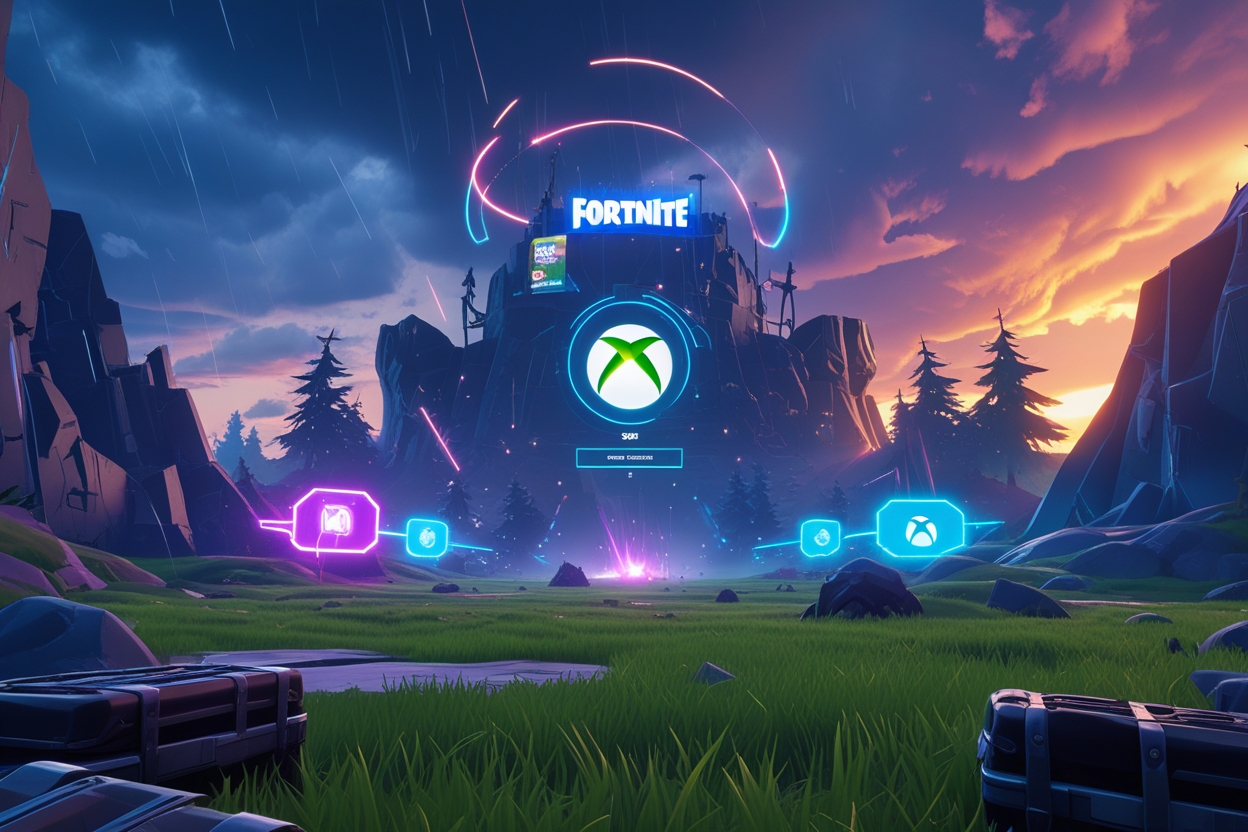
When it comes to xbox cloud gaming fortnite, the experience is surprisingly accessible—even without owning an Xbox console. With this guide, you’ll understand how to play Fortnite on a variety of devices through Xbox Cloud Gaming (formerly known as xCloud), what the technical requirements are, how your account links work, and what limitations or common issues you might face.
What Is Xbox Cloud Gaming?
Xbox Cloud Gaming is Microsoft’s cloud-streaming service that lets you play supported Xbox titles via the internet, without downloading or installing them locally. Essentially, Microsoft runs the game on powerful servers, streams the visuals to your device, and sends your input back to the server.
Fortnite is one of the standout titles available through this service, and unlike many other games in the Xbox ecosystem, you do not always need a Game Pass subscription to play it via the cloud.
Why Play Fortnite on Xbox Cloud Gaming?
- No Console Needed – You can play Fortnite on devices that don’t have the horsepower for a full PC or console, including older laptops, tablets, or even some phones.
- Cross-Device Progress – Your Fortnite progress (skins, V-Bucks, Battle Pass) is tied to your Epic account. If your Xbox/Microsoft account is linked to your Epic account, your progress will carry over.
- Free to Play – Unlike many cloud-streaming services, playing Fortnite via Xbox Cloud Gaming doesn’t always require an Xbox Game Pass Ultimate subscription.
- Accessible from Browser – You don’t need to install a dedicated app: you can stream Fortnite through a web browser on your device.
What Devices Support Fortnite via Xbox Cloud Gaming
According to Microsoft and Xbox’s official site, you can play Fortnite through the cloud on:
- iPhone / iPad — via Safari browser.
- Android Phones / Tablets — using a web browser.
- Windows PC — via supported browsers.
- Some Laptops and Handheld Devices that can run modern browsers.
Important note: You cannot launch Fortnite via a dedicated Xbox Cloud Gaming mobile app or via the Xbox app on Windows — it must run in the browser.
How to Play Fortnite via Xbox Cloud Gaming: Step-by-Step
Here’s how you can get started with xbox cloud gaming fortnite:
- Open Your Web Browser
Use a supported browser: Microsoft Edge and Google Chrome on Windows; Safari on iOS. Epic Games’ Fortnite+1 - Visit Xbox Cloud Gaming Site
Go to xbox.com/play. Epic Games’ Fortnite - Sign In
Log in with your Microsoft/Xbox account. If you don’t have one, create a free account. - Launch Fortnite
In the web interface, find Fortnite and click Play. - Link Your Accounts (Optional but Recommended)
Make sure your Xbox/Microsoft account is linked to your Epic Games account so that your Fortnite progress stays consistent across platforms. - Choose Controls
- On mobile: use touch controls or connect a compatible controller.
- On PC: you can use keyboard & mouse, but this requires a third-party extension for now.
Technical & Internet Requirements
To stream Fortnite smoothly via Xbox Cloud Gaming, your setup needs to meet certain requirements:
- Internet Speed:
- iPhone: ~10 Mbps or more
- iPad: ~20 Mbps or more
- Windows PC: ~20 Mbps recommended
- Network: A stable 5 GHz Wi-Fi connection works best; wired (Ethernet) is even better if you’re on PC.
- OS Requirements:
- iOS: iOS 14.4 or later
- Android: Android 6.0 or newer
- Windows: Windows 10 (recent updates)
Game Modes & Limitations
While most Fortnite game modes are accessible via Xbox Cloud Gaming, there are some caveats:
- On Windows (via browser), you can access all current modes: Battle Royale, Zero Build, Impostors, Creative islands, and more. Epic Games’ Fortnite
- Touch controls: these work on devices, but not always reliably — some users report that touch controls disappear or switch to a console-style HUD unexpectedly.
- Mouse & Keyboard support: As of now, native support is limited, but users can use a third-party browser extension to map mouse/keyboard to controller inputs.
Common Challenges & Troubleshooting
Even though Fortnite on Xbox Cloud Gaming is very convenient, players have encountered some frustrating issues. Here are some of them, and how to work around them:
1. Input or Control Problems
- No Touch Controls: Several players say that after a recent update, touch controls stopped appearing.
- Keyboard/Mouse Stutters or Not Working: If you’re trying to play with keyboard and mouse, make sure you’re using a compatible browser (Edge or Chrome) and an extension for key mapping.
- Inconsistent UI: Some players report different HUD styles — sometimes mobile UI, other times console UI — depending on their last input method.
2. Connection Errors or Streaming Failures
- Server Communication Error: Some users see “Unable to communicate with servers” errors when trying to launch via xCloud.
- Account Region or Linking Issues: Make sure your Microsoft account is properly linked to your Epic account. A mislink or wrong region can block cloud sessions.
- Voice Chat Limitations: As of now, many users report that in-game voice chat (mic) doesn’t function reliably via cloud.
Pros & Cons of Playing Fortnite on Xbox Cloud Gaming
Pros
- No need for high-end hardware
- Free access (no Game Pass needed for Fortnite) Epic Games’ Fortnite
- Cross-platform progress with Epic account linking C36 Games
- Play on the go — mobile devices get access via browser Acer Corner
Cons
- Dependent on internet speed and stability
- Limited control options (touch → better with controller)
- Some game modes (like Save the World) may be restricted on mobile
- Input lag or UI issues depending on browser or device
- Voice chat limitations reported
Tips to Improve Your Experience
Here are some practical tips to get the most out of xbox cloud gaming fortnite:
- Use a Controller: For mobile or tablet play, use a compatible Bluetooth or USB controller for the best experience.
- Optimize Your Internet Connection: Prefer a 5 GHz Wi-Fi or wired connection. Avoid network-hogging apps while streaming.
- Bookmark the Xbox Cloud Gaming Page: On iOS, you can add a shortcut to the Xbox.com/play page on your home screen for quick access. Epic Games
- Stay Updated: Use the latest browser version (Edge, Chrome, or Safari) — older versions can introduce bugs or compatibility issues.
- Try Third-Party Tools (Carefully): If you want keyboard and mouse support, research trusted browser extensions. Be cautious — unofficial tools may have risks.
- Report Issues: If you run into recurring errors (servers, control, UI), report them to Microsoft Support or Epic, especially if account-linking seems off. Also check Reddit/forums to see if others have workarounds.
Is Xbox Game Pass Necessary for Fortnite Cloud?
No — one of the biggest advantages here is that you do not need Xbox Game Pass Ultimate to play Fortnite on xCloud. Microsoft and Epic have made Fortnite cloud playable for free through the browser.
This makes it a great entry point for gamers who want to experience Fortnite without paying for high-end hardware or a Game Pass subscription.
Recent Developments & Future Outlook
- Microsoft has been expanding its Cloud Gaming availability.
- Since Fortnite is free-to-play, it remains a flagship title for showcasing the power of cloud gaming.
- As cloud infrastructure improves, latency will likely decrease, improving the experience for competitive players.
- There is hope for more controller, keyboard, and perhaps even native cloud-optimized features as Microsoft expands its cloud gaming ecosystem.
🔥 Related Posts
MSN Unblocked Games in 2026: The Best Free Browser Games You Can Play Anywhere
Zone.MSN Games Free Online 2026: Best Browser Games, Updates & Quick Play Guide
Geometry Dash Scratch Games: A Comprehensive Guide

Top 5 PUBG Mod APKs Compared – Features, Safety & Verdict

Slope Unblocked — The complete 2025 guide (play, master, and stay safe)