If you’ve ever wanted to host a Minecraft world for you and your friends without spending money, Aternos is one of the easiest and most trusted platforms to do it. In this guide, I’ll show you how Aternos works, how to set up your free server from scratch, how to manage players, install mods or plugins, fix common issues, and keep your server running smoothly. Throughout the guide, I’ll mention Aternos often because the goal is to help you understand every part of the setup process clearly.
What Is Aternos and Why Do People Use It?
Aternos is a free hosting service that lets you create Minecraft servers without paying for hardware or monthly plans. Everything runs in the cloud, which means you don’t need a powerful PC to host a world. You simply create an account, customize the server the way you want, and invite your friends. The platform gives you control over the world settings, player permissions, mods, plugins, backups, and even custom IP addresses.
The biggest advantage is that it’s 100% free, but like any free service, it comes with shared resources and a queue system during busy hours. Still, for most players, that’s worth it because Aternos gives you the freedom to build and play without limits.
How To Create an Aternos Account
Setting up Aternos takes only a few minutes.
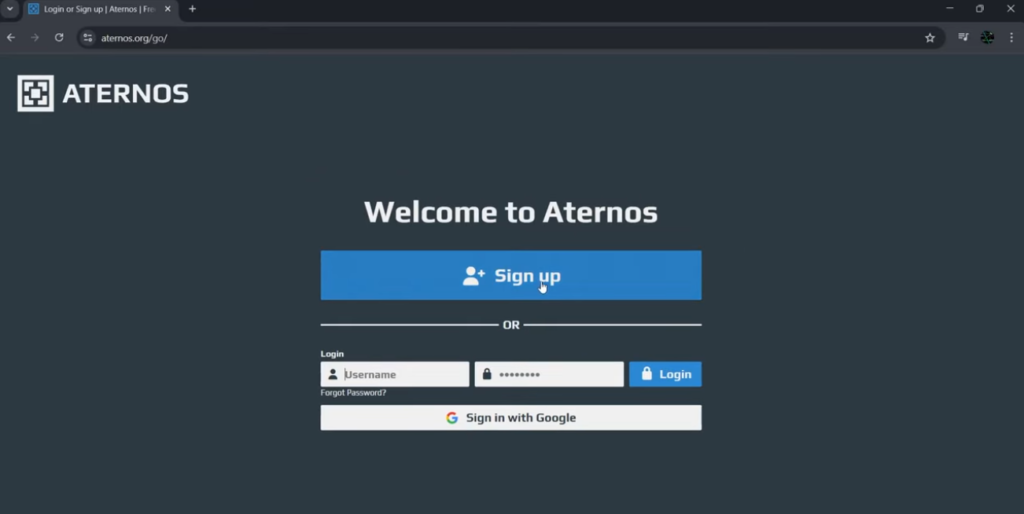
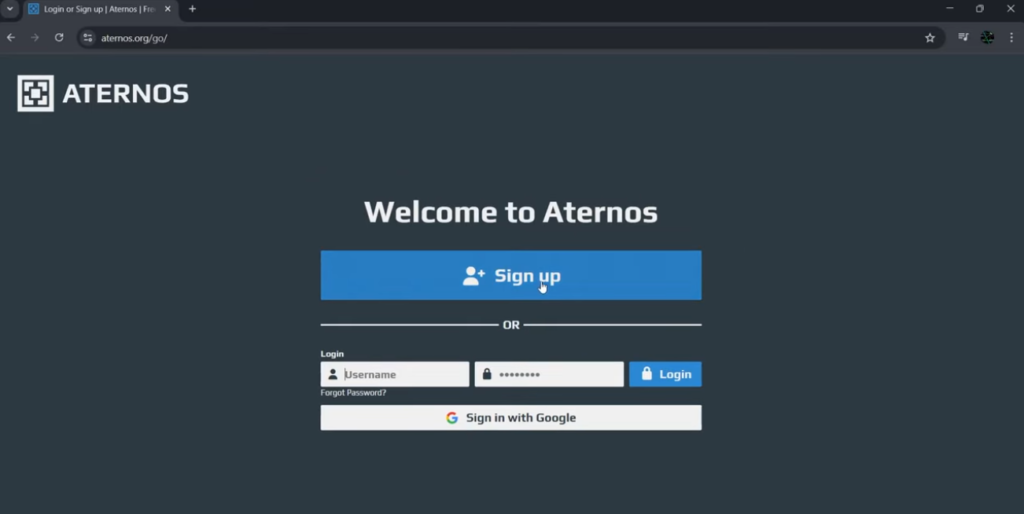
- Go to aternos.org.
- Click Play or Create Your Server.
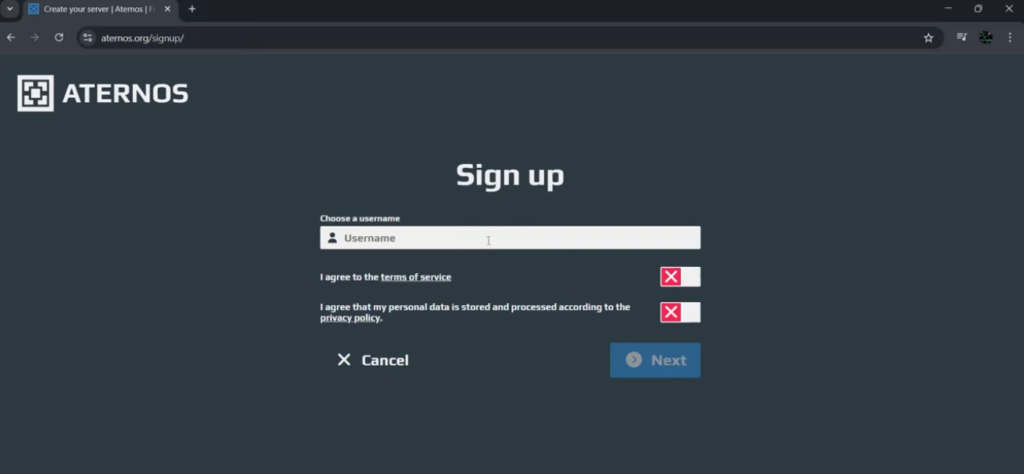
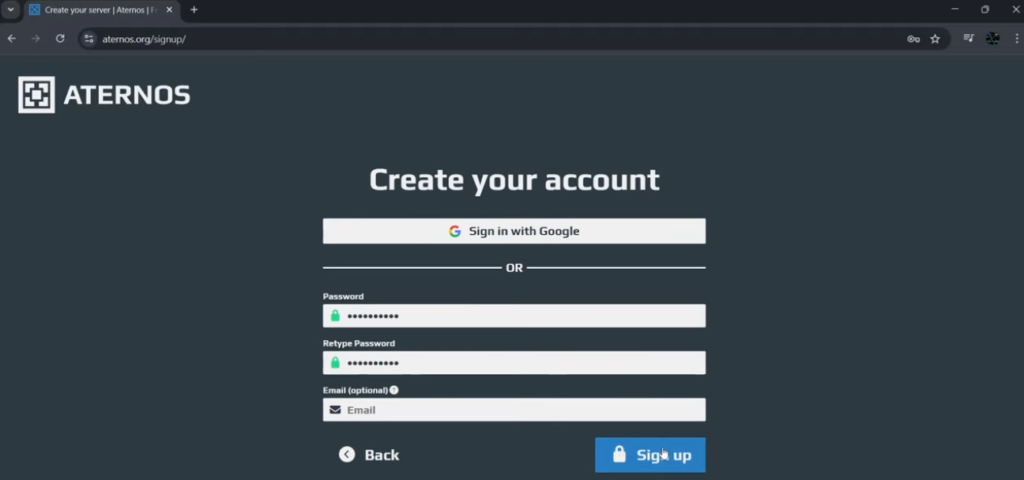
- Sign up using email, Google, or Microsoft.
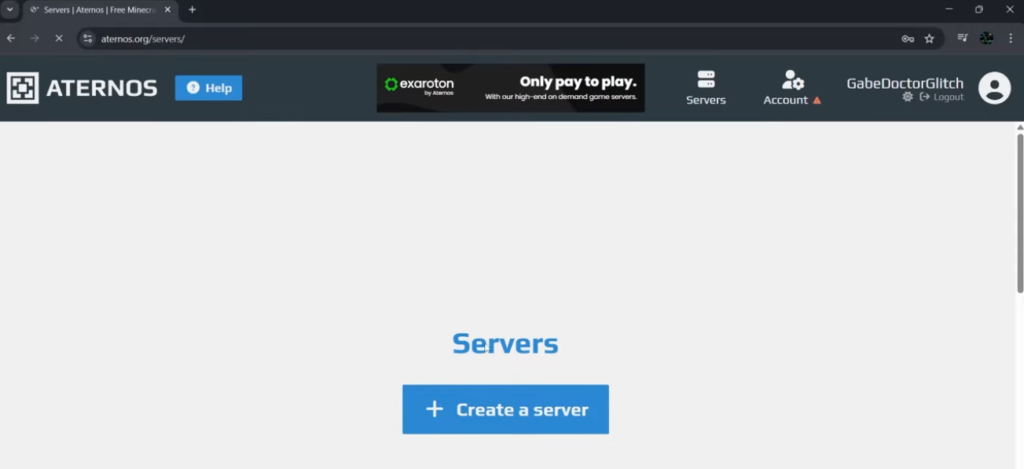
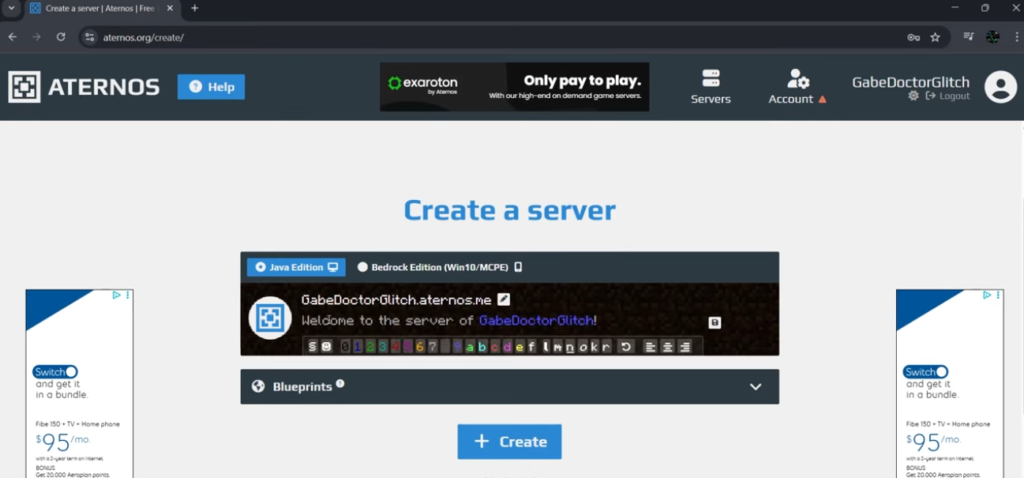
- Once you’re logged in, click Create Server.
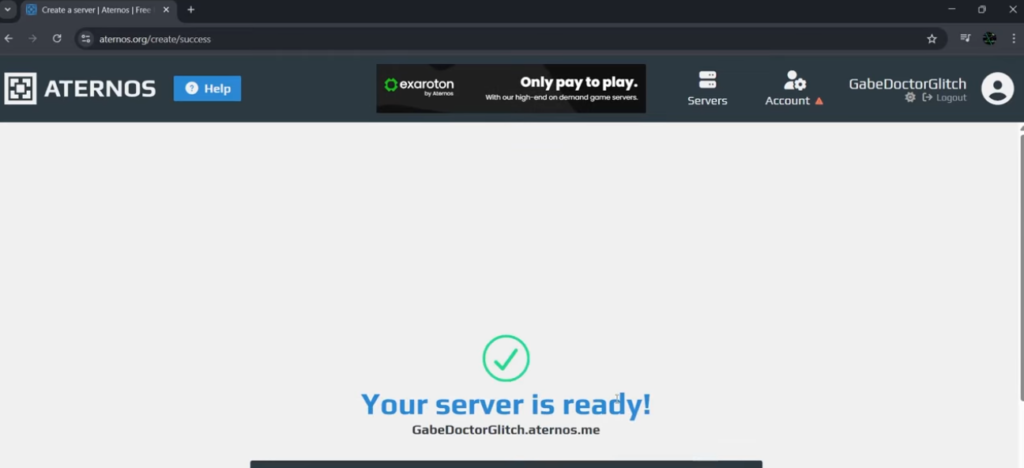
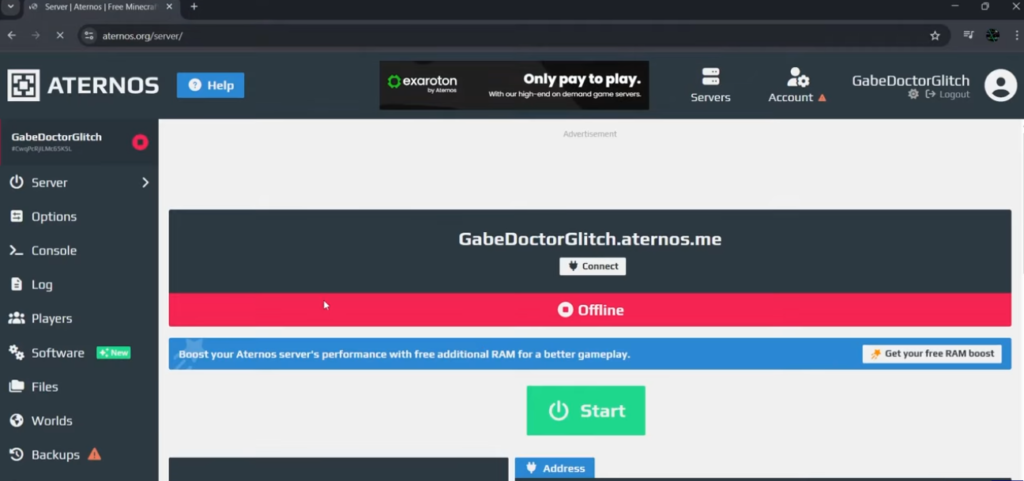
That’s all you need to start. You will see a clean dashboard where all the settings for your Minecraft server live.
Choosing the Right Minecraft Edition
Aternos supports both Java Edition and Bedrock Edition, so choose the version based on what you and your friends play.
Java Edition
- Works on Windows, Mac, and Linux.
- Allows mods, modpacks, and plugins.
- Great for custom gameplay, SMPs, and advanced features.
Bedrock Edition
- Works on mobile, Xbox, PlayStation, Switch, and Windows 10/11 Bedrock version.
- Fast and lightweight.
- Doesn’t support Java mods but works with certain Bedrock plugins.
Pick the edition that matches your group so everyone can join without problems.
Selecting Server Software and Version
After creating your server, Aternos lets you choose what software to run. Each option has its own purpose:
- Vanilla – basic Minecraft with no plugins.
- Paper / Spigot – great for plugins, smoother performance.
- Forge / Fabric – required for mods and modpacks.
- Bedrock / PocketMine – for Bedrock servers and Bedrock plugins.
If you want a simple multiplayer world, go with Vanilla or Paper.
If you want mods, go with Forge or Fabric.
Pick the version of Minecraft you want (latest versions usually need more memory).
Customizing Server Settings
Aternos makes server customization simple. On the left menu, click Options and adjust settings like:
- Game mode (Survival/Creative)
- Difficulty
- Max players
- PVP on/off
- Spawn protection
- Whitelist
- Command blocks
These settings help you create the world vibe you want. You can also change your world seed if you want a special terrain layout.
Adding Friends, Whitelist, and OP Permissions
To add OP (admin) players:
- Go to Players
- Click Ops
- Add your friend’s exact Minecraft username
OPs can use commands like /gamemode, /tp, and more.
To enable whitelist:
- Go to Players → Whitelist
- Turn it ON
- Add the players you want to allow
This is perfect if you want a private world.
Installing Plugins or Mods
This is where Aternos really shines.
For Plugins (Paper/Spigot):
- Go to Plugins
- Search for the plugin you want
- Click Install
- Restart the server
This works great for plugins like EssentialsX, GriefPrevention, or economy plugins.
For Mods (Forge/Fabric):
- Switch your server software to Forge or Fabric
- Go to Mods
- Install mods directly or upload your own
- Make sure all players install the same mods on their Minecraft launcher
If the mod versions don’t match, players won’t be able to join.
Uploading Worlds and Using Backups
Want to use a custom map or your single-player world?
You can upload a zip file through Files → Upload.
Aternos also lets you create backups, which is very important because the server has a storage limit. If your world becomes too large, remove old backups or delete unused files to stay within the limit.
Starting Your Server and Understanding the Queue
When you hit Start, Aternos may place you in a queue. This happens because servers run on shared resources. Peak hours (evenings and weekends) usually have longer wait times. Off-peak hours are faster.
Once your turn arrives, the server will boot and show your IP address so your friends can join.
Performance Tips for a Smooth Server
Aternos gives you a limited amount of RAM depending on your software and version. Here’s how to keep your server fast:
- Use Paper instead of Vanilla for better performance
- Don’t install too many plugins
- Avoid heavy modpacks
- Keep your world size small
- Avoid massive redstone farms
- Reduce render distance in settings
These small tweaks make a huge difference.
Troubleshooting Common Aternos Problems
1. Server won’t start
Usually caused by hitting the storage limit.
Delete old backups or remove large mod files.
2. Players can’t join
Most common issues:
- Wrong Minecraft version
- Mods don’t match
- Server is offline
- Whitelist is enabled
3. High lag
Try the following:
- Switch to Paper
- Reduce plugins and mods
- Lower simulation and render distance
- Delete unused worlds
4. Queue is too long
Try again during less busy hours.
Aternos is free, so patience is part of the experience.
Take a look: Aternos Minecraft — The complete guide to free servers, setup, limits & tips
Frequently Asked Questions (Q&A)
Q: Is Aternos really free?
Yes. Aternos is completely free and supported by ads and shared server power.
Q: How many players can I have?
You can set the number yourself, but performance depends on your plugins, mods, and world size.
Q: Can I run big modpacks?
Light modpacks work fine. Heavy modpacks may crash due to RAM or storage limits.
Q: Does Aternos stay online 24/7?
No. Servers stop when everyone logs off, but you can start it again anytime.
Q: Can I share access with friends?
Yes, Aternos lets you give dashboard access so your friends can help manage the server.
Aternos is one of the easiest ways to create a free Minecraft server that feels reliable and simple to manage. Whether you’re hosting an SMP with friends, experimenting with mods, or building adventure maps, Aternos gives you everything you need without charging a penny. Just keep your server light, manage your plugins and mods wisely, and don’t stress about the queue — once it’s running, you can play as long as you want.
🔥 Related Posts

Valorant Crosshair — The Complete, Practical Guide to Finding Your Perfect Aim

The Ultimate Guide to Minecraft Skins: Customization, Downloads, Editors & Safety Tips

Riot Client Guide: Features, Setup, Fixes & Pro Tips

Super Mario Galaxy: The Complete Guide Every USA Gamer Should Read

Top 10 Bus Simulator Games for PC in 2025: Realistic Driving Fun for PC Gamers