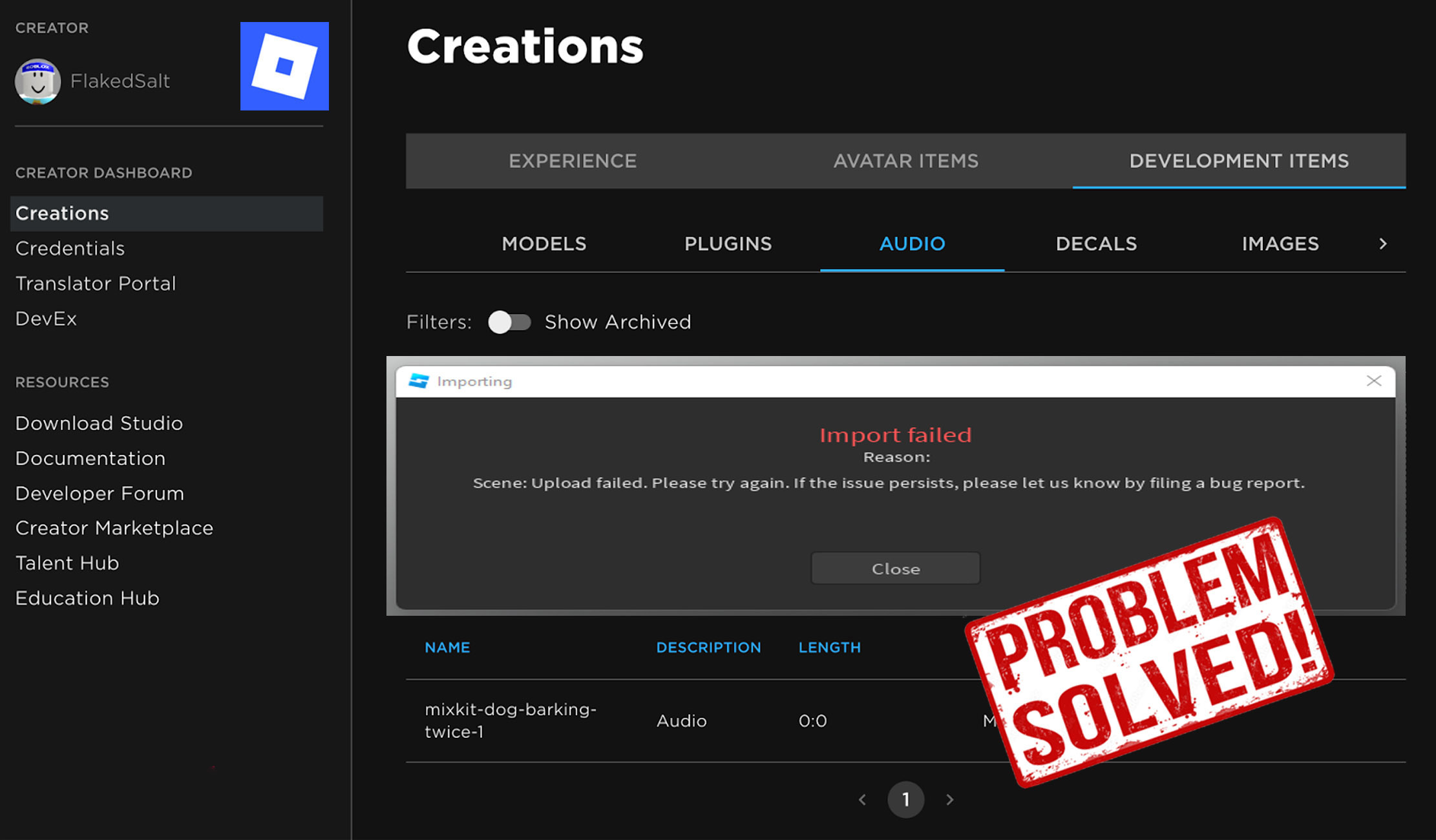
The Roblox asset upload failed error is a common problem developers and creators continue to face in 2026. This issue usually appears when trying to upload assets such as images, decals, audio files, meshes, or models to Roblox Studio or the Roblox website. Instead of completing the upload, Roblox shows a failure message, leaving creators confused about what went wrong. For developers working on games, clothing, UI elements, or sound effects, this error can slow down progress and disrupt development schedules.
Asset uploads are a core part of Roblox’s creator ecosystem, and failures can happen for many reasons. These include file format issues, size limits, account restrictions, moderation checks, browser problems, Studio bugs, or temporary Roblox server issues. The good news is that in most cases, the problem is fixable with the right steps.
What Does “Roblox Asset Upload Failed” Mean
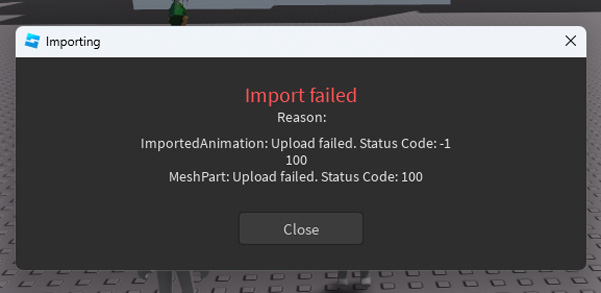
When Roblox says an asset upload failed, it means the platform rejected or could not process your file during the upload process. This rejection can occur before moderation, during file validation, or while transferring data to Roblox servers.
The error does not always mean your asset breaks the rules. In many cases, it’s a technical limitation or temporary issue that prevents the upload from completing successfully. Understanding where the failure happens helps narrow down the correct fix.
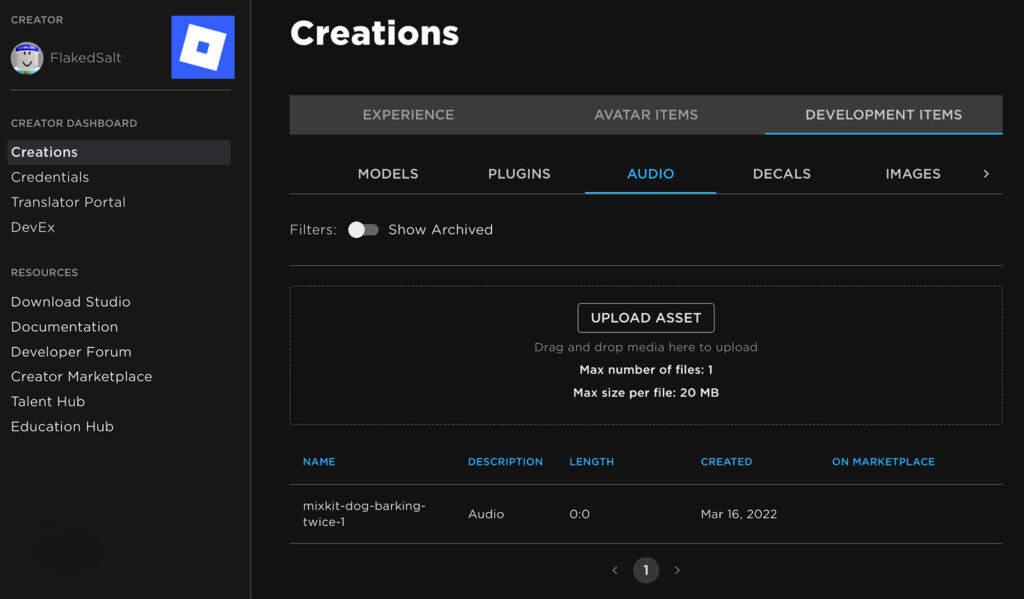
Common Reasons Roblox Asset Upload Fails
Several factors can trigger this error, and they often overlap.
One of the most common causes is unsupported file formats. Roblox only accepts specific formats for each asset type. Uploading a file in the wrong format or with hidden metadata can cause an instant failure.
Another frequent issue is file size limits. Assets that exceed Roblox’s size or length restrictions may fail without a clear explanation. High-resolution images, long audio files, or complex meshes are especially prone to this.
Account restrictions also play a role. New accounts, unverified accounts, or accounts with limited creator permissions may face upload blocks. Some asset types require age verification, ID verification, or a certain account standing.
Finally, technical issues such as browser cache problems, Roblox Studio bugs, unstable internet connections, or temporary Roblox server outages can cause uploads to fail even when everything else is correct.
Step 1: Check Asset File Requirements
Before trying anything else, confirm that your asset meets Roblox’s requirements.
For images and decals, make sure the file format is supported and the resolution is reasonable. Extremely large images or unusual color profiles can trigger failures.
For audio files, ensure the format and duration are within Roblox’s current limits. Audio that is too long, too large, or encoded incorrectly often fails silently.
For meshes and models, check polygon count, scale, and export settings. Complex geometry or unsupported export options can cause rejection.
Re-exporting the asset using default settings in your design software often fixes hidden compatibility issues.
Step 2: Rename the File and Remove Special Characters
File names may seem harmless, but special characters, symbols, emojis, or extremely long names can interfere with uploads.
Rename your asset using simple letters and numbers only. For example, instead of using spaces or symbols, use underscores. This small step resolves upload failures more often than many creators expect.
Step 3: Check Your Roblox Account Status
In 2026, Roblox continues to enforce creator eligibility rules more strictly.
Make sure:
- Your account is verified (email and phone if required)
- You have creator permissions enabled
- You meet age or ID requirements for certain asset types
- Your account is not rate-limited or temporarily restricted
If you recently created your account or uploaded many assets in a short time, Roblox may temporarily limit uploads to prevent spam or abuse.
Step 4: Try Uploading from Roblox Studio Instead of Browser
Some assets upload more reliably through Roblox Studio than the website, and vice versa.
If your upload fails in the browser:
- Open Roblox Studio
- Go to Asset Manager
- Upload the asset directly from Studio
If Studio uploads fail:
- Try the web upload page in a different browser
Switching upload methods often bypasses UI or session-related bugs.
Step 5: Clear Browser Cache or Use a Different Browser
Browser issues are a major hidden cause of upload failures.
Clear your browser cache and cookies, then restart the browser before uploading again. Alternatively, try a different browser entirely. Chrome, Edge, and Firefox sometimes behave differently with Roblox’s upload interface.
Using an incognito or private window can also help rule out extension conflicts.
Step 6: Disable Browser Extensions and VPNs
Ad blockers, privacy tools, and VPNs can interfere with Roblox uploads by blocking scripts or altering network requests.
Temporarily disable:
- Ad blockers
- Script blockers
- Privacy extensions
- VPNs or proxy services
Once the asset is uploaded successfully, you can re-enable them.
Step 7: Check Roblox Server Status
Sometimes the problem is not on your end at all. Roblox servers occasionally experience partial outages that affect asset uploads while the rest of the platform appears normal.
If uploads fail repeatedly across different assets and devices, wait and try again later. Upload issues caused by server problems usually resolve within hours.
Step 8: Upload at a Different Time
High traffic periods can increase upload failures. During peak hours, Roblox servers handle millions of requests simultaneously.
Uploading during off-peak hours often improves success rates, especially for large assets.
Step 9: Reinstall or Update Roblox Studio
If you consistently experience asset upload failures in Roblox Studio, the installation may be corrupted or outdated.
Uninstall Roblox Studio completely, restart your system, and reinstall the latest version. This refreshes internal upload tools and fixes hidden Studio bugs.
Step 10: Review Roblox Asset Moderation Rules
Although moderation usually happens after upload, certain assets may fail immediately if they clearly violate content rules.
Ensure your asset:
- Does not include copyrighted material
- Does not contain inappropriate imagery or audio
- Does not reference restricted brands or content
Even borderline content can trigger automated rejection systems.
Why This Issue Is More Common in 2026
As Roblox expands its creator economy, upload systems now handle more assets, stricter moderation, and more validation checks than ever before. These systems protect the platform but also increase the chance of technical friction during uploads.
Most failures are not permanent blocks but temporary mismatches between asset requirements and upload conditions.
Also Read: Roblox Voice Chat Echo Problem and Solution 2026
FAQ
Why does Roblox say upload failed without details?
Roblox often shows a generic error when validation fails early, without specifying the exact cause.
Can new accounts upload assets in 2026?
Yes, but some asset types may be restricted until verification requirements are met.
Does file size matter even if it’s close to the limit?
Yes. Assets near the maximum size may still fail due to processing overhead.
Are audio uploads more likely to fail?
Audio uploads often fail due to format, length, or encoding issues.
Can I fix this without contacting support?
Most upload failures are fixable using the steps above.
Should I contact Roblox support?
Only if the issue persists across days, devices, and asset types.
The Roblox asset upload failed error in 2026 is frustrating, but in most cases, it’s not permanent. By checking file requirements, simplifying file names, verifying your account, switching upload methods, clearing browser issues, and ensuring Roblox Studio is updated, you can resolve the majority of upload problems. Asset creation is a core part of Roblox’s creative ecosystem, and understanding how the upload system works helps you avoid delays and keep building without interruption.
🔥 Related Posts

How to Get Free Roblox Accounts: The Ultimate Guide for Gamers in the United States
The Ultimate Guide to Roblox Games: Explore the Best of Roblox
Roblox Sound IDs — Complete 2026 Guide (USA)
How to Play Roblox Without Downloading It
BTRoblox Extension Problem Fixed: Easy Solutions Guide