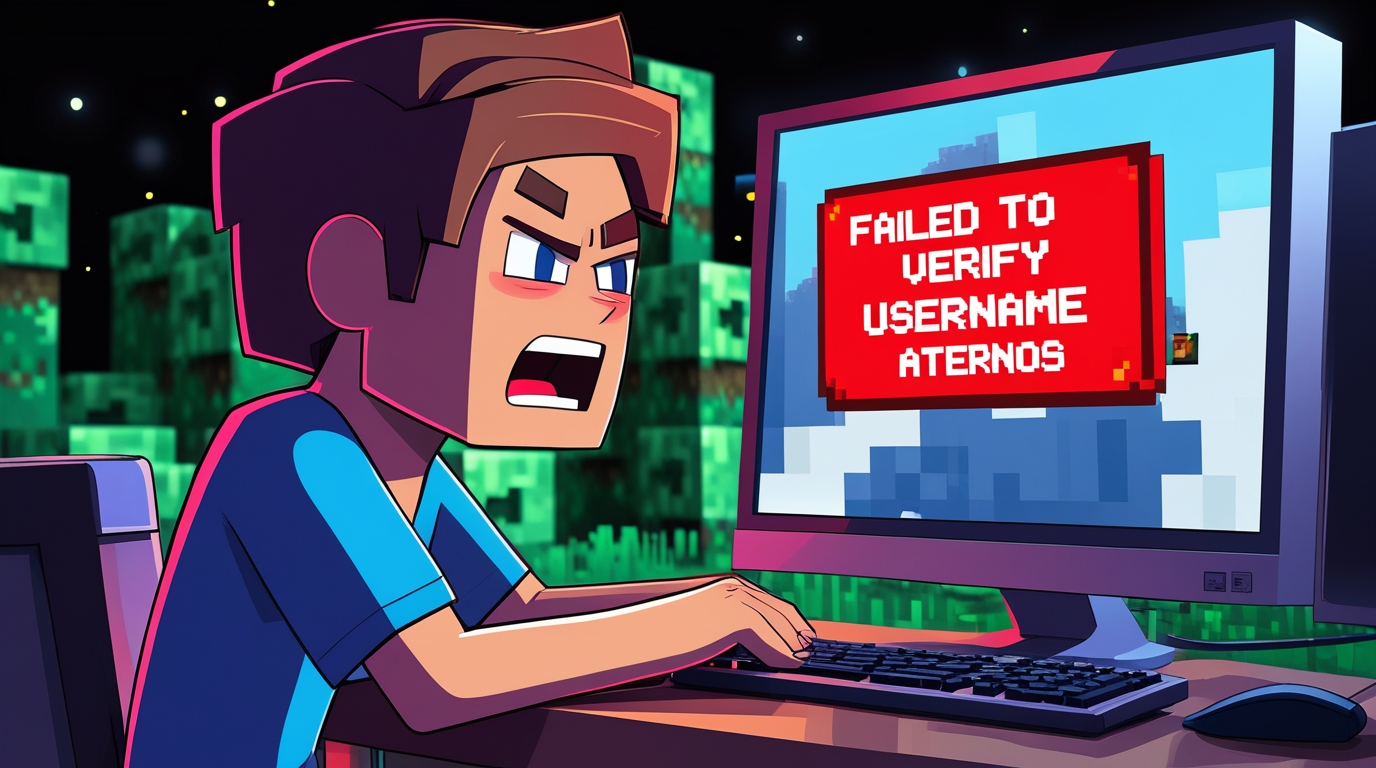
If you’ve ever tried to connect to your Aternos Minecraft server and been stopped cold by the error message failed to verify username Aternos, you know how frustrating it can be. This problem blocks entry, ruins play sessions with friends, and pops up at the worst possible time. In this full, detailed, USA-focused guide, we’ll break down everything — what this error means, why it happens, how to fix it, step-by-step troubleshooting, context from Minecraft accounts and Aternos servers, community tips, and a thorough Q&A section.
🔗 Official Resources (Download & Support)
Download Minecraft:
- Minecraft Java Edition (Windows/Mac/Linux): https://www.minecraft.net/en-us/download
- Minecraft Bedrock Edition (Windows 10/11 + Consoles/Mobile): https://www.minecraft.net/en-us/get-minecraft
Aternos Official Site:
👉 https://aternos.org
Minecraft Account Login / Microsoft Support:
👉 https://account.microsoft.com
These official links are essential — never download Minecraft or account tools from unverified third-party sites.
What Does Failed to Verify Username Aternos Mean?
When Aternos displays “failed to verify username Aternos”, it means your Minecraft client was not authenticated with the official Minecraft/Microsoft account servers before trying to join the Aternos server. Aternos relies on Mojang/Microsoft authentication to confirm that each player joining a server is using a legitimate account.
If the authentication fails, Aternos refuses the connection for security reasons, since allowing unverified players would create serious spoofing and cheating issues.
This error can surface even when:
- your internet is working
- you’re using the correct username
- your server was running before
That’s because there are several deeper network and authentication steps happening “behind the scenes.”
Why This Error Happens — Common Causes
The failed to verify username Aternos error occurs because the Minecraft authentication step between your client and Mojang/Microsoft servers didn’t complete or returned a failure. Common causes include:
1. Microsoft/Mojang Authentication Server Outage
Minecraft now uses Microsoft accounts. If the login/authentication servers are down or partially down, Aternos can’t verify.
2. Outdated Minecraft Launcher/Version
If your game version doesn’t match the account authentication requirement or is outdated, the login token may fail.
3. Incorrect Login Credentials / Token Expired
Even if you’re logged in locally, your session token with Microsoft can expire — leading to verification failure.
4. Internet or DNS Problems (Intermittent or Restricted)
Your device might be unable to reach the authentication servers due to:
- unstable Wi-Fi
- firewall restrictions
- ISP DNS resolution hiccups
5. Firewall / Antivirus Blocking Authentication Traffic
Windows Firewall or third-party antivirus can block the ports or domains needed for Minecraft authentication.
6. Aternos Server Configuration Issues
Sometimes the server itself has a setting that requires online authentication (the correct recommended setting), and mismatches cause failures.
7. Cached Authentication Corruption
Local cached login data can become corrupted, especially if you reinstall or update Minecraft without cleaning older data.
Step-By-Step Fixes for Failed to Verify Username Aternos
Below is a deep, ordered troubleshooting plan you can follow on Windows, Mac, or other platforms.
🛠 Solution 1 — Relaunch Minecraft & Re-Login to Microsoft
- Fully exit Minecraft.
(Close all Minecraft, launcher, and background related processes.) - Open the Minecraft Launcher.
- Check your account.
If your account is already logged in, sign out and then sign back in using your Microsoft account. - Accept all Microsoft login prompts (permissions, security checks).
- Start Minecraft and try reconnecting to your Aternos server.
👉 This resolves most issues when the token has simply expired or become inconsistent.
🌐 Solution 2 — Check Minecraft Version Matches Server
Aternos servers require the same Minecraft version as the client connecting.
- Open your Minecraft Launcher.
- Find the dropdown menu near the Play button.
- Select the exact version your Aternos server is running.
- If your server is running 1.20.x, ensure you select release 1.20.x exactly.
- Launch and try again.
Mismatch between client and server versions often leads to authentication and login failures.
📡 Solution 3 — Test Internet Stability
Authentication requires a stable connection to the Microsoft/Mojang and Aternos endpoints.
Check your connection
- Restart your router.
- Switch between Wi-Fi and mobile hotspot.
- Run a simple ping test:
ping mojang.com
Check DNS
If DNS is slow or unreachable, it can block authentication.
You can switch to a public DNS (safe options):
- Google DNS:
8.8.8.8and8.8.4.4 - Cloudflare DNS:
1.1.1.1and1.0.0.1
How to change DNS (Windows):
- Open Control Panel ➝ Network and Internet ➝ Network Connections.
- Right-click your active network and choose Properties.
- Select Internet Protocol Version 4 (TCP/IPv4) ➝ Properties.
- Choose Use the following DNS server addresses and input above values.
- Save and reconnect.
DNS problems often cause failed to verify username Aternos even when the internet “seems fine.”
🔥 Solution 4 — Check Firewall & Antivirus Settings
Sometimes the authentication traffic is blocked locally.
Windows Firewall
- Go to Start ➝ Windows Security.
- Click Firewall & network protection.
- Click Allow an app through firewall.
- Make sure Minecraft Launcher and Java (if using Java Edition) are allowed on both Private and Public networks.
Antivirus
If you use third-party antivirus (Norton, McAfee, Bitdefender, etc):
- Go to settings ➝ exclusions.
- Add Minecraft Launcher and javaw.exe (Java Edition) as exclusions.
After adjustments, restart your PC and try again.
🕹 Solution 5 — Clear Cached Login Data
Sometimes cached tokens or corrupted local data in your Minecraft profile break authentication.
Steps:
- Close Minecraft completely.
- Navigate to your Minecraft installation directory:
- On Windows:
C:\Users\[YourName]\AppData\Roaming\.minecraft - On Mac:
~/Library/Application Support/minecraft
- On Windows:
- Look for the
launcher_profiles.jsonfile (older versions may have separate login cache). - Rename it (e.g.,
launcher_profiles_backup.json). - Launch the Minecraft launcher again and log in fresh.
Make sure you have your Microsoft account email/password at hand.
🧪 Solution 6 — Try a Different Device
If you’re still seeing failed to verify username Aternos:
- Try logging in from another device (phone, tablet, laptop).
- If that works, the issue is likely local to your original device.
This helps isolate the problem.
🖧 Solution 7 — Server Settings in Aternos
Sometimes the server’s authentication setting is misconfigured. On Aternos:
- Go to your Aternos panel.
- Click Options.
- Confirm that Online Mode is enabled (recommended).
- Offline Mode usually disables authentication — but using it breaks login with valid Microsoft accounts.
- Save and restart your server.
Online Mode must remain enabled unless you’re intentionally running a modded offline server (not recommended for public play).
⚠ Advanced Troubleshooting
If none of the above worked:
Check with Aternos Support
Aternos has support pages and a community forum — sometimes there’s a broader outage:
👉 https://aternos.org
Check Minecraft / Microsoft Status
Occasionally, the Microsoft authentication servers experience partial outages that affect global login:
👉 https://support.xbox.com/en-US/live-status
Examine Your Login Region Setting
If your Microsoft account region is not USA (or inconsistent), it can sometimes cause authentication routing hiccups.
💡 Community Tips and Tricks
From Minecraft forums and Reddit threads (e.g., r/Minecraft, r/Aternos), players have shared helpful context:
Tip 1 — Log Out Everywhere
In your Microsoft account security settings:
- Choose Sign out everywhere
- Then re-login fresh
This wipes stale session tokens server-side.
Tip 2 — Use Wired Internet
Wireless can fluctuate. A stable wired connection during login helps.
Tip 3 — Avoid VPN for Login
While VPNs help privacy, they can trigger regions and break token exchange. Try turning it off during login.
Tip 4 — Update Time & Date
Make sure your system clock/time zone is correct. Authentication tokens rely on correct system time.
🧠 What Would Happen if Aternos Didn’t Verify Username?
Aternos uses verification to:
- Prevent username spoofing
- Authenticate true Minecraft accounts
- Maintain secure multiplayer
- Prevent griefing from fake players
If verification were skipped, anyone could impersonate a player or create unlimited accounts — bad for server integrity.
📌 How Authentication Works (Simple Explanation)
- You launch Minecraft and login via Microsoft.
- Microsoft confirms you are a valid user.
- You get a token.
- That token is sent when you join a server.
- Aternos checks the token with Microsoft.
- If valid, you join; if not, you get failed to verify username Aternos.
🧰 Tools and Utilities Worth Knowing
📍 Minecraft Launcher
Always use the official launcher from https://minecraft.net
It ensures proper authentication channels.
📍 Microsoft Account Portal
Fix login issues here: https://account.microsoft.com
📍 Firewall/Antivirus Logs
If login fails repeatedly, check logs for blocked connections.
🧑💻 Real-World Scenarios & Fix Examples
🎮 Scenario: Works on Wi-Fi, Fails on Mobile Hotspot
Solution: Likely DNS or ISP routing issue — try public DNS (1.1.1.1, 8.8.8.8).
🎮 Scenario: Minecraft Updated but Token Old
Solution: Re-login, clear launcher cache, relaunch.
🎮 Scenario: Server Start Always Shows This Error
Solution: Confirm Online Mode in server config and restart.
🧪 Testing Your Fix
Here’s a simple checklist to confirm you resolved the issue:
✅ Close Minecraft and restart your device
✅ Clear launcher cache / re-login
✅ Verify correct Minecraft version
✅ Confirm online mode on Aternos
✅ Test on alternate network
✅ Disable VPN temporarily
✅ Ensure firewall allows authentication traffic
If each step passes and login still fails, the root cause is often external — server or Microsoft authentication outage — in which case waiting a bit and trying again helps.
Comprehensive Q&A — Failed to Verify Username Aternos
Q1 — What exactly does “failed to verify username Aternos” mean?
It means Aternos couldn’t confirm that your Minecraft client’s username had been validated with Microsoft/Mojang authentication servers. Without this verification, Aternos blocks the login.
Q2 — Is this a problem with my server?
Not usually. This error is about your login token. The server’s config (Online Mode) needs to be correct, but most often the issue is on the client side or authentication traffic path.
Q3 — Does this affect cracked/offline Minecraft accounts?
Yes. If you’re using a non-legitimate or “cracked” account, authentication will always fail because Aternos requires valid Minecraft/Microsoft credentials.
Q4 — Will this happen if the Minecraft authentication servers are down?
Absolutely. If Microsoft/Mojang login servers are partially down, all login tokens may fail, leading to this error.
Q5 — Can a VPN cause this issue?
Yes. VPNs can change routing or regions, causing Microsoft authentication tokens to fail or time out. Try disabling the VPN during login.
Q6 — Do I need to reinstall Minecraft to fix this?
Not usually. It’s better to re-login, clear cache, check versions and network before considering a full reinstall.
Q7 — How do I update my Minecraft launcher?
Open the launcher — it auto-updates when a new version is released. Ensure you’re on the latest stable build.
Q8 — Can my antivirus block username verification?
Yes. Some antivirus programs can block outbound connections necessary for authentication. Add Minecraft and your launcher to antivirus exceptions.
Q9 — Why does Xbox/Microsoft account matter here?
Minecraft Java accounts now use Microsoft accounts for authentication. Tokens come from Microsoft, which Aternos checks.
Q10 — What if I can’t log into my Microsoft account at all?
Visit https://account.microsoft.com to reset passwords, fix account issues, and verify your login credentials before trying Minecraft again.
🔥 Related Posts

Dinosaur Game — the complete fan’s guide (2025)

How To Make a Free Minecraft Server Using Aternos — Complete 2025 Guide

The Ultimate Guide to Minecraft Skins: Customization, Downloads, Editors & Safety Tips

Minecraft Online Unblocked: The Complete 2025 Guide to Playing Anywhere

The Ultimate Guide to the Super Mario Galaxy Movie: Story, Worlds, Characters & Everything Fans Are Talking About