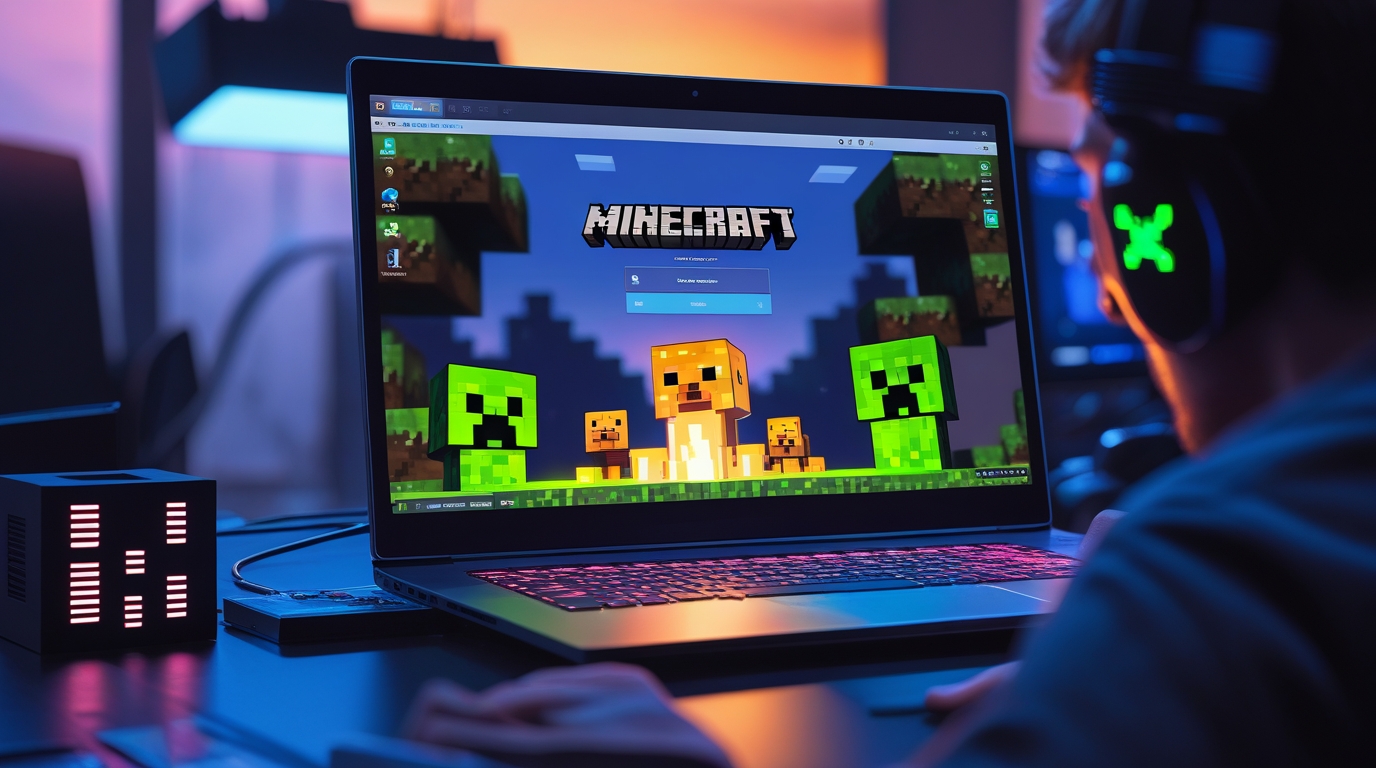
If you’re trying to get started with Minecraft or manage multiple versions of the game, understanding the Minecraft launcher is essential. The launcher is your gateway to Java Edition, Bedrock Edition, Minecraft Dungeons, and more — and having a solid grasp of how it works, how to install it, and how to fix common issues can save you a lot of time and frustration.
Here’s a full breakdown: what the Minecraft launcher is, how to download and install it, how to troubleshoot, and best practices for managing your Minecraft installs.
What Is the Minecraft Launcher?
The Minecraft launcher is the official application developed by Mojang Studios that lets you download, launch, and manage different versions of Minecraft on your computer. Rather than needing separate installers for Java or Bedrock, the launcher brings everything together — making updates, profiles, and game management far simpler.
With the launcher, you can:
- Access Java Edition, Bedrock Edition, Minecraft Dungeons, and other Minecraft titles.
- Create and switch between multiple installations or profiles, including snapshots, modded versions, or older releases.
- View the latest news and patch notes from Mojang directly within the launcher.
- Manage account settings, including Microsoft account logins, and access offline mode if needed.
Originally, Minecraft had separate launchers, but the “new” unified launcher is now the standard for modern users across Windows, macOS, and Linux.
Why Use the Official Launcher?
Using the official Minecraft launcher has several advantages:
- Security & Trust – Getting the launcher from Mojang or Microsoft ensures you’re using a safe, legitimate source.
- Version Management – Easily switch between vanilla, snapshot, or modded versions.
- One App for Many Games – Manage Java, Bedrock, Dungeons, and more from a single interface.
- Auto-Updates – The launcher handles updates and notifies you of new versions.
- Account Integration – Thanks to the Microsoft account migration, management is simpler (when working correctly).
How to Download and Install the Minecraft Launcher
1. Go to the Official Minecraft Website
- Navigate to the Minecraft download page on minecraft.net.
- Choose the correct version: Windows, macOS, or Linux.
2. Download the Launcher
- Click the “Download Launcher” button for your platform.
- On Windows, you also have the option to download via Microsoft Store.
- Save the installer to your computer.
3. Install the Launcher
- Windows: Run the
.exeor install from the Microsoft Store. - macOS: Open the
.dmgfile, drag the launcher to the Applications folder. - Linux: Use the provided package or supported distribution method (if available).
4. First Launch
- Open the launcher.
- Sign in with your Microsoft account (Mojang accounts have been migrated).
- Once logged in, the launcher will fetch your game licenses (Java, Bedrock, etc.) and show everything you own.
Navigating the Launcher Interface
When you open the Minecraft launcher, you’ll typically see:
- News tab: Latest updates, events, and snapshots.
- Play tab: Where you launch the game.
- Installations / Profiles: Manage different versions of Minecraft — vanilla, snapshot, modded.
- Settings / About: Update the launcher, set your language, adjust accessibility, and more.
Installations deserves special mention: you can create custom profiles, name them, choose which version of Minecraft to run, specify the game directory, and even set the window resolution.
How to Update Minecraft via the Launcher
Keeping Minecraft up to date is essential, and the launcher makes it pretty straightforward:
- Open the launcher.
- In the Play tab, ensure the installation is set to “Latest Release.” Minecraft.net
- If a new version is available, the launcher will download it for you.
- If you’re using snapshots, make sure “Show snapshots” is enabled in your installation settings so you can access experimental builds.
Using the Launcher for Multiple Minecraft Editions
One of the biggest strengths of the Minecraft launcher is its support for multiple Minecraft versions:
- Java Edition: Fully supported via the launcher. You can switch versions, run snapshots, and manage profiles.
- Bedrock Edition (Minecraft for Windows): The launcher supports Bedrock on Windows 10/11.
- Third-Party Titles: In some cases, launcher also supports Minecraft Dungeons, Minecraft Legends, etc., depending on your account and what’s installed.
If you own one edition (say Java), you may be eligible for the other. Microsoft has offered the Java + Bedrock bundle for buyers, and sometimes players who own Java can get Bedrock for free via the launcher.
Troubleshooting Common Minecraft Launcher Issues
Even with the official launcher, you might run into problems. Here are some frequent issues and how to fix them, based on real user reports and official guidance.
Problem: Launcher Doesn’t Open / Crashes
- On macOS, some users report the launcher fails to open after installing: “It tells me to drag it into Applications, but when I try to open it … nothing.”
Fixes: Check permissions, make sure you downloaded the macOS-specific version, and try running it directly from Applications folder.
Problem: Sign-In Errors
- After migrating to a Microsoft account, some users see login errors or “Play Trial” when they own the game.
Fixes:- Log out, restart the launcher, and try logging back in.
- Confirm that you’re using the correct Microsoft account tied to your Minecraft license. Some players who migrated from Mojang to Microsoft account had mismatches.
- Reinstall the launcher if needed.
Problem: “Play Demo” or “Buy the Game” Despite Owning It
- Several users report that despite owning Java or Bedrock, the launcher only offers a demo: “It regularly tells people … when they already own …”
Fixes:- Double check your account license on your Microsoft / Mojang account dashboard.
- If the problem persists, installing the legacy Java launcher might help. Some suggest it’s more stable.
- For Windows users, another fix is to reinstall the launcher via Microsoft Store or from the official site.
Problem: Cannot Update / Download Launcher
- There may be issues when trying to get the correct version: “Download for Mac … button doesn’t work.”
Fixes:- Use a different browser to download the installer.
- Turn off antivirus or firewall temporarily: some users found their AV blocked the download.
Advanced Tips & Features
Here are some advanced or lesser-known things you can do with the Minecraft launcher:
Create Multiple Installations / Profiles
- Use the Installations tab to set up different profiles:
- Name them (e.g., “Snapshot Testing,” “Forge Modded,” “Vanilla Old Version”)
- Choose which version of Minecraft to run
- Set a different game directory so your worlds and mods are organized
- Specify window resolution (helpful for performance)
Run Snapshots and Pre-Releases
- Snapshots are early versions of upcoming updates.
- Enable “Show snapshots / pre-releases” in your installations.
- This is great for testers, modders, or just curious players who want early access.
Use Offline Mode
- The launcher supports offline play, but only if you have successfully launched the game while online at least once. minecraft.wiki
- Useful for travel or when your internet connection is spotty.
Manage Multiple Games
- The launcher supports Java, Bedrock, Dungeons, and potentially other Minecraft titles, making it a central hub.
- You can switch between them in the launcher without needing separate shortcuts.
Security & Account Best Practices
Since the Minecraft launcher ties into your Microsoft / Mojang account, security is crucial:
- Use a strong, unique Microsoft password.
- Enable two-factor authentication (2FA) on your Microsoft account if possible.
- Make sure you download the launcher only from official sources: the Minecraft website or Microsoft Store. Minecraft.net+1
- If using mods, always backup your
.minecraftfolder before making major changes — corrupted mods or versions can break things.
Alternatives to the Official Launcher
While the official Minecraft launcher is powerful, some players use alternative launchers, especially for modding or custom setups:
- minecraft-launcher-lib: A Python library and framework for launching Minecraft versions, mods, and custom game directories. Good for developers. minecraft-launcher-lib+1
- Third-party launchers: Other community-made launchers like MultiMC, GDLauncher, or Lunar Client — often used by modders and power users. (Note: third-party launchers carry their own risks and should be used carefully.)
When to Use the Legacy Launcher
Some players still prefer or need the older (“legacy”) Minecraft Launcher:
- It may be more stable for Java-only players. Several users report fewer login issues and crashes.
- However, the legacy launcher does not support Bedrock Edition.
- If you choose to use the legacy version, uninstall the new launcher first to avoid conflicts.
Tips to Improve Launcher Performance
- Install the launcher on an SSD if possible — it helps with load times.
- Close background apps (especially heavy ones) while launching Minecraft, particularly if you’re running a snapshot or modded profile.
- Make sure your graphics drivers and Java (if using Java Edition) are up to date for smoother performance.
Recent Updates & What’s Coming
- Mojang introduced a beta version of the new launcher some time back to test future features. Minecraft.net
- The launcher is periodically updated; you can check the “About” or “Settings” tab to see if you’re on the latest version. Minecraft.net
- With Minecraft expanding (e.g., Minecraft Live, new editions), the launcher is likely to continue evolving as a hub for all official Minecraft products. minecraft.wiki
When to Contact Support
You might need to reach out to Mojang Support / Microsoft when:
- You own Minecraft (Java or Bedrock), but the launcher says you don’t.
- You’ve converted your account from Mojang to Microsoft and things aren’t matching up.
- The launcher won’t install properly on your machine (especially reported on macOS).
- You’ve tried restarting, reinstalling, and updating, but your account or game doesn’t show up correctly.
Use the official Minecraft Help Center or Microsoft’s support channels to report issues.
🔥 Related Posts

Sprunki Scratch: The Ultimate Guide to the Creative Music-Mixing Experience
Minecraft Unblocked — Honest, Safe, & Real Information for U.S. Players Looking for Online Access in 2025
Stardew Valley Wiki – The Ultimate 2025 Player’s Guide (Full Breakdown, Tips, Links & More)
Minecraft Servers – The Ultimate Guide for Joining, Hosting & Choosing the Right One
Doodle Champion Island Games – A Deep Dive Into Google’s Epic Olympic Doodle RPG