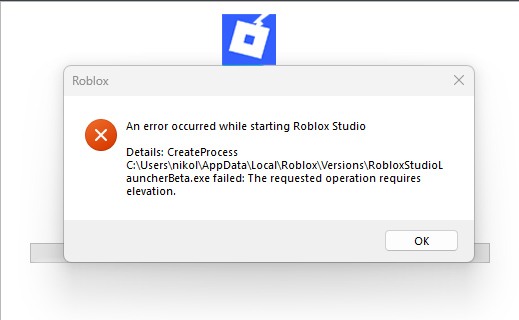
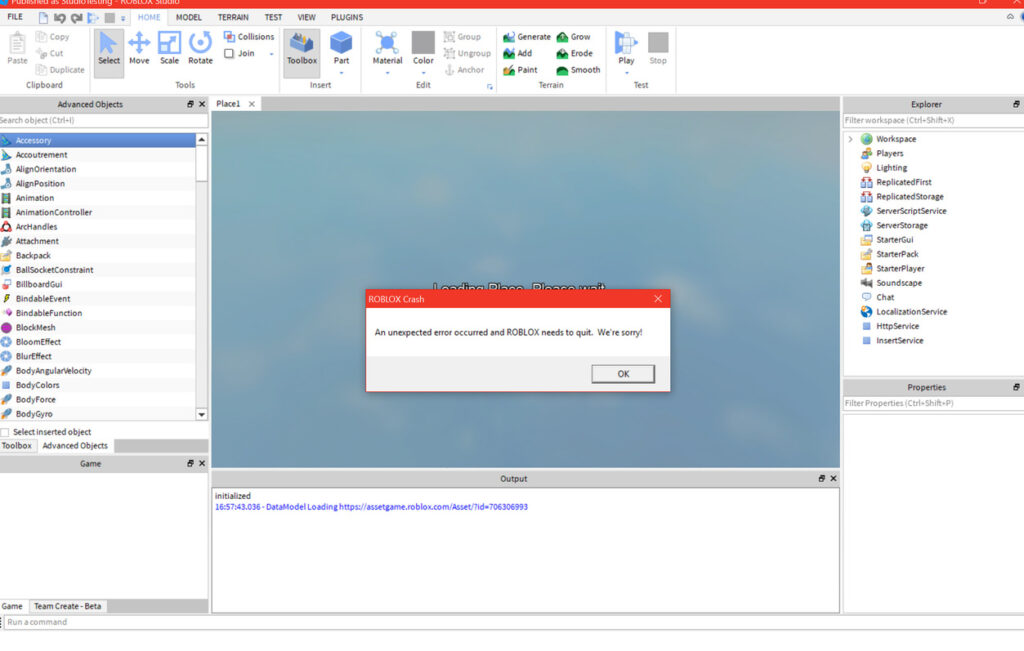
Roblox Studio crashing is one of the most frustrating problems for developers, especially beginners who are still learning how to build games. Whether Studio closes suddenly, freezes while opening a place, crashes during playtesting, or stops responding while editing scripts, these issues can interrupt work and cause data loss if projects are not saved properly. In recent years, Roblox Studio has become more powerful, but that also means it relies heavily on system resources, drivers, and stable software environments.
Crashes can happen for many reasons. Some are related to outdated graphics drivers, while others are caused by corrupted Studio files, heavy assets, plugin conflicts, or system memory limits. In some cases, the issue isn’t Roblox Studio itself but the computer it’s running on. The good news is that most Roblox Studio crashes are fixable without advanced technical knowledge.
Common Reasons Roblox Studio Crashes
Roblox Studio crashes rarely have a single cause. Most problems come from a mix of software, hardware, and project-level issues.
One common reason is graphics driver problems. Roblox Studio relies heavily on GPU rendering, and outdated or incompatible drivers often cause sudden crashes or freezes.
Another frequent cause is high memory usage. Large maps, unoptimized models, high-resolution textures, and many scripts running at once can push Studio beyond what a low- or mid-range PC can handle.
Corrupted Studio files can also trigger crashes, especially after interrupted updates or system shutdowns.
In addition, plugins sometimes conflict with newer Studio updates, causing instability during editing or saving.
Finally, background applications and system settings can interfere with Studio’s performance, especially on Windows systems with limited RAM.
Step 1: Restart Roblox Studio and Your PC
Before making deeper changes, restart Roblox Studio and your computer. Temporary memory issues or background conflicts can sometimes cause one-time crashes that disappear after a clean restart.
After restarting, open Roblox Studio again and test with a simple empty baseplate. If Studio works normally, the issue may be project-specific rather than system-wide.
Step 2: Update Graphics Drivers
Outdated graphics drivers are one of the top causes of Roblox Studio crashing.
Make sure your GPU drivers are fully up to date. Even if Windows reports your drivers are current, manual updates often provide better compatibility with game engines like Roblox Studio.
After updating, restart your PC and test Studio again. Many crash issues disappear immediately after a driver update.

Step 3: Update or Reinstall Roblox Studio
Running an outdated or corrupted version of Roblox Studio can lead to repeated crashes.
Open Roblox Studio and check for updates. If Studio crashes before fully opening, reinstalling is the safest option. Uninstall Roblox Studio completely, restart your system, and install a fresh version.
A clean reinstall replaces damaged files and resets Studio components that may be causing instability.
Step 4: Disable Problematic Plugins
Plugins add powerful features, but they can also cause crashes if they are outdated or incompatible.
Open Roblox Studio and temporarily disable all plugins. Restart Studio and test performance. If crashes stop, re-enable plugins one by one until you find the one causing the issue.
Once identified, remove or replace the plugin permanently.
Step 5: Reduce Project Load
If Roblox Studio crashes only when opening a specific project, the project itself may be too heavy.
Large maps, detailed meshes, high-resolution textures, and excessive scripts increase memory usage. Try opening the project with fewer assets enabled or remove unnecessary models.
Using simpler lighting settings and optimizing scripts can significantly reduce crash frequency, especially on low-end systems.
Step 6: Run Roblox Studio as Administrator
Permission issues can sometimes cause crashes, especially when Studio tries to access system resources or save files.
Running Roblox Studio as an administrator can resolve these conflicts. This step is simple and often overlooked, yet effective for certain crash scenarios.
Step 7: Check System Requirements and Free Up RAM
Roblox Studio requires more resources than playing Roblox games. If your system is close to minimum requirements, crashes may occur frequently.
Close unnecessary background applications before launching Studio. Browsers, recording software, and heavy apps consume RAM and CPU resources that Studio needs.
If possible, increasing available RAM or freeing disk space can improve stability.
Step 8: Check for Script Errors
Severe script errors or infinite loops can crash Studio during playtesting.
If Studio crashes when clicking Play, review recent script changes. Comment out suspicious code and test again. Fixing problematic scripts often restores stability instantly.
Step 9: Disable Overlays and Screen Recorders
Overlays from screen recorders, performance monitors, or communication apps can interfere with Roblox Studio’s rendering.
Temporarily disable overlays and test Studio. Many users find crashes stop once overlays are turned off.
Step 10: Save Work Frequently and Use Auto-Save
Even with fixes applied, crashes can still happen occasionally.
Enable auto-save and save your work manually every few minutes. This doesn’t stop crashes, but it prevents major progress loss when they happen.
When Crashes Keep Happening
If Roblox Studio continues crashing after all fixes, the issue may be related to hardware limitations or deeper system conflicts. In such cases, using simpler projects, lowering Studio settings, or working on smaller test environments can help until the root cause is resolved.
FAQ
Why does Roblox Studio crash when opening a place?
This usually happens due to heavy assets, corrupted files, or insufficient system memory.
Can plugins cause Roblox Studio to crash?
Yes, outdated or incompatible plugins are a common cause of crashes.
Does reinstalling Roblox Studio delete my projects?
No, projects saved to Roblox or local files remain safe.
Why does Studio crash only during Play mode?
This often indicates script errors, infinite loops, or heavy runtime processes.
Is Roblox Studio harder to run than Roblox games?
Yes, Studio uses more system resources than normal gameplay.
Can low-end PCs run Roblox Studio?
Yes, but crashes are more likely without optimization and lighter projects.
Roblox Studio crashing can slow down development and cause frustration, but most crashes are caused by fixable issues like outdated drivers, heavy projects, plugins, or system limitations. By updating drivers, reinstalling Studio, disabling problematic plugins, optimizing projects, and managing system resources, developers can significantly improve stability. With the right setup and habits, Roblox Studio can run smoothly and allow creators to focus on building rather than troubleshooting.
🔥 Related Posts
Roblox Ban Appeal Process 2026 – How It Works
How to Get Free Roblox Accounts: The Ultimate Guide for Gamers in the United States

Roblox.com Download PC 2026: Safe Install Guide, System Specs & Fixes for Windows 11/10

Roblox Developer Earnings Decline Discussion – Why Players Are Complaining
Roblox Executor: Unlocking the Full Potential of Your Roblox Experience