Roblox voice chat echo has become one of the most common communication frustrations players are talking about in 2026. The echo problem happens when voices loop back, remain amplified, or create distracting feedback that makes real-time chatting during games difficult. Since Roblox voice chat is used widely in social games, role-play experiences, and team-based gameplay, an echo can quickly turn fun group sessions into chaotic audio messes.
Voice chat echo is not unique to Roblox—many online platforms experience similar issues—but the way Roblox integrates voice features with different devices, hardware settings, and network conditions sometimes makes the problem more pronounced here. Players on PC, mobile, and consoles have all reported echoing voices in different scenarios, and the causes vary from hardware misconfiguration to app permissions, network latency, and internal game audio settings.
In this comprehensive guide, we’ll explore exactly what causes the Roblox voice chat echo problem, how it manifests across devices, and most importantly—how you can fix it step by step with real solutions that work in 2026. Whether you’re a casual player or relying on voice chat for team strategies, this post will help you resolve echo issues and get back to clear communication.
Why the Roblox Voice Chat Echo Happens
Roblox voice chat echo is typically caused by audio feedback loops. A feedback loop happens when sound output (your voice or another player’s) is picked up by a microphone and re-sent back into the chat, creating that repeating, reverberating effect. Although this happens in many voice systems, the way Roblox’s audio settings, device configurations, and network conditions interact can trigger echo more often than players expect.
There are four primary sources of echo:
- Microphone and Speaker Proximity – When your mic picks up sound from your speakers or headphones.
- Device Audio Settings – System and app audio settings that cause audio to loop internally.
- Network and Latency – Delays and packet timing can cause delayed re-transmission of audio.
- In-Game Audio Conflicts – Roblox experiences where voice chat and sound effects interfere with each other.
Understanding these causes helps you apply the correct fix instead of guessing and hoping for the best.
Common Echo Scenarios in Roblox Voice Chat
Roblox voice chat echo can show up in different ways depending on how you play:
Scenario 1: Echo on PC with External Speakers
If your microphone is sensitive and your speakers are loud, your mic may pick up output audio and send it back into the voice chat, creating an echo loop.
Scenario 2: Echo with Headsets
Even some headsets experience echo when the mic and sound output interfere due to hardware drivers or poor noise cancellation.
Scenario 3: Echo Only in Certain Games
Some Roblox experiences mix audio differently, causing voice chat audio to loop when combined with background sound effects.
Scenario 4: Echo After a Roblox Update
Updates to voice code or audio engine changes may temporarily increase echo issues until settings, drivers, or app caches are refreshed.
Each scenario requires a slightly different approach to fix effectively.
Step 1: Use Proper Headset Setup
The most reliable way to avoid echo is proper audio hardware setup:
Use a Headset Instead of Speakers
Speakers broadcast sound into the environment, which your mic can re-capture. A good headset isolates sound and prevents feedback.
Check Mic Positioning
If you use a standalone mic, position it away from your speakers and your mouth at a slight angle rather than directly in front.
Enable Noise Suppression Features
Many headsets and sound drivers include noise suppression or “mic sidetone” adjustments. Disabling sidetone (which sends your voice back into your own headset) can prevent echo perception.
Correcting your hardware setup dramatically reduces echo in most cases.
Step 2: Adjust System Audio Settings
Audio settings at the operating system level can cause or exacerbate echo:
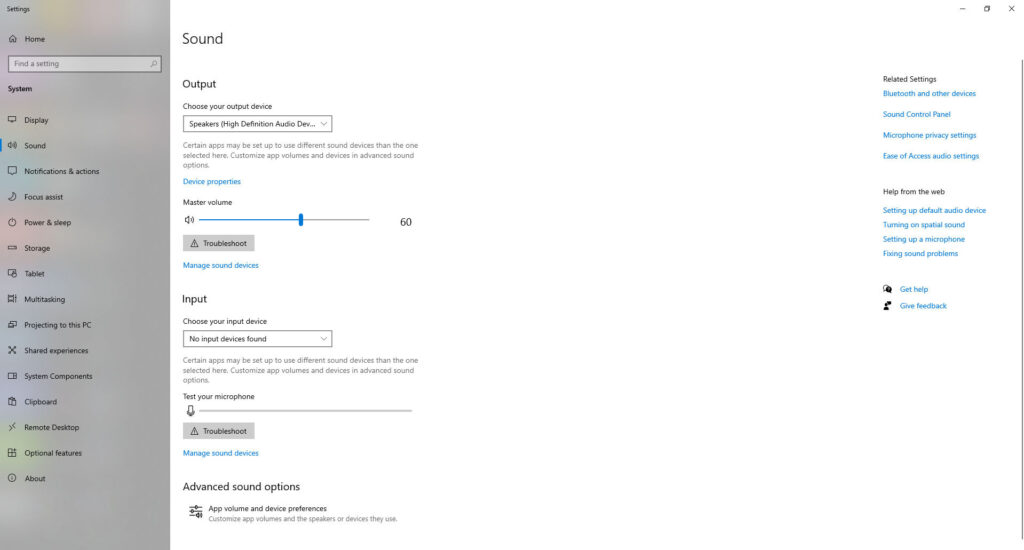
Windows 11 Sound Settings
- Open Settings → System → Sound.
- Under Input, select your microphone and go to Device Properties.
- Turn off Enable audio enhancements (or similar options) that may loop audio.
- Under Advanced, ensure sample rates match (e.g., 48000 Hz) for both input and output.
- Disable Listen to this device if it’s enabled—this sends mic input to speakers, causing echo.
macOS Audio Settings
- Go to System Settings → Sound.
- Choose your microphone and output device separately to avoid internal feedback.
- Avoid aggregate devices that route audio through multiple paths.
Mobile Audio Settings
On iOS and Android, ensure that Bluetooth audio routing doesn’t duplicate mic audio back into output, which can trigger echo.
These settings help standardize how sound enters and exits your device, eliminating system-level loops.
Step 3: Refresh Roblox Voice Chat Permissions
Improper permissions can cause Roblox to receive audio incorrectly:
On PC
- Go to Settings → Privacy & Security → Microphone.
- Ensure Roblox is allowed to access the microphone.
- Disable other apps that may access the mic simultaneously (Discord, Zoom, etc.).
On Mobile (iOS/Android)
- Open Settings → Privacy → Microphone.
- Make sure Roblox has access.
- Turn off microphone access for background apps to avoid interference.
On Console
Check system voice permissions and party chat settings. Echo can occur if system voice is routed through multiple layers.
Refreshing permissions forces Roblox to reinitialize audio paths, often eliminating echo.
Step 4: Reset In-Game Voice Audio Settings
Roblox includes voice audio options that may need refreshing:
- Open Roblox Settings → Audio.
- Toggle Voice Chat off and back on.
- Reset Microphone Volume and Output Volume sliders.
- Switch Voice Mode (if available) between Default, Headphones, and Stereo.
Changing these settings forces Roblox to reload audio configurations and clear possible cache issues that cause echo.
Step 5: Update Audio Drivers and Software
Outdated or corrupted audio drivers create inconsistent behavior and feedback during real-time voice communication:
Windows PC
- Update drivers through Device Manager → Sound, video and game controllers.
- Use your audio chipset manufacturer’s updater for Realtek, Synaptics, or USB audio devices.
macOS
- Keep the system updated. Apple bundles audio drivers in system updates.
Mobile
- Update the OS and Bluetooth firmware (if applicable). Bluetooth headsets with old firmware sometimes echo.
Updated drivers often resolve audio synchronization problems that cause echo loops.
Step 6: Close or Mute Conflicting Audio Apps
Running multiple voice or communication apps alongside Roblox can create feedback loops:
- Close Discord, Teamspeak, Skype, Zoom, and similar apps while playing.
- Disable in-game voice apps, overlay voice chat, or headset companion software.
- Ensure that only one app controls audio input and output at a time.
Conflicting audio streams can create echo paths that are hard to diagnose but straightforward to fix when you simplify audio usage.
Step 7: Test with a Different Voice Output Path
Echo sometimes only happens through one output device:
- Try switching from headphones to speakers, or vice versa.
- Test with a different headset or USB vs. 3.5mm connection.
- If you use USB audio, try the analog port or a USB DAC.
This helps isolate whether echo is caused by hardware, USB latency, Bluetooth interference, or driver pathways.
Step 8: Network and Latency Considerations
Although less common, network conditions can cause delayed audio loops that feel like echo:
- Connect via stable Wi-Fi or Ethernet to reduce jitter.
- Avoid network congestion during voice chat.
- If using VPNs or proxies, temporarily disable them while testing.
Network-induced audio artifacts can mimic echo when audio packets arrive out of sync.
Step 9: Temporarily Disable Roblox Audio Enhancements
Roblox sometimes includes in-game audio enhancements that affect how environmental sounds and chats mix:
- Open Roblox Settings → Audio.
- Turn off 3D Sound, Reverb, or Spatial Audio (if toggles are present).
- Restart the game.
Spatial sound systems sometimes miscalculate voice positioning, leading to feedback that resembles echo.
Step 10: Reinstall Roblox (Last Resort)
If none of the above steps work, reinstalling Roblox resets all cached settings:
On PC
- Uninstall through Control Panel → Apps.
- Delete residual folders in AppData/Roaming and Local.
- Restart and reinstall from the official Roblox app.
On Mobile
- Uninstall the Roblox app.
- Restart the device.
- Reinstall from the official app store.
On Console
- Uninstall Roblox.
- Restart the console.
- Reinstall from the store.
Reinstallation clears inconsistency caused by corrupted audio configuration files.
Why Some Players Still Experience Echo Post-Patch
Even after following these steps, a small number of players may still experience echo. In 2026, Roblox continues to refine its voice chat system, and certain systemic issues—such as unexpected audio driver interactions or device firmware bugs—require platform-level fixes from Roblox Corporation or device manufacturers. Players should report persistent cases through official support channels with logs and detailed descriptions.
How to Report Voice Chat Echo to Roblox Support
When reporting, include:
- Your device model and OS version.
- Roblox client version.
- Steps that reproduce the echo.
- Whether it happens in all games or only specific ones.
- Audio hardware (headset model, USB/analog, Bluetooth).
Clear reports help developers pinpoint and fix underlying issues faster.
Also Read: Roblox Developer Earnings Decline Discussion – Why Players Are Complaining
FAQ
Why does my voice echo only when others talk?
This can happen if your mic picks up speaker output or if another player’s mic is too sensitive.
Does Bluetooth cause more echo?
Bluetooth audio has more latency, which can worsen perceived echo.
Is echo a bug or configuration issue?
Echo may be both: configuration issues on your device and systemic voice chat handling can combine.
Does Roblox spatial audio affect echo?
Yes. Some spatial systems can misplace voice cues and loop audio incorrectly.
Will Roblox fix this in updates?
Yes—ongoing vocal feedback in 2026 has prompted hotfixes and future improvements.
Is echo the same as lag?
No. Lag delays audio; echo is feedback of the original audio looping back.
Roblox voice chat echo problems in 2026 are annoying but usually fixable with a few targeted steps. Most echo issues stem from hardware configuration, audio settings, or conflicting software. By using a proper headset, adjusting system and in-game settings, refreshing permissions, updating drivers, and testing different output paths, most players can eliminate echo entirely. For persistent cases, reporting detailed information to support helps Roblox refine its voice systems further. Clear communication makes group gameplay more fun and ensures voice chat remains a reliable part of your Roblox experience.
🔥 Related Posts
BTRoblox Extension Problem Fixed: Easy Solutions Guide

Roblox News: The Ultimate 2025 Update Hub for Players, Creators & Developers

How to Create a Roblox Account Step by Step (Complete Beginner Guide)
Brookhaven Roblox: The Ultimate Guide to the Most Popular Life-Simulation Game on Roblox

Is Roblox Shutting Down? Here’s the Truth