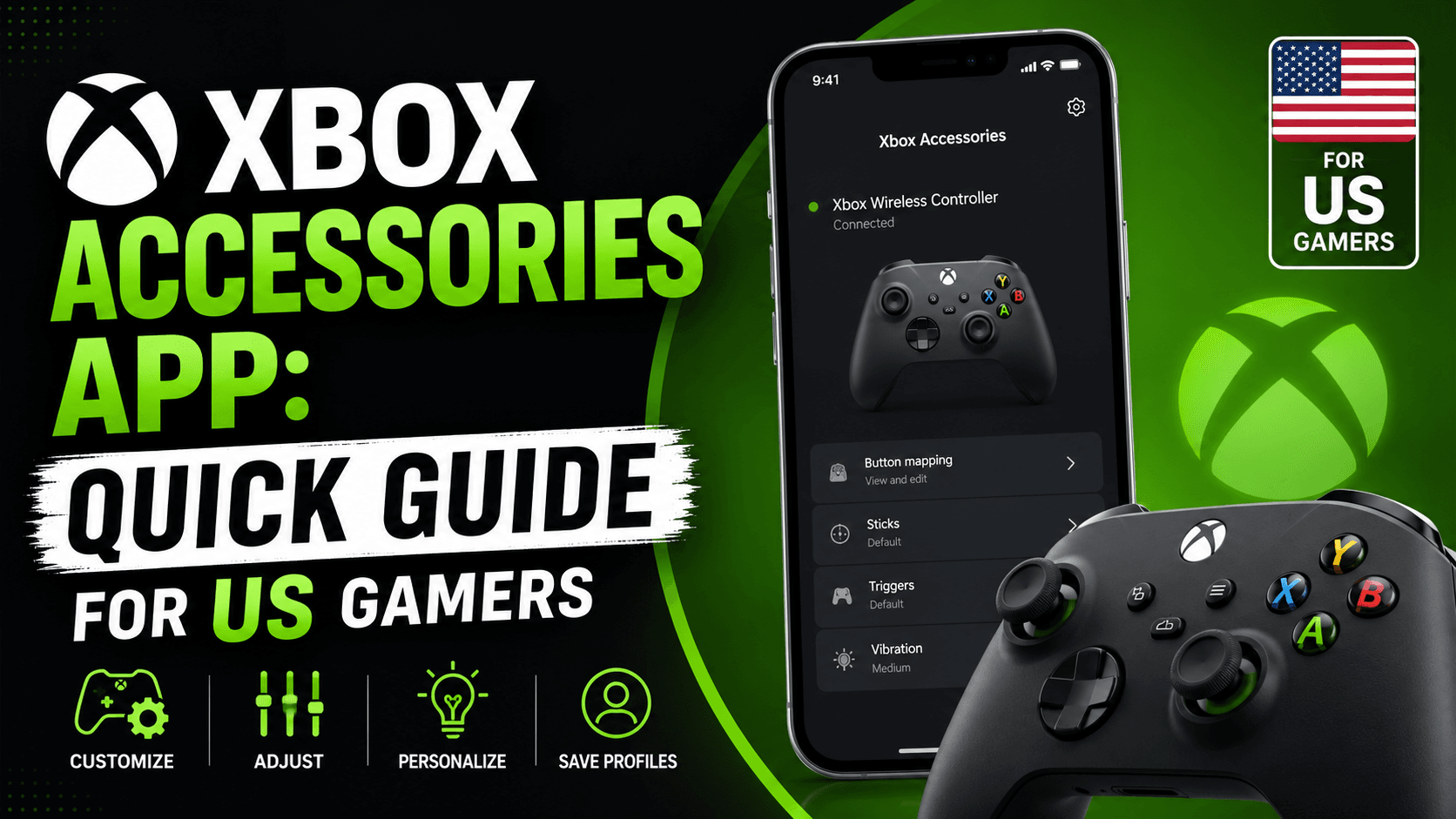
Most Xbox players connect a controller and start playing right away. That works fine. But if you want smoother controls, updated firmware, custom button layouts, or a better setup for competitive games, the Xbox Accessories App is one of the first tools you should install or open.
The Xbox Accessories App is made for managing Xbox controllers and select Xbox hardware. It lets you update controller firmware, remap buttons, create profiles, and adjust settings depending on the controller you own. Microsoft lists the app as a free download through the Microsoft Store, and Xbox Support explains that it can be used on Xbox consoles and Windows PCs.
This guide explains what the Xbox Accessories App does, who should use it, how it works with Xbox Game Pass, and how to fix common problems.
Quick Overview: Xbox Accessories App
| Feature | Details |
|---|---|
| App name | Xbox Accessories App |
| Main use | Manage Xbox controllers and compatible accessories |
| Cost | Free |
| Platforms | Xbox console and Windows PC |
| Best for | Controller updates, button remapping, profiles, Elite controller settings |
| Works with Game Pass? | Yes, indirectly. It improves your controller setup for games you play through Xbox Game Pass |
| Official store | Microsoft Store |
| Common search name | Xbox controller app, Xbox Accessories App, Xbox pass controller app |
What Is the Xbox Accessories App?
The Xbox Accessories App is Microsoft’s official app for customizing and maintaining Xbox controllers and some Xbox accessories.
It is not the same thing as the Xbox app for PC. The Xbox app is mainly for browsing games, downloading PC games, joining parties, and accessing Xbox Game Pass. The Xbox Accessories App is focused on hardware.
With the Xbox Accessories App, you can do things like:
| What You Can Do | Why It Matters |
|---|---|
| Update controller firmware | Helps keep your controller working properly with Xbox consoles, Windows PCs, and supported devices |
| Remap buttons | Useful for comfort, accessibility, and competitive gameplay |
| Create controller profiles | Save different setups for shooters, racing games, sports games, or casual play |
| Configure Elite controller settings | Adjust deeper settings such as stick sensitivity and custom profiles |
| Manage Adaptive Controller inputs | Helpful for accessibility-focused gaming setups |
| Adjust certain accessory settings | Some Xbox accessories can be updated or configured through the app |
Xbox Support lists features such as remapping buttons, unmapping buttons, updating controller firmware, and adjusting stick settings through the app.
Xbox Accessories App vs Xbox App vs Xbox Game Pass
Many users search for “Xbox app,” “Xbox Accessories App,” and “Xbox pass” as if they are the same thing. They are connected, but they are not the same.
| Tool or Service | Main Purpose | Best Used For |
|---|---|---|
| Xbox Accessories App | Controller and accessory settings | Updating controllers, remapping buttons, changing profiles |
| Xbox App on Windows | PC gaming hub | Downloading games, chatting with friends, launching PC games |
| Xbox Game Pass | Game subscription service | Playing a rotating library of console, PC, and cloud games |
| Xbox Cloud Gaming | Streaming games | Playing supported games on phones, tablets, TVs, browsers, and other devices |
| Microsoft Store | App and game downloads | Installing Xbox Accessories App and other Windows apps |
So, if your goal is to change controller buttons, use the Xbox Accessories App.
If your goal is to download or play Game Pass games on PC, use the Xbox app.
If your goal is to subscribe to games, use Xbox Game Pass.
Microsoft’s Game Pass comparison page currently lists plans including Xbox Game Pass Ultimate, Premium, Essential, and PC Game Pass.
Why US Xbox Players Should Use the Xbox Accessories App
For US gamers, the Xbox ecosystem is bigger than just one console. You might play on an Xbox Series X, Xbox Series S, Windows PC, handheld gaming device, phone, tablet, or through cloud gaming.
That makes controller setup more important.
A controller that feels right in Call of Duty may not feel right in Forza Motorsport. A layout that works for Halo Infinite may not be comfortable for Madden NFL, Fortnite, or a story game on Xbox Game Pass.
The Xbox Accessories App helps you keep your controller ready for different types of games.
Best Uses for the Xbox Accessories App
1. Update Your Xbox Controller Firmware
Controller firmware updates are one of the biggest reasons to use the app.
Firmware updates can improve compatibility, fix controller issues, and keep your controller ready for newer Xbox and Windows features. Xbox Support specifically includes firmware updates as one of the app’s functions.
| When to Update | Why |
|---|---|
| After buying a new controller | It may not have the latest firmware |
| If the controller disconnects often | Firmware may improve stability |
| If buttons or inputs feel delayed | Updates may improve performance |
| Before using it on PC | Helps with Windows compatibility |
| Before long Game Pass sessions | Reduces avoidable controller problems |
2. Remap Controller Buttons
Button remapping is useful for comfort and performance.
For example, you may want jump, crouch, reload, or sprint placed somewhere easier to reach. This is especially helpful in shooters, racing games, fighting games, and accessibility setups.
| Game Type | Useful Remap Idea |
|---|---|
| Shooter games | Move crouch or jump to a more comfortable button |
| Racing games | Adjust shifting, brake, or camera controls |
| Sports games | Create a layout that feels better for passing, sprinting, or skill moves |
| Fighting games | Put important actions closer together |
| Accessibility setups | Change controls based on hand comfort or mobility needs |
3. Create Profiles for Different Games
If you use an Xbox Elite Wireless Controller Series 2, profiles become even more useful. Xbox Support says the Elite Series 2 can be configured through the Xbox Accessories App, including remapping buttons, adjusting stick sensitivity, and updating firmware.
Instead of changing controls every time you switch games, you can create profiles.
| Profile Name | Best For | Example Setup |
|---|---|---|
| Shooter Profile | FPS and battle royale games | Faster stick response, custom paddles |
| Racing Profile | Forza and racing games | Trigger control, adjusted steering feel |
| Sports Profile | Madden, NBA, FIFA-style games | Comfortable sprint and pass layout |
| Casual Profile | Story games and platformers | Default layout with small comfort changes |
| Accessibility Profile | Personalized comfort | Remapped buttons based on physical needs |
Xbox Accessories App and Xbox Game Pass
The Xbox Accessories App does not give you Xbox Game Pass. It also does not manage your Game Pass subscription. But it can make your Game Pass experience better.
Xbox Game Pass gives players access to a large library of games depending on the plan, platform, and region. Microsoft notes that Game Pass titles, features, and availability can change by region, plan, and platform.
That means one controller setup may not be ideal for every game in your library.
If you play many Game Pass games, the Xbox Accessories App becomes more useful because you can tune your controller for different genres.
Best Controller Setups for Xbox Game Pass Games
| Game Pass Game Type | Suggested Controller Setup |
|---|---|
| First-person shooters | Use a profile with faster access to jump, crouch, reload, or melee |
| Racing games | Adjust triggers and stick behavior if supported |
| Platformers | Keep controls simple and comfortable |
| Sports games | Remap sprint, pass, shoot, or skill buttons if needed |
| RPGs | Prioritize comfort for long sessions |
| Cloud gaming | Keep firmware updated for better compatibility |
Xbox Game Pass benefits include features such as cloud gaming, multiplayer games, deals and discounts, rewards, and access to different game collections depending on the plan.
Xbox Game Pass Plans: Where the Accessories App Fits
| Game Pass Plan | Who It Is For | How the Xbox Accessories App Helps |
|---|---|---|
| Xbox Game Pass Ultimate | Players who want the broadest Xbox experience | Helps prepare your controller for console, PC, cloud gaming, and many game types |
| Xbox Game Pass Premium | Players who want a large game library with extra benefits | Useful for switching between different genres |
| Xbox Game Pass Essential | Casual players who want access to selected games and online play | Good for keeping a standard controller updated |
| PC Game Pass | Windows PC players | Helps with controller setup on PC, especially if using an Xbox controller |
Microsoft currently shows Ultimate, Premium, Essential, and PC Game Pass as comparison options on its official Game Pass plan page.
How to Download the Xbox Accessories App on Windows
For Windows users in the US, the easiest way is through the Microsoft Store.
Steps
- Open the Microsoft Store on your Windows PC.
- Search for Xbox Accessories.
- Choose the official Microsoft app.
- Select Get or Install.
- Connect your Xbox controller.
- Open the app and check for available updates or settings.
Microsoft lists the Xbox Accessories App as a free Microsoft Store download.
How to Open the Xbox Accessories App on Xbox Console
On Xbox consoles, the app may already be installed or available through the system.
Steps
- Press the Xbox button on your controller.
- Go to Profile & system.
- Open Settings.
- Go to Devices & connections.
- Select Controllers & headsets.
- Choose your controller.
- Open configuration options.
Xbox Support describes the controller settings path through Profile & system > Settings > Devices & connections > Controllers & headsets.
Xbox Accessories App Compatibility
Not every controller gets the same level of customization. A standard Xbox Wireless Controller can usually get updates and basic settings, while an Xbox Elite controller offers deeper control.
| Device | App Support Level |
|---|---|
| Xbox Wireless Controller | Firmware updates and basic configuration |
| Xbox Elite Wireless Controller Series 2 | Advanced profiles, remapping, stick sensitivity, firmware updates |
| Xbox Adaptive Controller | Accessibility-focused input configuration |
| Xbox Wireless Headset | Firmware updates and settings where supported |
| Xbox Adaptive Joystick | Input remapping and configuration where supported |
Xbox Support confirms that the Xbox Accessories App can be used for remapping inputs for adaptive devices and configuring supported accessories.
Best Settings to Try First
There is no perfect setup for every player, but these are good starting points.
| Setting | Recommended Starting Point |
|---|---|
| Firmware | Update before changing anything else |
| Button mapping | Change only one or two buttons first |
| Stick sensitivity | Start small, then test in-game |
| Trigger settings | Adjust only if your controller supports it |
| Profiles | Make one profile per major game type |
| Vibration | Lower it if you want longer comfort during long sessions |
A good rule: do not change too many settings at once. If your aim, movement, or timing feels worse, you will not know which setting caused the problem.
Common Xbox Accessories App Problems and Fixes
| Problem | Possible Cause | Fix |
|---|---|---|
| App does not detect controller | Loose cable, Bluetooth issue, outdated Windows | Try USB, restart PC, update Windows |
| Controller update fails | Connection interrupted | Use a USB cable and keep the app open |
| Settings do not save | Profile not assigned correctly | Reopen the app and confirm the active profile |
| Elite controller options missing | Wrong connection type or outdated app | Update the app and connect through USB or Xbox Wireless Adapter |
| Controller works in games but not app | Driver or app issue | Restart PC, reinstall app, check Microsoft Store updates |
| Buttons feel wrong after remapping | Wrong profile active | Switch back to default or select correct profile |
For Elite Series 2 on Windows PC, Xbox Support notes that the controller must be connected by USB cable or Xbox Wireless Adapter if the controller is compatible.
Does the Xbox Accessories App Fix Stick Drift?
The Xbox Accessories App can help with controller settings and firmware, but it is not a guaranteed fix for physical stick drift.
Stick drift can happen because of wear, dust, sensor issues, or hardware damage. Updating firmware is a smart first step, but if the controller has physical wear, software changes may not fully solve it.
Try this order:
- Update controller firmware.
- Test the controller in different games.
- Check if the issue happens on both Xbox and PC.
- Clean around the thumbstick carefully.
- Reset or remove custom profiles.
- Contact Xbox Support if the controller is still under warranty.
Is the Xbox Accessories App Needed for Xbox Game Pass?
No, it is not required.
You can play Xbox Game Pass games without using the Xbox Accessories App. But if you play often, especially across different genres, the app is worth using.
It helps you get more out of your controller, especially if you use:
| Player Type | Why the App Helps |
|---|---|
| Game Pass Ultimate players | You may play across console, PC, and cloud |
| PC Game Pass players | Controller updates can improve Windows compatibility |
| Competitive players | Remapping and profiles can improve comfort |
| Casual players | Firmware updates help avoid basic issues |
| Families | Different profiles can help different users |
| Accessibility-focused players | Custom inputs can make games easier to play |
Xbox Accessories App for PC Gamers
PC gaming with an Xbox controller is common in the US, especially for racing games, sports titles, action games, and Game Pass titles.
The Xbox Accessories App is helpful because it gives PC players a simple place to check controller updates and supported settings.
This is especially useful if you play through:
- Xbox app on Windows
- PC Game Pass
- Steam games with Xbox controller support
- Cloud gaming in a browser
- EA Play games through Game Pass
- Ubisoft Connect titles available through Game Pass
Microsoft says PC Game Pass and Ultimate members can access EA Play on Windows through the Xbox app, and select Ubisoft Connect titles are also available through the Xbox app for PC.
Should You Install the Xbox Accessories App?
Yes, if you use an Xbox controller regularly.
It is not a flashy app, and it will not replace your games, subscription, or console settings. But it does something important: it keeps your controller ready.
You should use it if you:
- Bought a new Xbox controller
- Use an Xbox controller on Windows PC
- Own an Xbox Elite Wireless Controller Series 2
- Play Xbox Game Pass games often
- Want custom button layouts
- Need accessibility-friendly control changes
- Want to update controller firmware
- Switch between several game genres
Final Verdict
The Xbox Accessories App is one of the most useful Xbox tools that many players ignore. It is simple, free, and practical. For standard controller users, it helps with firmware updates and basic setup. For Xbox Elite controller owners, it becomes even more valuable because of advanced profiles, remapping, and stick settings.
If you also use Xbox Game Pass, or what many people casually search as “Xbox pass,” the app becomes even more helpful. Game Pass gives you many different games to try, and the Xbox Accessories App helps your controller feel right for each one.
Install it, update your controller, create a few profiles, and keep it ready. It may not make every game easier, but it can make your setup feel cleaner, faster, and more personal.
FAQ
What is the Xbox Accessories App used for?
The Xbox Accessories App is used to manage Xbox controllers and supported accessories. You can update controller firmware, remap buttons, create profiles, and configure supported devices.
Is the Xbox Accessories App free?
Yes. Microsoft lists the Xbox Accessories App as a free download in the Microsoft Store.
Can I use the Xbox Accessories App on PC?
Yes. The app is available for Windows PC, and Xbox Support also explains that it can be used on Xbox consoles and Windows PCs.
Is Xbox Accessories App the same as Xbox Game Pass?
No. Xbox Accessories App is for controller and accessory settings. Xbox Game Pass is a subscription service for playing games.
Does Xbox Accessories App work with Xbox Game Pass?
It does not manage your Game Pass subscription, but it helps you customize your controller for Game Pass games.
Can I update my Xbox controller with the Xbox Accessories App?
Yes. Xbox Support lists controller firmware updates as one of the functions of the app.
Can I remap buttons with the Xbox Accessories App?
Yes. Xbox Support lists remapping and unmapping buttons as supported app functions.
Do I need the app for a regular Xbox Wireless Controller?
You do not need it for basic play, but it is useful for firmware updates and supported settings.
Is the Xbox Accessories App good for Xbox Elite Controller?
Yes. It is especially useful for the Xbox Elite Wireless Controller Series 2 because it supports advanced configuration such as remapping, stick sensitivity settings, and firmware updates.
Why is my Xbox controller not showing in the Xbox Accessories App?
Common causes include a weak Bluetooth connection, outdated app, outdated Windows version, or unsupported connection method. Try using a USB cable, updating Windows, restarting the app, and checking for Microsoft Store updates.
🔥 Related Posts

Free Fire vs PUBG Mobile – Which One Is Better in 2025?

Game for Peace: The Ultimate Battle Royale Experience for Gamers in the U.S.
Modded Apps for Photography Enthusiasts – Capture Like a Pro
High-Tech Gaming Consoles Review: The Smart Buyer’s Guide to Next-Level Gaming
Top 10 Games That Went Viral on Social Media