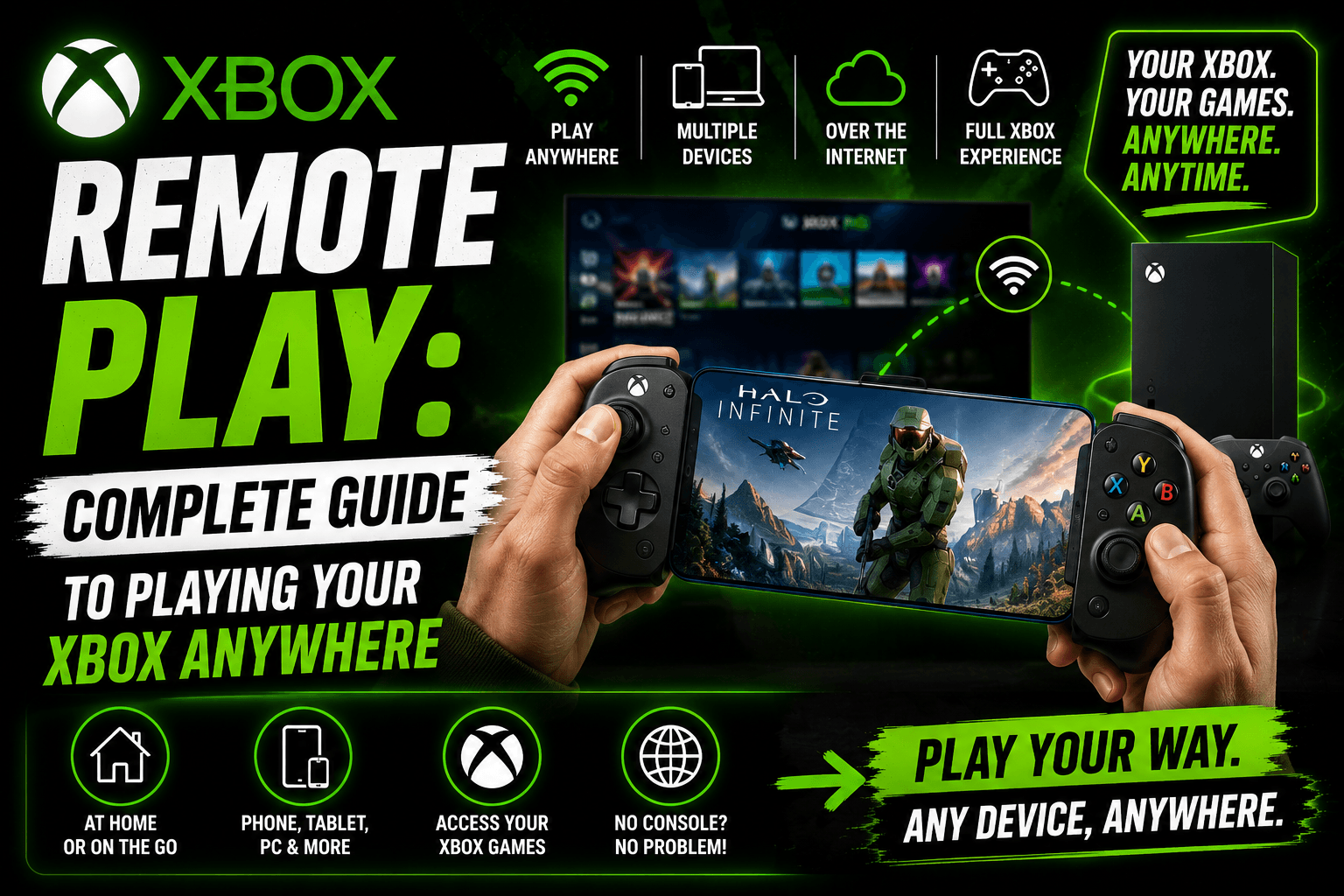
Xbox Remote Play is one of those features that sounds simple until you actually use it.
You are not downloading a separate version of the game. You are not starting over on another device. You are using your own Xbox console as the source, then streaming the game to another screen.
That screen might be your Windows PC, phone, tablet, supported TV, or another compatible device. Your Xbox stays at home, but the game follows you.
For U.S. gamers, this is especially useful when the living room TV is busy, when you want to play from bed, when you are traveling, or when you want a quick gaming session without sitting directly in front of the console.
The best part is that Xbox Remote Play uses games installed on your own console. If the game is ready on your Xbox, Remote Play can let you access it from another supported device.
In simple terms:
Xbox Remote Play lets you stream games from your own Xbox console to another device over the internet.
It is not perfect. Your network matters. Your console settings matter. Your controller setup matters. But when everything is set up properly, Xbox Remote Play can feel like carrying your Xbox around without actually moving the console.
What Is Xbox Remote Play?
Xbox Remote Play is a console streaming feature that allows you to play games installed on your Xbox console from a supported device.
Your Xbox console does the heavy work. It runs the game, processes the graphics, and sends the video feed to your remote device. Your controller inputs travel back to the console.
So when you press a button, the input goes to your Xbox. The Xbox responds, then streams the updated gameplay back to your screen.
Simple Example
Let’s say your Xbox Series X is connected to the TV in your living room. Someone else is watching a movie on that TV.
With Xbox Remote Play, you can open Remote Play on your laptop, connect to your console, pair your controller, and keep playing without taking over the TV.
That is the main appeal.
You are still using your Xbox. You are just using a different screen.
How Xbox Remote Play Works
Xbox Remote Play works by turning your console into a personal game streaming server.
The setup looks like this:
| Step | What Happens |
|---|---|
| 1. Your Xbox runs the game | The console launches the game installed on it |
| 2. Gameplay is streamed | The video and audio are sent to your remote device |
| 3. You use a controller | Your controller sends inputs from your device |
| 4. Inputs return to the console | Your Xbox receives your commands |
| 5. The game responds | Updated gameplay streams back to your screen |
This happens quickly, but it still depends on connection quality.
If your internet is fast and stable, Xbox Remote Play can feel smooth. If your connection is weak, you may notice lag, stutter, blurry video, audio delay, or disconnections.
Xbox Remote Play Requirements
Before using Xbox Remote Play, make sure you have the basic requirements.
Xbox Remote Play Requirements Table
| Requirement | What You Need |
| Xbox console | Xbox Series X, Xbox Series S, or Xbox One |
| Remote features | Remote features enabled on your console |
| Microsoft account | Account with an Xbox profile |
| Internet connection | Stable internet connection |
| Controller | Compatible Xbox controller or supported controller |
| Remote device | PC, phone, tablet, supported TV, or compatible browser device |
| Installed games | Games installed on your Xbox console |
| Power mode | Console must be available for remote connection |
Best Practical Setup
For the smoothest experience, use:
- Wired Ethernet for your Xbox console
- Strong Wi-Fi for your phone, tablet, or laptop
- 5 GHz Wi-Fi when possible
- A Bluetooth Xbox controller
- A device with a stable browser
- Good upload speed at home
- Good download speed on the remote device
The home internet connection matters a lot because your Xbox has to upload the stream from your console to your remote screen.
Xbox Remote Play Supported Devices
Xbox Remote Play is designed to work across several device types. Support can vary depending on region, browser, device model, app version, and platform updates.
Common Devices for Xbox Remote Play
| Device Type | Remote Play Use Case |
| Windows PC | Great for desk gaming or laptop gaming |
| iPhone | Good for portable gaming with a controller |
| iPad | Better screen size than phone gaming |
| Android phone | Good for gaming away from the TV |
| Android tablet | Larger mobile screen for casual play |
| Supported smart TVs | Useful for playing without moving the console |
| Supported browser devices | Convenient when app access is not available |
| Handheld PC devices | Good for portable Xbox-style play |
Best Device for Most Players
For most people, the best Xbox Remote Play device depends on where they play:
| Player Type | Best Device |
| Couch gamer | Tablet or supported TV |
| Bedtime gamer | Phone or tablet |
| PC gamer | Windows laptop or desktop |
| Travel gamer | Phone with controller clip |
| Parent sharing TV | Laptop or tablet |
| Casual player | Any supported mobile device |
| Competitive player | Wired local console play is still better |
Remote Play is best for convenience. For serious competitive gaming, playing directly on the console with a strong display is still the better choice.
Xbox Remote Play vs Xbox Cloud Gaming
Many people confuse Xbox Remote Play with Xbox Cloud Gaming. They are related, but they are not the same thing.
Main Difference
Xbox Remote Play streams from your own Xbox console.
Xbox Cloud Gaming streams from Microsoft’s cloud servers.
That difference changes everything.
Xbox Remote Play vs Cloud Gaming Table
| Feature | Xbox Remote Play | Xbox Cloud Gaming |
| Game source | Your own Xbox console | Microsoft cloud servers |
| Requires your console? | Yes | No |
| Uses installed games? | Yes, games installed on your console | No, uses cloud gaming library |
| Good for owned games? | Yes, if installed and supported | Depends on cloud availability |
| Subscription required? | Not always for Remote Play itself | Usually tied to Game Pass Ultimate for many cloud features |
| Works away from home? | Yes, with proper setup | Yes, with supported service |
| Performance depends on | Your home internet + remote internet | Microsoft servers + your internet |
| Best for | Playing your own console remotely | Playing cloud-supported games without console access |
Which One Should You Use?
Use Xbox Remote Play if:
- You own an Xbox console
- Your games are installed on your console
- You want access to your own library
- You want to play from another room
- You want to play while traveling
- You do not want to rely only on cloud library availability
Use Xbox Cloud Gaming if:
- You do not have your console nearby
- You want to play supported Game Pass titles instantly
- You do not want to install the game
- Your console is off, unavailable, or not set up for remote access
- You want cloud access on supported devices
Both can be useful. Remote Play is more personal because it connects to your actual Xbox. Cloud Gaming is more flexible when you want quick access to supported cloud titles.
How to Set Up Xbox Remote Play
The setup is not difficult, but you need to do it in the right order.
Step 1: Turn On Remote Features on Your Xbox
On your Xbox console:
- Press the Xbox button on your controller.
- Open Profile & system.
- Go to Settings.
- Choose Devices & connections.
- Select Remote features.
- Enable remote features.
- Run the remote play test if available.
This test helps check whether your console and network are ready.
Step 2: Check Your Power Settings
Your console needs to be reachable when you are not sitting in front of it.
Make sure your power settings allow the console to wake or stay available for remote access. If the console is fully shut down in a way that blocks remote connection, Remote Play may fail.
Step 3: Prepare Your Controller
For most players, a compatible Xbox Wireless Controller is the best choice.
You can connect it to your device by:
- Bluetooth
- USB cable
- Device-specific controller support
- Phone clip or mount for mobile play
Step 4: Open Xbox Remote Play
On a supported device, open Xbox Remote Play through the supported Xbox web experience or supported Xbox software, depending on your device.
Sign in with the same Microsoft account connected to your Xbox profile.
Step 5: Connect to Your Console
After signing in:
- Select your console.
- Wait for the connection.
- Pair or connect your controller.
- Launch a game installed on your console.
- Start playing.
Step 6: Test the Experience
Before relying on Remote Play while traveling, test it at home.
Check:
- Video quality
- Audio delay
- Controller response
- Game loading
- Connection stability
- Wi-Fi strength
- Battery life on your remote device
Do not wait until you are away from home to find out your console settings are wrong.
Best Network Setup for Xbox Remote Play
Network quality is the biggest factor in Xbox Remote Play performance.
You can have a great console, a great controller, and a great phone, but if the connection is weak, the experience will not feel good.
Best Network Setup Table
| Setup Area | Best Option | Why It Helps |
| Xbox console connection | Wired Ethernet | More stable than Wi-Fi |
| Home Wi-Fi | Strong router with 5 GHz support | Reduces local wireless issues |
| Remote device | Strong Wi-Fi or reliable mobile data | Improves stream quality |
| Router placement | Central and open location | Better signal strength |
| Background usage | Limit downloads and streaming | Reduces network congestion |
| Upload speed | Strong upload from home network | Helps send gameplay stream |
| Download speed | Strong download on remote device | Helps receive stream smoothly |
Why Upload Speed Matters
A lot of players only think about download speed. For Xbox Remote Play, upload speed at home is just as important.
Your Xbox is sending video from your home to your remote device. If your home internet has weak upload speed, Remote Play may look blurry or feel delayed even if your remote device has fast internet.
Best Practical Network Advice
For the best experience:
- Connect the Xbox console to Ethernet.
- Use 5 GHz Wi-Fi for the remote device.
- Avoid crowded public Wi-Fi.
- Pause large downloads.
- Keep the remote device close to the router.
- Restart the router if performance is unstable.
- Test Remote Play before traveling.
A stable connection beats a fast but inconsistent connection.
Xbox Remote Play on Phone
Playing Xbox games on a phone sounds strange until you try it with a good controller setup.
A phone screen is smaller, but it works well for many games. It is especially useful when you want to continue a game away from the TV.
Best Phone Setup
For phone Remote Play, use:
- Compatible iPhone or Android phone
- Xbox Wireless Controller
- Controller phone clip
- Strong Wi-Fi
- Headphones or earbuds
- Fully charged phone
- Fully charged controller
Best Game Types for Phone Remote Play
| Game Type | Phone Remote Play Experience |
| RPGs | Good for exploration and casual play |
| Racing games | Good if the connection is stable |
| Sports games | Playable and fun with a controller |
| Platformers | Good on strong Wi-Fi |
| Turn-based games | Excellent because timing is less strict |
| Shooters | Playable, but input delay matters more |
| Text-heavy games | Harder on smaller screens |
Phone Remote Play Tips
- Use landscape mode.
- Increase in-game text size if available.
- Use a controller clip to avoid neck strain.
- Lower room brightness if screen glare is a problem.
- Avoid fast competitive multiplayer on weak Wi-Fi.
- Keep a charger nearby for longer sessions.
Phone Remote Play is not the perfect way to play every game, but it is one of the easiest ways to keep playing when your TV is not available.
Xbox Remote Play on PC
Xbox Remote Play on PC is one of the best ways to use the feature because a laptop or monitor gives you more screen space than a phone.
It is especially useful for people who share a TV, live in a dorm, work from a desk, or want to play in another room.
Why PC Remote Play Works Well
- Larger screen than mobile
- Easy controller connection
- Better sitting position
- Stable Wi-Fi or Ethernet options
- Good for longer sessions
- Easier to read menus and text
PC Remote Play Setup Tips
- Use a USB cable for your controller if Bluetooth is unstable.
- Use Ethernet on your PC if possible.
- Close background apps that use bandwidth.
- Keep your browser or Xbox software updated.
- Use headphones to reduce audio distractions.
- Avoid downloading games or updates while streaming.
Best Games for PC Remote Play
| Game Type | Why It Works Well on PC Remote Play |
| Open-world games | Larger screen improves exploration |
| RPGs | Good for long sessions |
| Sports games | Comfortable controller experience |
| Racing games | Better visibility than phone |
| Adventure games | Good balance of visuals and comfort |
| Single-player shooters | Good if connection is stable |
For competitive multiplayer, Remote Play can work, but local console play is still better because every bit of input delay matters.
Xbox Remote Play Away From Home
Yes, Xbox Remote Play can work away from home if your console and network are set up correctly.
This is one of the main reasons players use it. You might be at a hotel, visiting family, staying in a dorm, or traveling for work.
Before You Leave Home
Do this before traveling:
- Enable remote features on your Xbox.
- Test Remote Play from another device.
- Make sure your console can be reached remotely.
- Update your Xbox console.
- Update your controller.
- Install the games you want to play.
- Check storage space.
- Sign in to the correct Microsoft account.
- Pack your controller and charger.
- Save your Xbox account recovery information.
Travel Gaming Checklist
| Item | Why You Need It |
| Xbox controller | Better than touch controls |
| Phone clip | More comfortable mobile setup |
| USB-C cable | Charging or wired controller use |
| Power bank | Useful for long mobile sessions |
| Headphones | Better audio and privacy |
| Strong Wi-Fi | Needed for stable streaming |
| Microsoft account login | Required to access console |
| Installed games | Remote Play uses your console library |
Hotel Wi-Fi Warning
Hotel Wi-Fi can be unpredictable. Some networks block certain connections, require browser login pages, or become slow during busy hours.
For better results:
- Use 5 GHz Wi-Fi if available.
- Sit closer to the router if possible.
- Avoid peak evening hours.
- Try mobile hotspot if hotel Wi-Fi is poor.
- Test connection before starting a long session.
Remote Play while traveling is convenient, but not every public network will give you a smooth experience.
Best Games for Xbox Remote Play
Some games are better suited for Remote Play than others.
Games that require perfect timing may feel worse if there is input delay. Games with relaxed pacing usually feel better.
Best Game Types for Xbox Remote Play
| Game Type | Remote Play Rating | Why |
| Turn-based RPGs | Excellent | Low timing pressure |
| Story games | Excellent | Great for casual streaming |
| Open-world exploration | Very good | Works well with stable connection |
| Sports games | Good | Fun, but timing matters |
| Racing games | Good | Playable with strong connection |
| Platformers | Mixed | Timing can be affected by latency |
| Competitive shooters | Mixed to poor | Input delay can hurt performance |
| Fighting games | Poor for serious play | Timing is too important |
| Puzzle games | Excellent | Very Remote Play-friendly |
Best Practical Picks
Remote Play is best for:
- Single-player adventures
- RPGs
- Casual sports games
- Turn-based strategy
- Puzzle games
- Open-world exploration
- Story-driven games
- Games where reaction time is not everything
It is less ideal for:
- Ranked shooters
- Competitive fighting games
- Fast platformers
- Rhythm games
- Esports-style play
That does not mean you cannot play them. It means you should not expect the same precision as local play.
Xbox Remote Play Lag: Why It Happens
Lag is the most common complaint with Xbox Remote Play.
It can show up as:
- Delayed button response
- Blurry video
- Freezing
- Audio delay
- Sudden disconnects
- Controller input delay
- Pixelated gameplay
- Slow menu response
Common Causes of Xbox Remote Play Lag
| Cause | What It Means | Fix |
| Weak Wi-Fi | Device has poor signal | Move closer to router |
| Xbox on Wi-Fi | Console connection is unstable | Use Ethernet |
| Low upload speed | Home internet cannot send stream well | Improve plan or reduce usage |
| Network congestion | Too many devices using bandwidth | Pause downloads and streams |
| Public Wi-Fi | Network is restricted or crowded | Try another network |
| Bluetooth delay | Controller connection is weak | Use USB or reconnect controller |
| Old firmware | Console or controller needs update | Update everything |
| Router issue | Router needs refresh | Restart router |
| Distance | Device is far from router | Move closer or use mesh Wi-Fi |
Fast Fixes for Lag
Try these first:
- Restart your remote device.
- Restart your Xbox console.
- Restart your router.
- Move closer to Wi-Fi.
- Use Ethernet for your Xbox.
- Stop large downloads.
- Disconnect unused devices.
- Reconnect your controller.
- Test another game.
- Try another network.
Most Remote Play issues are network issues, not Xbox issues.
Xbox Remote Play Not Working: Troubleshooting Guide
If Xbox Remote Play is not working, use a step-by-step approach.
Problem: Console Does Not Appear
Possible fixes:
- Make sure remote features are enabled.
- Confirm you are using the correct Microsoft account.
- Restart your Xbox.
- Check console power settings.
- Update your Xbox.
- Try connecting from the same network first.
- Sign out and sign back in.
Problem: Remote Play Connects but Game Won’t Launch
Possible fixes:
- Make sure the game is installed.
- Check if the game needs an update.
- Make sure the console has enough storage.
- Confirm the game works directly on the console.
- Restart the console.
- Try another game.
Problem: Controller Not Working
Possible fixes:
- Pair the controller again.
- Check battery level.
- Use a USB cable if possible.
- Update controller firmware.
- Confirm the controller is connected to the remote device, not another device.
- Test the controller in another app or game.
Problem: Video Is Blurry
Possible fixes:
- Improve Wi-Fi strength.
- Use Ethernet for your Xbox.
- Stop streaming video on other devices.
- Move closer to the router.
- Try a different network.
- Restart your router.
Problem: Remote Play Disconnects
Possible fixes:
- Check internet stability.
- Avoid public Wi-Fi if possible.
- Keep device battery charged.
- Disable battery saver mode.
- Restart console and router.
- Use a stronger Wi-Fi network.
Xbox Remote Play Safety and Account Tips
Remote Play gives access to your console, so account security matters.
Security Tips
- Use a strong Microsoft account password.
- Turn on two-step verification.
- Do not sign in on public or shared devices unless necessary.
- Sign out after using a borrowed device.
- Keep account recovery info updated.
- Do not share your login details.
- Use trusted networks when possible.
Family Safety Tips
For parents:
- Check child account settings.
- Review screen time limits.
- Set spending restrictions.
- Manage multiplayer permissions.
- Review game ratings.
- Keep controller and account access separate if needed.
Remote Play is convenient, but parents should still manage access the same way they would on the console.
Xbox Remote Play for Parents
Xbox Remote Play can be helpful in a family home.
If the main TV is being used, a child can continue a game on a tablet or laptop. A parent can also check whether a game works without moving the console.
But there are a few things parents should know.
Parent Checklist
| Question | Why It Matters |
| Is the child using the correct account? | Family settings depend on the account |
| Is the game age-appropriate? | Remote Play still accesses console games |
| Is online chat enabled? | Multiplayer communication may continue |
| Is the device secure? | Account should not stay logged in everywhere |
| Is playtime controlled? | Remote access can make gaming easier to continue |
| Is the connection stable? | Poor connection can frustrate younger players |
Remote Play does not remove the need for normal parental controls. It simply adds more ways to access the console.
Is Xbox Remote Play Free?
Xbox Remote Play itself does not require buying a second copy of the game. It streams from your own Xbox console.
However, you still need:
- An Xbox console
- A Microsoft account
- Installed games
- Internet connection
- Compatible controller or input method
- Any required game ownership or subscription
- Online multiplayer subscription when required by the game
So the feature may not have a separate Remote Play fee, but your normal game ownership, subscriptions, and internet costs still apply.
Is Xbox Remote Play Good?
Xbox Remote Play is good when your setup is good.
It is excellent for convenience. It is useful for playing away from the TV. It is great for single-player games, RPGs, casual sports games, and relaxed gaming sessions.
It is not always ideal for competitive play. Input delay can happen, especially on weak Wi-Fi or public networks.
Xbox Remote Play Pros and Cons
| Pros | Cons |
| Play away from your console | Depends heavily on internet quality |
| Great when TV is occupied | Can have input lag |
| Works with installed console games | Console must be set up correctly |
| Useful for travel | Public Wi-Fi may be unreliable |
| Good for phones, tablets, and PCs | Small screens may be harder to use |
| No need to move your Xbox | Competitive games may feel delayed |
Best Verdict
Xbox Remote Play is worth using if you want flexibility. It is not a perfect replacement for playing directly on your console, but it is one of the best ways to keep your Xbox library available on more screens.
Best Accessories for Xbox Remote Play
You do not need many accessories, but the right ones can make the experience much better.
Recommended Accessories
| Accessory | Best For |
| Xbox Wireless Controller | Most Remote Play sessions |
| Phone controller clip | Mobile gaming comfort |
| Tablet stand | Better viewing angle |
| USB-C cable | Charging and wired controller use |
| Power bank | Travel gaming |
| Headphones | Private audio |
| Rechargeable batteries | Longer controller use |
| Carrying case | Travel protection |
What to Buy First
Start with:
- Xbox controller
- Phone clip or tablet stand
- Rechargeable batteries or battery pack
- USB-C cable
- Headphones
You do not need a complicated setup. Comfort and connection quality matter more than fancy accessories.
How to Improve Xbox Remote Play Quality
Small changes can make a big difference.
Quick Quality Improvement Tips
- Use Ethernet on your Xbox console.
- Use 5 GHz Wi-Fi on your remote device.
- Keep the router in an open location.
- Avoid playing while others stream 4K video.
- Pause downloads on your console and PC.
- Keep your device charged.
- Close background apps.
- Update your console and controller.
- Use a controller instead of touch controls.
- Test different rooms for better Wi-Fi signal.
Best Home Setup
| Setup Area | Best Choice |
| Console connection | Ethernet |
| Router | Modern dual-band or tri-band router |
| Remote device connection | 5 GHz Wi-Fi |
| Controller | Xbox Wireless Controller |
| Audio | Headphones |
| Game type | Single-player or casual multiplayer |
| Play time | Short to medium sessions |
The closer you get to this setup, the better Remote Play usually feels.
Xbox Remote Play Common Mistakes
Many players get poor results because they skip basic setup steps.
Avoid These Mistakes
- Leaving the Xbox on weak Wi-Fi
- Not enabling remote features
- Forgetting to test before traveling
- Trying to play competitive games on hotel Wi-Fi
- Using low battery controllers
- Ignoring console updates
- Using crowded public Wi-Fi
- Playing while large downloads are running
- Expecting Remote Play to feel exactly like local play
- Using a tiny phone screen for text-heavy games
Remote Play works best when you treat it like streaming. Connection quality comes first.
Who Should Use Xbox Remote Play?
Xbox Remote Play is especially useful for certain types of players.
Good Fit
Use Xbox Remote Play if you:
- Share a TV with family
- Travel often
- Want to play from bed
- Want to use your laptop as a gaming screen
- Own many installed Xbox games
- Prefer console gaming over mobile games
- Want to play without moving your Xbox
- Like single-player games
Not the Best Fit
Remote Play may not be ideal if you:
- Only play competitive multiplayer
- Have weak home upload speed
- Use unreliable Wi-Fi
- Do not own an Xbox console
- Want instant play without installing games
- Hate any input delay
- Prefer mouse and keyboard for most games
For most Xbox owners, it is worth setting up even if they only use it occasionally.
Final Thoughts: Is Xbox Remote Play Worth Setting Up?
Xbox Remote Play is one of the most useful features Xbox owners often ignore.
It gives your console more flexibility. It lets you play when the TV is busy. It helps you continue games from another room. It can even make travel gaming possible when the connection is strong enough.
The key is having realistic expectations.
Remote Play is not magic. It depends on your console, your home internet, your remote connection, your controller, and the type of game you are playing.
For story games, RPGs, casual sports games, puzzle games, and relaxed single-player sessions, Xbox Remote Play can be excellent. For ranked shooters, fighting games, or fast esports-style gameplay, local console play is still better.
Set it up before you need it. Test it at home. Use Ethernet if possible. Keep your controller ready.
Once it works, Xbox Remote Play can make your Xbox feel much less tied to one room.
🔥 Related Posts

Best PlayStation Plus Games to Download This Month: Top Picks for June 2026
Xbox Accessories App: Complete Setup Guide, Controller Features & Xbox Game Pass Tips
Xbox Refund Guide: How to Request a Refund for Xbox Games, Subscriptions, and Purchases
Xbox Game Pass: The Ultimate Guide for Gamers in 2025 (Full Review + Benefits + Best Games)
How Many Levels in Candy Crush? Everything You Need to Know About Candy Crush Levels in 2025