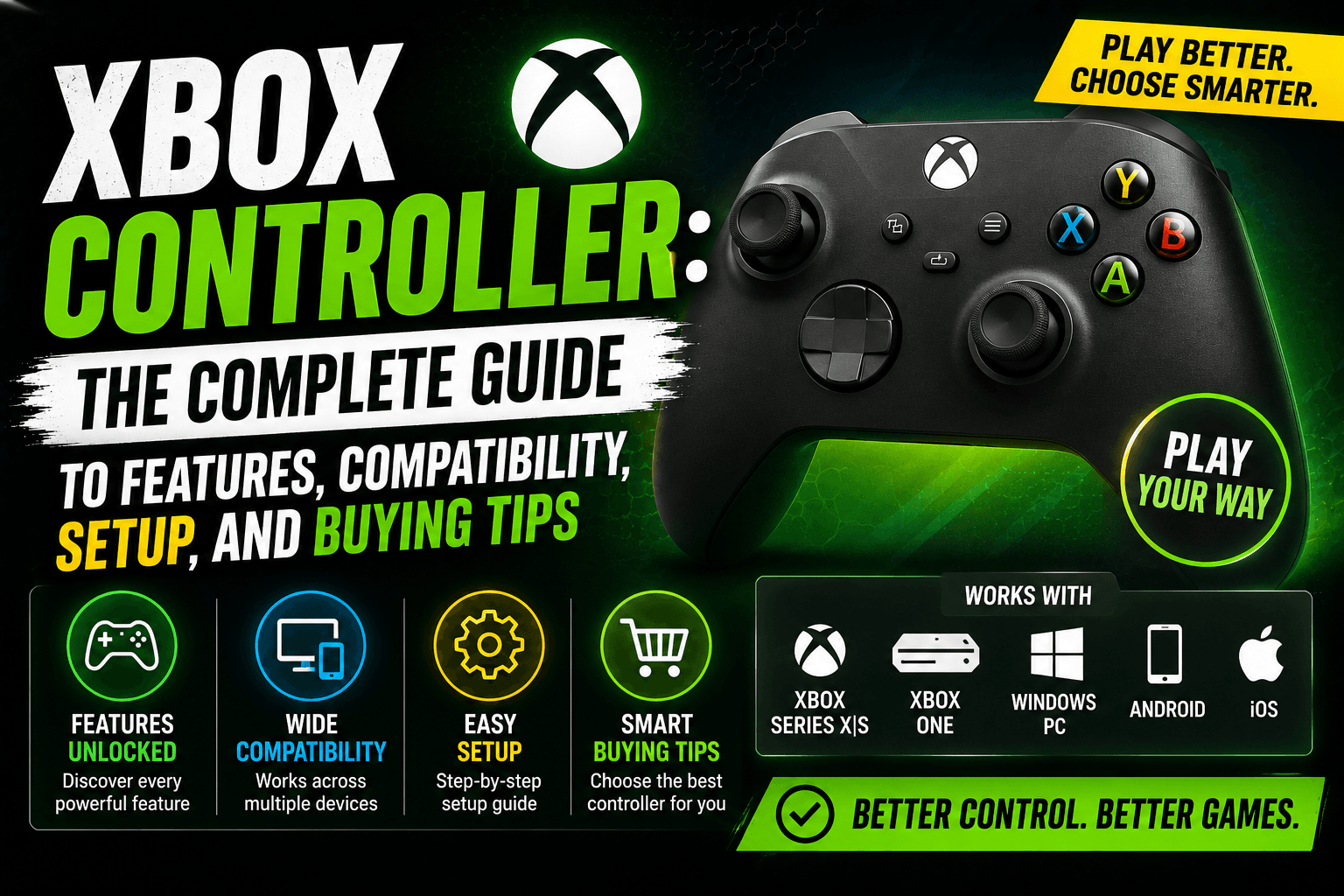
The Xbox controller has become one of the most recognizable gaming accessories in the United States. Whether someone plays on Xbox Series X, Xbox Series S, Xbox One, Windows PC, mobile, or cloud gaming services, the Xbox controller is often one of the first choices because it feels familiar, comfortable, and easy to use.
What makes it popular is not just the Xbox name. It is the shape, button layout, grip, wireless connection, battery flexibility, and wide compatibility. Many players use it for racing games, shooters, sports titles, RPGs, platformers, fighting games, and casual couch gaming.
A good controller does not make noise about itself. It disappears in your hands. You stop thinking about the buttons and start focusing on the game.
That is where the Xbox controller does its job well.
This guide covers everything a U.S. gamer should know before buying or using an Xbox controller, including features, setup, compatibility, battery options, PC gaming, mobile gaming, Elite controller differences, common problems, and practical buying advice.
What Is an Xbox Controller?
An Xbox controller is a gamepad designed for Xbox consoles and supported devices. The modern Xbox Wireless Controller works with Xbox consoles, Windows PCs, mobile devices, and many games that support controller input.
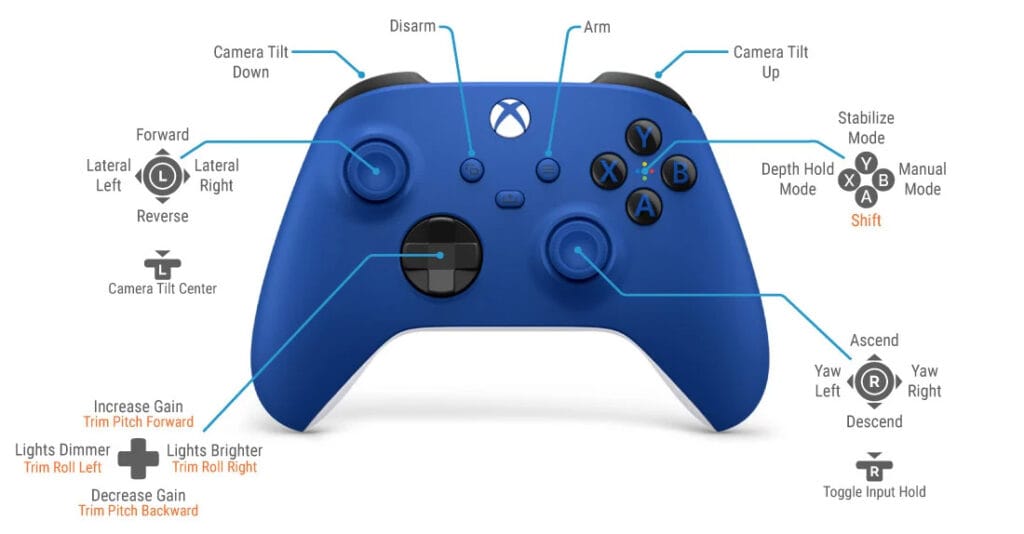
It includes the standard gaming controls most players expect:
- Two analog thumbsticks
- A directional pad
- A/B/X/Y face buttons
- Left and right bumpers
- Left and right triggers
- Menu and View buttons
- Xbox button
- Share button
- 3.5mm headset jack
- Wireless and wired connection options
For many gamers, the Xbox controller is the default choice because the layout feels natural and most games are already designed around it.
Main Features of the Xbox Wireless Controller
The current Xbox Wireless Controller is built for comfort, simple pairing, and multi-device use. It keeps the classic Xbox layout but adds modern touches that help with everyday gaming.
Key Xbox Controller Features
| Feature | What It Means | Why It Matters |
|---|---|---|
| Textured grip | Grip surface on triggers, bumpers, and back case | Helps reduce slipping during longer sessions |
| Hybrid D-pad | A redesigned directional pad | Useful for fighting games, menus, and precise movement |
| Share button | Dedicated button for screenshots and clips | Makes capturing gameplay faster |
| Xbox Wireless | Wireless connection for Xbox consoles | Stable console gaming without a cable |
| Bluetooth support | Wireless connection for supported PCs and mobile devices | Useful for PC, tablet, and mobile gaming |
| USB-C port | Wired connection and updates | Helpful for low-latency wired play and firmware updates |
| 3.5mm headset jack | Wired headset support | Good for game chat and private audio |
| AA battery support | Uses replaceable batteries | Easy to swap during long gaming sessions |
The Xbox controller is not trying to be complicated. That is part of the appeal. It gives most players what they need without making the setup feel technical.
Xbox Controller Compatibility
One reason people search for “Xbox controller” is simple: they want to know where it works.
The good news is that the Xbox controller works across a wide range of devices. Still, some features can vary depending on the device, operating system, cable, adapter, or game.
Xbox Controller Compatibility Table
| Device / Platform | Xbox Controller Support | Best Connection Option |
| Xbox Series X | Yes | Xbox Wireless or USB-C |
| Xbox Series S | Yes | Xbox Wireless or USB-C |
| Xbox One | Yes | Xbox Wireless or compatible cable |
| Windows 10/11 PC | Yes | Bluetooth, USB-C, or Xbox Wireless Adapter |
| Android phones/tablets | Yes, on supported devices | Bluetooth |
| iPhone/iPad | Yes, on supported devices | Bluetooth |
| Cloud gaming | Yes, depending on service and device | Bluetooth or USB |
| Smart TVs | Depends on model and app support | Bluetooth |
Important Compatibility Note
Not every game supports controllers on every platform. Before buying a controller for a specific game, check that the game supports gamepad input.
For example, many PC games work beautifully with an Xbox controller, but certain competitive shooters, strategy games, or older PC titles may still be better with keyboard and mouse.
Xbox Controller for PC Gaming
The Xbox controller is one of the easiest controllers to use on Windows PC. Many PC games show Xbox-style button prompts by default, which makes setup simple.
Instead of seeing confusing button labels, players usually see familiar prompts like:
- Press A to continue
- Press X to reload
- Press Y to switch weapon
- Press RB to use ability
- Press LT to aim
- Press RT to shoot
That makes the Xbox controller a safe choice for PC gamers who want plug-and-play comfort.
Best Ways to Connect an Xbox Controller to PC
| Connection Method | Best For | Notes |
| USB-C cable | Stable wired gaming | Good for desks and low-battery situations |
| Bluetooth | Casual wireless gaming | Easy if your PC supports Bluetooth |
| Xbox Wireless Adapter | Stronger wireless connection on Windows | Useful for players who want a console-like wireless setup |
When to Use a Wired Connection
A wired connection is best when:
- You do not want battery interruptions
- You sit close to your PC
- You want simple setup
- Bluetooth is unreliable
- You are updating controller firmware
- You play games where connection stability matters
When to Use Bluetooth
Bluetooth is best when:
- You want fewer cables
- You play from a couch
- You use a laptop
- You switch between devices often
- You play casual or single-player games
For most PC gamers, the Xbox controller is easy to recommend because it works with a wide range of titles and feels natural in hand.
Xbox Controller for Mobile Gaming
Mobile gaming is not just touchscreens anymore. Many U.S. gamers now use controllers with phones and tablets for cloud gaming, remote play, emulators, racing games, and action titles.
The Xbox controller can connect to supported iOS and Android devices through Bluetooth, making it a practical option for mobile gaming.
Why Use an Xbox Controller on Mobile?
Touch controls can work fine for simple games, but they are not ideal for every genre. A controller gives better control in games that need precision.
Good mobile gaming genres for an Xbox controller include:
- Racing games
- Platformers
- Shooters
- Sports games
- Action games
- RPGs
- Cloud gaming titles
- Console remote play games
Mobile Gaming Setup Tips
- Use a phone clip or stand for comfort.
- Keep your controller battery charged.
- Check game controller support before downloading.
- Use strong Wi-Fi for cloud gaming.
- Pair the controller before opening the game.
- Keep the controller firmware updated when possible.
A phone plus an Xbox controller can feel surprisingly close to a handheld gaming setup.
Xbox Controller Battery Life and Power Options
The standard Xbox Wireless Controller usually uses AA batteries. That may sound old-fashioned to some people, but many gamers actually like it because dead batteries can be swapped quickly.
Xbox Controller Power Options
| Power Option | Best For | Pros | Cons |
| AA batteries | Long sessions and quick swaps | Easy to replace, widely available | Ongoing battery cost |
| Rechargeable AA batteries | Frequent players | Saves money over time | Requires charger |
| Xbox rechargeable battery pack | Cleaner setup | Rechargeable and convenient | Extra purchase |
| USB-C cable | Desk gaming | No battery needed while wired | Cable limits movement |
Best Battery Choice for Most Players
If you play often, rechargeable AA batteries or an official rechargeable battery pack are usually better than buying disposable batteries again and again.
If you play only sometimes, regular AA batteries are simple and convenient.
Xbox Wireless Controller vs Xbox Elite Controller
The standard Xbox controller is perfect for most gamers. The Xbox Elite controller is made for players who want more customization, more control, and a premium feel.
Xbox Controller Comparison
| Feature | Xbox Wireless Controller | Xbox Elite Wireless Controller Series 2 |
| Best for | Most casual and regular gamers | Competitive and advanced players |
| Price level | Lower | Higher |
| Thumbstick tension | Standard | Adjustable |
| Triggers | Standard | Hair trigger lock options |
| Back paddles | No | Yes, depending on package |
| Custom profiles | Limited | Multiple profiles |
| Components | Fixed | Interchangeable parts |
| Grip | Textured | Premium wrap-around grip |
| Battery | AA batteries or optional rechargeable pack | Built-in rechargeable battery |
| Ideal use | Everyday gaming | Competitive play and deeper customization |
Which One Should You Buy?
Choose the standard Xbox Wireless Controller if you:
- Want a reliable controller for everyday gaming
- Play casually or regularly
- Want a lower-cost option
- Prefer simple setup
- Need a second controller for family or friends
Choose the Xbox Elite controller if you:
- Play competitive games
- Want back paddles
- Like custom button mapping
- Want adjustable thumbsticks
- Want trigger lock options
- Care about premium grip and feel
- Play many hours each week
For most people, the standard Xbox controller is enough. The Elite controller makes more sense when you know exactly why you need the extra features.
Best Games to Play With an Xbox Controller
Some games feel better with a controller than with a keyboard and mouse. The Xbox controller is especially strong for games that need smooth movement, analog steering, or relaxed couch play.
Best Game Types for Xbox Controller
| Game Genre | Why Xbox Controller Works Well |
| Racing games | Analog triggers help with acceleration and braking |
| Sports games | Button layout feels natural for quick actions |
| Platformers | Smooth thumbstick movement helps with jumping and timing |
| Fighting games | D-pad and face buttons are easy to access |
| Action-adventure games | Comfortable for long story sessions |
| RPGs | Great for exploration and relaxed gameplay |
| Third-person shooters | Comfortable camera and movement control |
| Couch co-op games | Easy for friends and family to use |
Games Where Keyboard and Mouse May Be Better
- Competitive first-person shooters
- Strategy games
- City builders
- MOBAs
- Some simulation games
- Games with many hotkeys
That does not mean you cannot use an Xbox controller for these games. It simply means keyboard and mouse may offer faster or more precise control in certain situations.
How to Connect an Xbox Controller to Xbox Console
Connecting an Xbox controller to a console is usually simple.
Basic Wireless Pairing Steps
- Turn on the Xbox console.
- Turn on the controller by pressing the Xbox button.
- Press the pairing button on the console.
- Press and hold the pairing button on the controller.
- Wait until the Xbox button light stays solid.
Once paired, the controller should reconnect automatically the next time you turn it on.
Wired Setup
To use it wired:
- Connect a compatible USB cable to the controller.
- Plug the other end into the Xbox console.
- Wait for the controller to power on.
- Start playing.
Wired play is useful if your batteries are dead or if you want a simple connection without pairing.
How to Connect an Xbox Controller to PC
PC setup depends on whether you want wired or wireless play.
Option 1: USB-C Cable
- Plug the USB-C cable into the controller.
- Connect the other end to your PC.
- Wait for Windows to detect it.
- Open your game.
- Check controller settings if needed.
This is the easiest method.
Option 2: Bluetooth
- Turn on the controller.
- Hold the pairing button until the Xbox button flashes.
- Open Bluetooth settings on your PC.
- Choose the Xbox controller from the device list.
- Wait for pairing to complete.
- Test it in a game.
Option 3: Xbox Wireless Adapter
- Plug the adapter into your PC.
- Press the pairing button on the adapter.
- Turn on the controller.
- Hold the controller pairing button.
- Wait for the connection to complete.
The adapter can be helpful if Bluetooth is unstable or if you want a stronger wireless gaming setup.
How to Update an Xbox Controller
Updating the controller can improve performance, compatibility, and connection stability.
Why Controller Updates Matter
- Fixes connection problems
- Improves device compatibility
- Supports newer features
- Helps with button mapping
- Reduces unexpected glitches
Update Tips
- Use the Xbox Accessories app when available.
- Connect by USB-C if wireless update fails.
- Keep your console or PC updated.
- Restart your device after updating if something feels off.
Updating takes only a few minutes and can solve problems that look like hardware issues.
Common Xbox Controller Problems and Fixes
Even a good controller can run into issues. Most problems are simple connection, battery, firmware, or settings issues.
Xbox Controller Troubleshooting Table
| Problem | Possible Cause | Quick Fix |
| Controller will not turn on | Dead batteries | Replace or recharge batteries |
| Controller keeps disconnecting | Weak battery or wireless interference | Change batteries and move closer |
| Bluetooth not working | Pairing issue | Remove device and pair again |
| Buttons not responding | Game settings or firmware issue | Test in another game and update controller |
| Stick drift | Wear, dust, or sensor issue | Clean gently; repair may be needed |
| Headset not working | Connection or compatibility issue | Check jack, cable, and audio settings |
| Controller not detected on PC | Driver or cable issue | Try another USB cable or connection method |
| Input delay | Bluetooth lag or weak connection | Try USB-C or Xbox Wireless Adapter |
Quick Reset Method
If the controller acts strangely:
- Turn it off.
- Remove batteries or disconnect cable.
- Wait 10–15 seconds.
- Reconnect power.
- Pair again if needed.
This simple reset fixes more problems than people expect.
Xbox Controller Stick Drift: What It Means
Stick drift happens when the controller registers thumbstick movement even when you are not touching the stick. For example, your character may slowly walk forward, or the camera may move by itself.
Common Causes of Stick Drift
- Dust or debris around the thumbstick
- Normal wear over time
- Heavy gaming use
- Internal sensor issues
- Damage from drops or pressure
What You Can Try
- Clean around the thumbstick gently.
- Update the controller.
- Test the controller in another game.
- Adjust dead zone settings if the game allows it.
- Check warranty or repair options.
If drift is severe, cleaning may not be enough. The controller may need repair or replacement.
How to Choose the Right Xbox Controller
Before buying, think about how you actually play. Do not buy the most expensive controller just because it sounds better. Buy the one that fits your habits.
Buying Checklist
| Question | Why It Matters |
| Do you play on Xbox, PC, or mobile? | Compatibility affects connection method |
| Do you play casually or competitively? | Competitive players may benefit from Elite features |
| Do you need wireless play? | Battery and Bluetooth matter more |
| Do you play long sessions? | Comfort and grip matter |
| Do you use a headset? | 3.5mm jack and audio support matter |
| Do you want custom colors? | Design Lab or special editions may appeal |
| Do you care about rechargeable battery? | Standard and Elite controllers differ |
| Do you need extra buttons? | Elite controller offers more customization |
Best Xbox Controller for Different Users
| Type of Gamer | Best Choice |
| Casual Xbox player | Xbox Wireless Controller |
| PC gamer | Xbox Wireless Controller with USB-C or adapter |
| Mobile gamer | Xbox Wireless Controller with Bluetooth |
| Competitive gamer | Xbox Elite Wireless Controller Series 2 |
| Family gaming | Standard Xbox Wireless Controller |
| Budget-conscious buyer | Standard controller or sale bundle |
| Custom design fan | Xbox Design Lab controller |
Wired vs Wireless Xbox Controller: Which Is Better?
Both options work. The right choice depends on how and where you play.
Wired Xbox Controller
✓ No battery worries
✓ Simple PC setup
✓ Stable connection
✓ Good for desk gaming
✕ Cable can get in the way
Wireless Xbox Controller
✓ Cleaner setup
✓ Better for couch gaming
✓ Great for living rooms
✓ Easy to switch devices
✕ Needs battery management
✕ Bluetooth can vary by device
Best Practical Answer
Use wireless for couch gaming and casual play. Use wired for PC desk gaming, long sessions, updates, or when your battery is low.
Is an Xbox Controller Good for Steam?
Yes, the Xbox controller is one of the most common choices for Steam gaming on PC. Many Steam games support Xbox button prompts, making the controller easy to use.
Why PC Players Like Xbox Controllers
- Familiar button layout
- Wide game support
- Easy wired setup
- Bluetooth option
- Comfortable shape
- Good support in many modern games
Some games may need controller settings adjusted inside Steam or inside the game menu, but most popular controller-friendly titles work smoothly.
Is the Xbox Controller Good for Cloud Gaming?
The Xbox controller is a strong option for cloud gaming because many cloud games are designed around console-style controls.
Cloud Gaming Tips
- Use strong Wi-Fi.
- Keep your controller charged.
- Sit near your router if possible.
- Use a phone mount for mobile play.
- Reduce background downloads.
- Use wired internet on PC or console when available.
- Try a wired controller connection if latency feels noticeable.
Cloud gaming depends on more than the controller. Your internet connection, device, screen, and service quality all affect the experience.
Xbox Controller Accessories Worth Considering
You do not need many accessories to enjoy an Xbox controller, but a few can improve comfort and convenience.
Useful Accessories
| Accessory | Why It Helps |
| Rechargeable battery pack | Saves money on disposable batteries |
| USB-C cable | Useful for wired gaming and updates |
| Controller charging dock | Keeps controllers organized |
| Thumbstick grips | Adds grip and comfort |
| Carrying case | Protects controller during travel |
| Phone clip | Useful for mobile and cloud gaming |
| Xbox Wireless Adapter | Better wireless PC experience for some users |
Accessories You Can Skip at First
- Fancy skins
- Extra paddles for standard controllers
- Decorative stands
- Cheap unknown battery packs
- Low-quality cables
- Unnecessary grip covers
Start with the controller first. Add accessories only after you know what you actually need.
How to Keep Your Xbox Controller in Good Condition
A controller lasts longer when you treat it well. Small habits can prevent sticky buttons, weak battery contacts, drifting sticks, and dirty grips.
Controller Care Tips
- Wash and dry your hands before playing.
- Keep food and drinks away from the controller.
- Store it in a clean, dry place.
- Do not throw it on a couch or bed where it can fall.
- Clean the surface with a soft cloth.
- Use a dry cotton swab around buttons and sticks.
- Remove batteries if storing it for a long time.
- Avoid extreme heat, moisture, and dust.
Controllers are everyday tools for gamers. A little care helps them stay reliable.
Xbox Controller for Parents: What to Know Before Buying
If you are buying an Xbox controller for a child or teenager, the standard Xbox Wireless Controller is usually the safest pick.
It is simple, widely supported, and does not require advanced setup. It also works well for local multiplayer, which means family members can play together on the same console.
Parent Buying Tips
- Check whether the child uses Xbox, PC, or mobile.
- Buy from a trusted retailer.
- Consider rechargeable batteries.
- Avoid expensive pro controllers unless needed.
- Choose a color that is easy to identify.
- Set spending limits for games and add-ons separately.
- Keep the receipt in case of setup or compatibility issues.
For most families, a second standard Xbox controller is more useful than a premium controller.
Is the Xbox Controller Worth It?
The Xbox controller is worth it for most players who want a comfortable, reliable, and widely compatible gamepad. It is especially useful if you play across Xbox and Windows PC, or if you want one controller that can handle many types of games.
It is not the cheapest controller on the market, and competitive players may want extra features found in premium models. But for everyday use, the standard Xbox controller hits a strong balance between comfort, features, and compatibility.
Buy an Xbox Controller If You Want:
- A comfortable controller for long sessions
- Strong compatibility with Xbox and PC
- Bluetooth support for mobile gaming
- A familiar button layout
- Easy setup
- Reliable build quality
- A good controller for many game genres
Consider Another Option If You Need:
- Back buttons or paddles
- Built-in rechargeable battery in the standard model
- Ultra-low-cost controller
- PlayStation-style stick layout
- Specialized fighting game controls
- Advanced competitive customization
For most U.S. gamers, the standard Xbox controller is still one of the easiest recommendations.
Final Verdict
The Xbox controller remains popular because it gets the basics right. It feels comfortable, works across many devices, supports wired and wireless play, and fits almost every major gaming genre.
If you are buying your first controller, replacing an old one, or choosing a controller for PC gaming, the Xbox Wireless Controller is a smart place to start. It is simple enough for beginners and reliable enough for experienced players.
If you want more control, more customization, and premium competitive features, the Xbox Elite controller is the upgrade path.
Either way, the best Xbox controller is the one that matches how you actually play.
For most gamers, that means a comfortable controller, stable connection, good battery plan, and no unnecessary extras.
FAQs About Xbox Controller
What is the best Xbox controller for most people?
The standard Xbox Wireless Controller is the best choice for most people because it is comfortable, widely compatible, easy to use, and suitable for Xbox, PC, and mobile gaming.
Can I use an Xbox controller on PC?
Yes, you can use an Xbox controller on a Windows PC through USB-C, Bluetooth, or the Xbox Wireless Adapter, depending on your setup and controller model.
Does the Xbox controller work with iPhone?
Yes, supported Xbox controllers can connect to compatible iPhone and iPad devices through Bluetooth. Game support may vary by app.
Does the Xbox controller work with Android?
Yes, many Android phones and tablets support Xbox controller Bluetooth pairing. The game or app must also support controller input.
How long does an Xbox controller battery last?
Battery life depends on batteries, headset use, accessories, and gaming habits. The standard Xbox Wireless Controller can offer long playtime with AA batteries, but actual results vary.
Can I use an Xbox controller without batteries?
Yes, you can use the controller with a compatible USB cable. When plugged in, you do not need AA batteries for wired play.
Why does my Xbox controller keep disconnecting?
Common reasons include low battery, wireless interference, distance from the device, outdated firmware, Bluetooth problems, or a weak connection. Try fresh batteries, update the controller, and reconnect it.
What is Xbox controller stick drift?
Stick drift happens when the controller detects thumbstick movement even when you are not touching it. It can be caused by dust, wear, damage, or internal sensor issues.
Is the Xbox Elite controller better than the regular Xbox controller?
The Xbox Elite controller is better for players who want advanced customization, paddles, adjustable thumbsticks, trigger locks, and premium features. The regular Xbox controller is better for most casual and everyday gamers.
Is a wired Xbox controller better than wireless?
Wired is better for simple setup, no battery worries, and stable desk gaming. Wireless is better for couch gaming, mobile play, and a cleaner setup.
🔥 Related Posts

Paper.io – Full Guide, Gameplay Tips, Strategies & Everything You Must Know (2025 Updated)

The 10 Best Game Consoles for 2025 — The Complete buying Guide

Indiana Fever Game Tonight: Is the Fever Playing Today? Latest Schedule Update
MSN Free Games Zone – Complete 2026 Guide to Playing Free Online Games

Top 55 Cooperative Board Games 2026: Best Co-Op Games for Families, Friends, Couples, and Game Nights