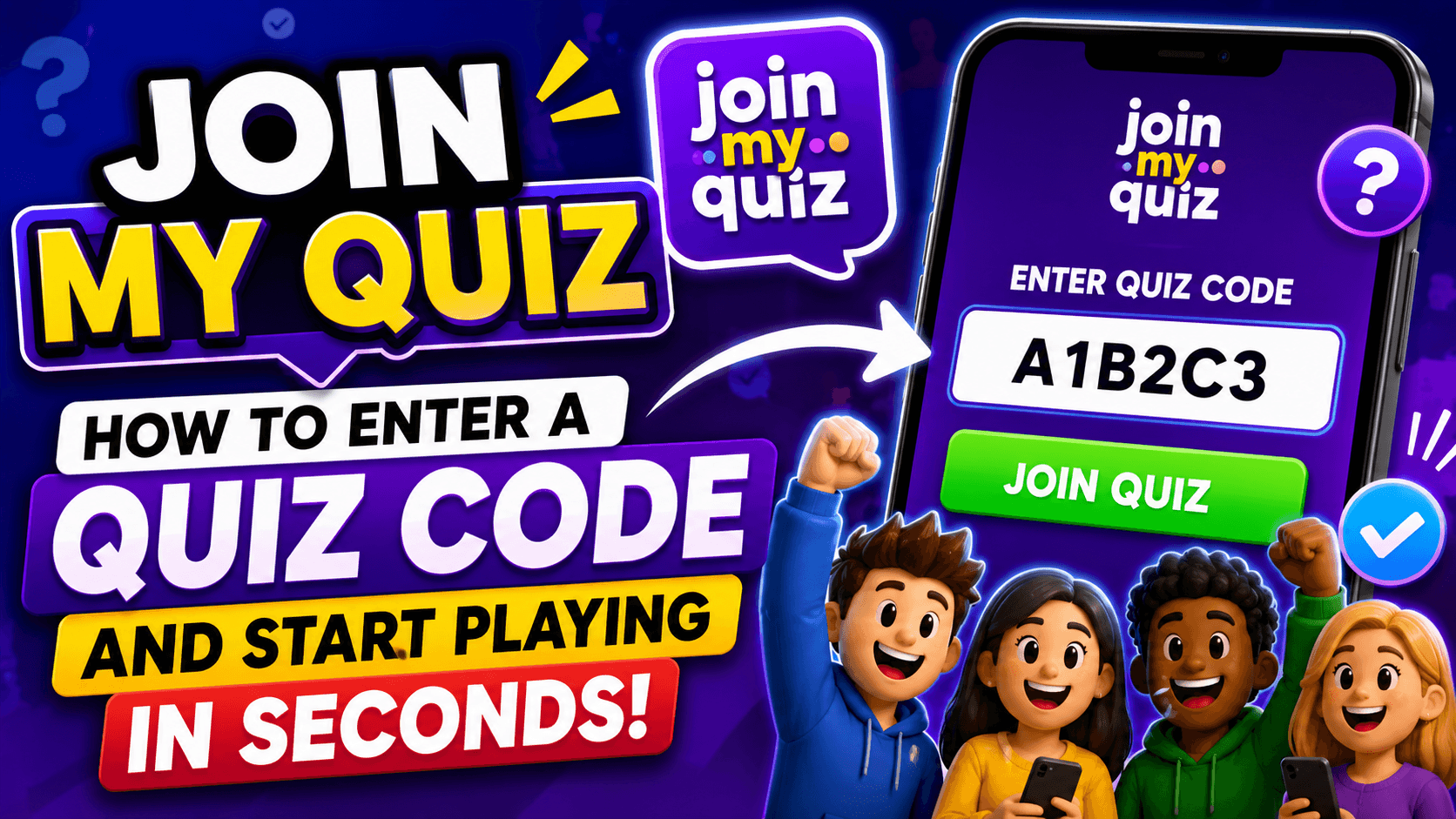
You have a quiz code. Someone told you to “join my quiz.” Now you just need to know where to enter it and how to get into the game without wasting time.
The good news is simple: in most cases, you do not need to download anything. You usually open the quiz platform, enter the code, add your name or nickname, and wait for the host to start.
This guide explains how to join a quiz from a phone, tablet, laptop, Chromebook, or desktop computer. It also covers what to do when your quiz code is not working.
Quick Answer: How Do I Join My Quiz?
To join a quiz, open the quiz join page shared by your teacher, host, or trainer. Enter the quiz code, type your name or nickname, and click Join or Start.
Fast Steps
- Open the link your host shared.
- Enter the quiz code exactly as given.
- Add your name or nickname.
- Wait in the lobby if the quiz has not started.
- Answer each question before the timer ends.
If the code does not work, check the spelling, ask the host if the quiz is still active, and make sure you are using the correct quiz platform.
What Does “Join My Quiz” Mean?
“Join My Quiz” usually means a teacher, host, trainer, or friend has created an online quiz and wants you to enter it using a code or direct link.
You may see this phrase in different situations:
| Situation | What It Usually Means |
|---|---|
| Classroom quiz | A teacher wants students to join a live learning activity |
| Homework quiz | A student needs to enter a code to complete an assigned quiz |
| Workplace training | A trainer is running a knowledge check or team activity |
| Trivia night | A host is inviting players to join a fun online quiz |
| Online community game | A group is using a quiz code for a live challenge |
The exact steps depend on the platform, but the process is usually very similar.
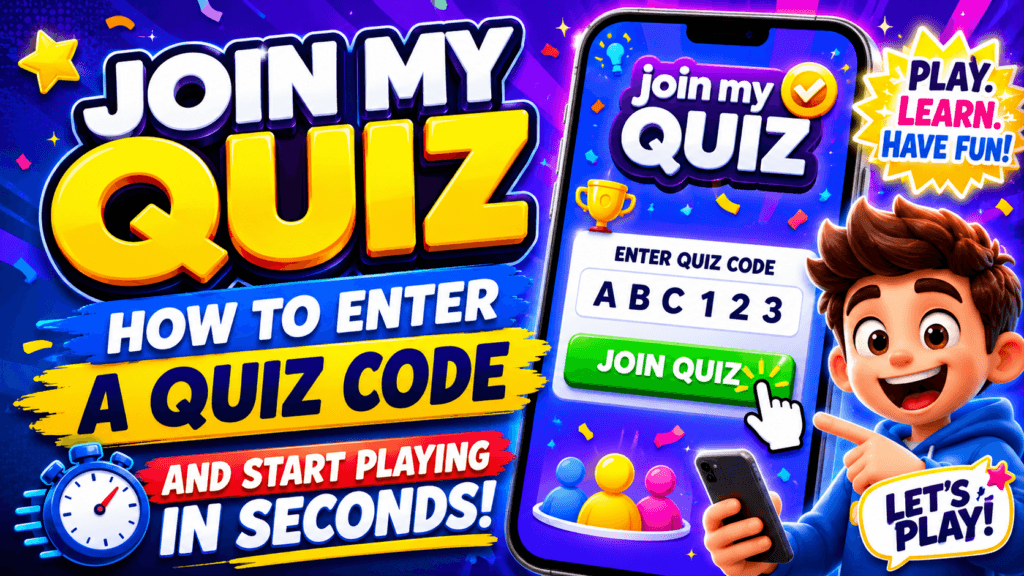
Where Do I Enter My Quiz Code?
The right place to enter your code depends on the quiz platform your host is using.
| Platform or Situation | What to Do |
| Wayground, formerly Quizizz | Go to the join page, enter the code, then add your name |
| MyQuiz-style live quiz | Open the shared link or enter the code on the platform’s play page |
| School or class activity | Use the link from your teacher, LMS, Google Classroom, or email |
| Business training quiz | Use the join link or code from your trainer or company portal |
| Unknown platform | Ask the host which website or app the quiz is on |
Tip: A quiz code only works on the correct platform. If your code fails, you may be on the wrong website.
How to Join My Quiz on a Phone
Joining from a phone is usually the easiest option because you can tap the link directly.
Steps for iPhone or Android
- Tap the quiz link from your teacher, host, text message, email, or group chat.
- If there is no link, open your browser.
- Go to the quiz platform’s join page.
- Enter the quiz code.
- Type your name or nickname.
- Tap Join, Start, or Continue.
- Keep your screen open until the quiz begins.
Phone Tips
- Turn off battery saver if the quiz keeps freezing.
- Use Wi-Fi if your mobile signal is weak.
- Close extra tabs and apps before joining.
- Do not refresh the page during a timed question unless the page is stuck.
How to Join My Quiz on a Laptop, Chromebook, or Desktop
If you are joining from school, work, or home, a computer gives you a larger screen and easier typing.
Steps for Computer Users
- Open Chrome, Edge, Safari, or Firefox.
- Visit the join link given by your host.
- Enter the quiz code in the code box.
- Click Join.
- Enter your display name.
- Wait for the quiz host to start the session.
If you are using a school Chromebook, some websites may be blocked by the school network. Ask your teacher if the page will not open.
What You Need Before Joining a Quiz
Before you start, make sure you have the basics ready.
| Requirement | Why It Matters |
| Quiz code | This is the key that lets you enter the correct session |
| Correct platform | A code will not work on the wrong quiz website |
| Internet connection | Live quizzes need a stable connection |
| Browser or app | Most quizzes work in a browser, but some may offer apps |
| Display name | This is how the host sees you in the quiz |
| Host permission | Some quizzes close once they begin |
You usually do not need a full account just to join a live quiz, but some school or business quizzes may ask you to sign in.
Why Is My Quiz Code Not Working?
A quiz code can fail for several reasons. Do not panic. Most problems are easy to fix.
| Problem | What It Means | Quick Fix |
| Code expired | The session may have ended | Ask the host for a new code |
| Wrong platform | You entered the code on the wrong website | Ask which quiz platform to use |
| Typing mistake | One digit or letter may be wrong | Copy and paste the code if possible |
| Quiz not started | The host has not opened the session yet | Wait and try again |
| Late joining disabled | The host may not allow late players | Ask the host to enable late join |
| School/work block | The network may block the website | Try approved Wi-Fi or ask IT/teacher |
| Browser issue | Cache, cookies, or extensions may interfere | Try another browser or private window |
| Weak connection | Your device may not reach the server | Switch networks or move closer to Wi-Fi |
What to Do If You Are Stuck on the Loading Screen
A loading screen usually means the browser, network, or quiz session is not responding properly.
Try these fixes in order:
- Refresh the page once.
- Check if your Wi-Fi is working.
- Close extra tabs.
- Turn off VPN if your school or workplace allows it.
- Try a different browser.
- Ask the host if the quiz is still open.
- Re-enter the code carefully.
If the quiz has already started, the host may need to let you in again.
Do I Need an Account to Join My Quiz?
For many live quizzes, you only need a code and a display name. However, some quizzes may require an account if they are linked to a classroom, business account, homework assignment, or saved report.
You May Need an Account If:
- The quiz is assigned through a school class.
- The quiz is part of workplace training.
- The host wants to track your score.
- The platform requires student or employee login.
- You need to save progress or see results later.
You May Not Need an Account If:
- The host is running a live public quiz.
- You are joining with a simple game code.
- The quiz only asks for a nickname.
- The session is for casual trivia or practice.
When in doubt, follow the exact link your host shared.
Is “Join My Quiz” Safe?
Joining a quiz is generally safe when the link comes from a teacher, school, employer, trusted host, or known platform.
Still, use common sense before entering anything online.
Safety Checklist
| Safe Practice | Why It Helps |
| Use the official link from your host | Avoids fake or copied pages |
| Do not share passwords in a quiz | A quiz should not ask for private login details unless it is an official school/work page |
| Use a nickname if allowed | Protects your full name in public games |
| Ask before entering personal info | Students should check with a teacher or parent |
| Avoid random quiz links from strangers | Reduces spam and phishing risk |
A normal quiz join page should only ask for a code, display name, or approved account login.
Tips for Students Joining a Quiz
Want a better score? Do these small things before the quiz starts.
- Read each question carefully before clicking.
- Do not rush if the timer gives you enough time.
- Keep your device charged.
- Use a stable internet connection.
- Avoid switching tabs during the quiz.
- Ask your teacher if you get disconnected.
- Use your real first name only if your teacher asks for it.
Speed helps in many quiz games, but accuracy matters more. A fast wrong answer still costs points.
Tips for Teachers and Hosts Sharing a Quiz Code
If you are the person hosting the quiz, make joining as easy as possible.
Before You Start
- Display the code clearly on the screen.
- Share the direct join link in chat or email.
- Tell players which platform to use.
- Give students one minute to test the code.
- Allow late joining if your lesson allows it.
- Keep the code visible until everyone is in.
Good Hosting Message Example
“Open the quiz join page and enter code 123456. Use your first name only. Wait in the lobby until I start the quiz.”
Better Hosting Message Example
“Join my quiz here: [insert link]. Enter code 123456. Use your first name and last initial. If the code does not work, check that you are on the correct page before asking for help.”
Clear instructions reduce confusion and save class time.
Best Devices for Joining a Quiz
Most online quizzes work on common devices, but each one has pros and cons.
| Device | Best For | Possible Issue |
| Phone | Quick joining from a link | Small screen |
| Tablet | Comfortable tapping | Browser compatibility |
| Laptop | School and work quizzes | Network restrictions |
| Chromebook | Classroom use | Blocked sites or managed settings |
| Desktop | Training rooms and events | Less mobile |
For USA classrooms and workplaces, Chrome, Edge, and Safari are usually the safest browser choices.
Join My Quiz for Classroom Learning
Online quizzes are popular in classrooms because they make review sessions more active. Instead of only listening, students answer, compete, and see feedback quickly.
Teachers often use live quizzes for:
- Warm-up questions
- Test review
- Vocabulary practice
- Math drills
- Science checks
- History timelines
- Reading comprehension
- Exit tickets
- Homework review
A good quiz does not just test memory. It helps students see what they know and what they need to review next.
Join My Quiz for Work Training
Businesses also use online quizzes for onboarding, compliance training, product knowledge, and team-building.
A quiz can help trainers check whether employees understood the material without making the session feel too heavy.
Common Workplace Uses
| Training Type | Quiz Use |
| New employee onboarding | Check company policy knowledge |
| Sales training | Review product features and objections |
| Safety training | Confirm important procedures |
| Customer support training | Practice real support scenarios |
| Team events | Run fun knowledge games |
If you are joining a company quiz, use your real name unless the host says nicknames are allowed.
Join My Quiz for Trivia Nights and Events
You do not have to be in school to join a quiz. Families, friend groups, streamers, clubs, and event hosts often use quiz codes for trivia games.
Fun quiz themes include:
- Movie trivia
- Sports trivia
- Music lyrics
- US history
- State capitals
- Pop culture
- Holiday quizzes
- Family facts
- Company team games
- Bible trivia
- General knowledge
For events, the host should share the code early and repeat it before the first question.
Common Mistakes to Avoid
Small mistakes can keep you out of a quiz. Check these before asking for a new code.
- Do not type spaces before or after the code.
- Do not use an old code from a previous session.
- Do not enter the code on a different quiz website.
- Do not close the page while waiting in the lobby.
- Do not use an inappropriate nickname.
- Do not wait until the last second to join.
- Do not assume all quiz codes work forever.
Most quiz codes are temporary. If the host ends the session, the code may stop working.
Quick Troubleshooting Checklist
Use this checklist when something goes wrong.
| Question | What to Check |
| Am I on the right website? | Compare it with the host’s link |
| Is the code still active? | Ask the host |
| Did I type the code correctly? | Recheck every number |
| Is my internet working? | Open another website to test |
| Is the quiz already closed? | Ask if late joining is allowed |
| Is my browser causing issues? | Try another browser |
| Is my school/work network blocking it? | Ask teacher, host, or IT |
Mini Quiz: Are You Ready to Join?
Before you start, test yourself.
| Question | Best Answer |
| What do you need to join most live quizzes? | A quiz code or direct link |
| What should you do if the code fails? | Check the platform and ask the host |
| Should you share private passwords in a quiz? | No |
| Can you join from a phone? | Usually yes |
| Who controls when the quiz starts? | The host |
If you answered these correctly, you are ready to join.
Final Answer
To join my quiz, open the correct quiz link, enter the quiz code from your host, add your name or nickname, and wait for the session to begin. If the code is not working, make sure you are on the right platform, check the code again, and ask the host whether the quiz is still active.
Joining a quiz should be simple. With the right code, the right page, and a stable internet connection, you can usually get in within seconds.
FAQs About Join My Quiz
How do I join my quiz with a code?
Open the quiz platform or link shared by your host, enter the code, add your name or nickname, and click Join or Start.
Why is my Join My Quiz code not working?
The code may be expired, typed incorrectly, entered on the wrong platform, or closed by the host. Ask the host for a fresh code if it still fails.
Can I join my quiz on my phone?
Yes. Most online quizzes work on iPhone and Android browsers. Tap the link, enter the code, and join the session.
Do I need to download an app to join a quiz?
Usually no. Most quiz platforms let you join through a browser. Some platforms may also offer apps, but a browser is often enough.
Can I join a quiz after it starts?
Sometimes. It depends on the host’s settings. If late joining is disabled, ask the host to let you in or share a new session.
What name should I use when joining a quiz?
Use the name requested by your teacher, host, or trainer. For school quizzes, your first name and last initial are often enough.
Is it free to join a quiz?
Joining a quiz is usually free for players. Some platforms may require paid plans for hosts who create larger or more advanced quizzes.
What should I do if the quiz freezes?
Refresh once, check your internet, close extra tabs, and try another browser if needed. If the quiz is live, tell the host quickly.
🔥 Related Posts
Perfect Tidy Mobile Games: The Best Clean-Up and Organization Games for Relaxation
Best Modded Fitness & Health Apps for Android
Modded Apps for Photography Enthusiasts – Capture Like a Pro
Fortnite Tracker – How Players Track Stats, Wins, and Progress in 2026

Discover the Squad Busters Commercial Cast: Meet the Cast and the Fun Behind the Game