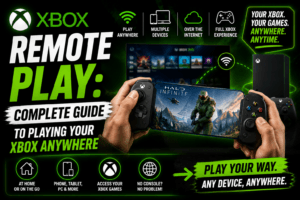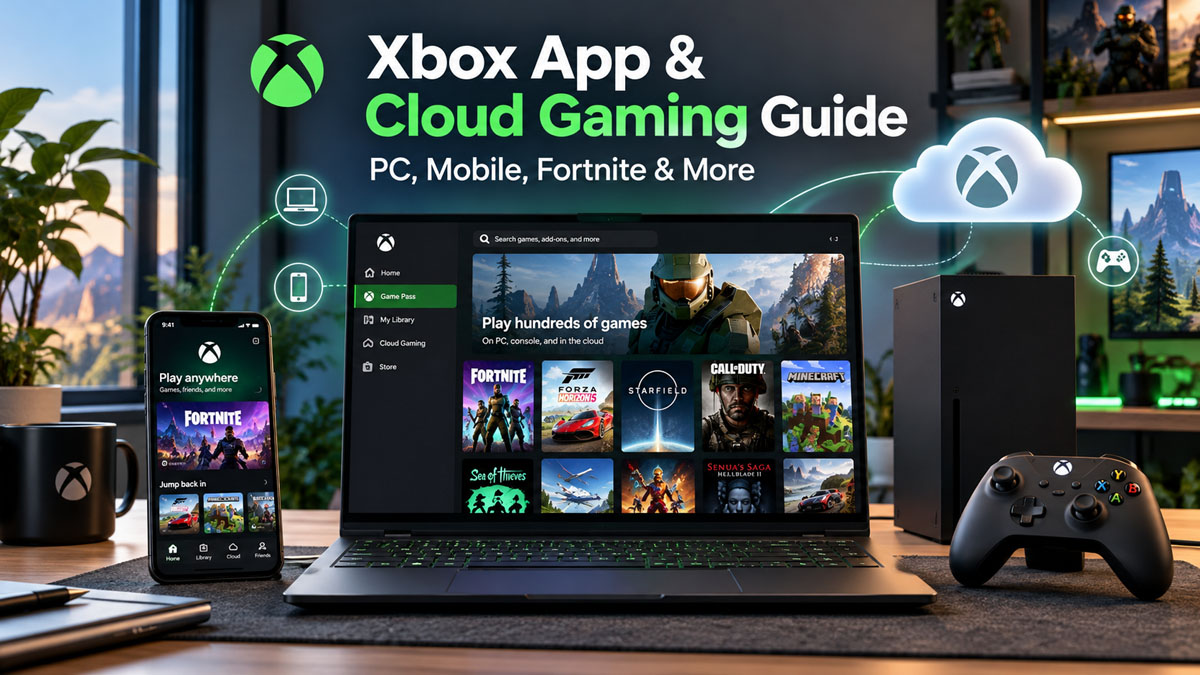
The Xbox app has changed quite a bit from the simple companion software many players remember. On Windows, it has become a central place for finding and installing PC games, managing Game Pass, accessing your gaming library, chatting with friends, and streaming supported console games through Xbox Cloud Gaming. On a phone, the Xbox mobile app is more focused on your library, purchases, friends, parties, captures, achievements, and managing your console.
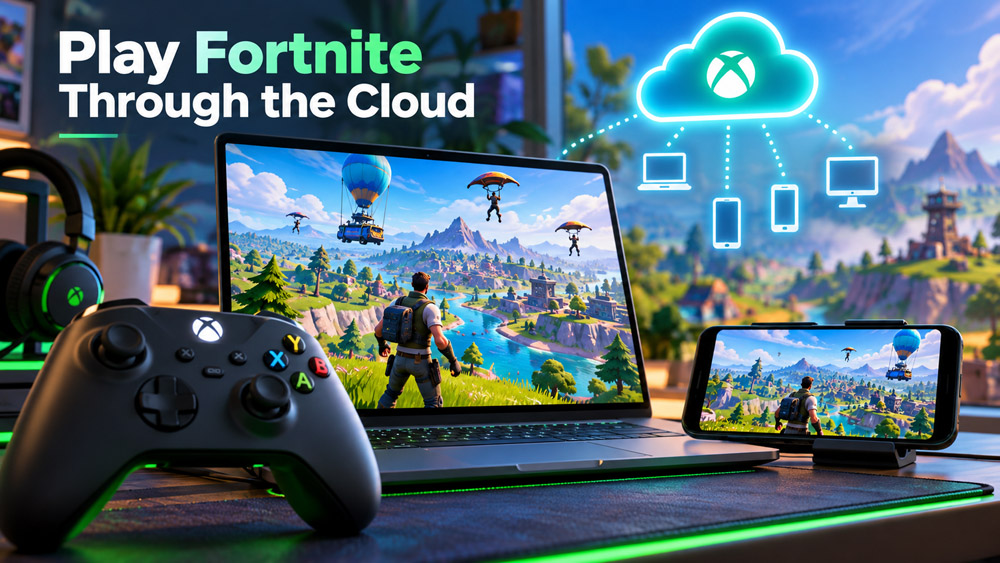
Then there is cloud gaming, which adds another layer. You can stream supported Xbox games without installing them locally, play Fortnite through the cloud, use supported smart TVs without connecting an Xbox console, and even continue games across different devices.
That convenience can also make Xbox’s current setup confusing. Is cloud gaming actually part of the Xbox app? Is xCloud still a thing? Do you need Game Pass? What happened to Xbox Cloud Gaming Beta? Does Xbox Live still exist? And do you need some kind of cloud gaming box under the TV?
This guide sorts through those questions without assuming you already know Microsoft’s terminology.
For the current apps, Game Pass information, consoles, and cloud-gaming options, start with the official Xbox website.
Xbox App at a Glance
The easiest way to understand the Xbox app is to separate the PC version from the mobile version.
| Feature | Xbox App on Windows | Xbox Mobile App |
|---|---|---|
| Install PC games | Yes | Can manage console installs |
| Browse Game Pass | Yes | Yes |
| Buy games/content | Yes | Yes |
| Chat with friends | Yes | Yes |
| Xbox parties | Yes | Yes |
| Achievements | Yes | Yes |
| Game captures | Yes | Yes |
| Cloud gaming | Yes, on supported setups | Opens through xbox.com/play |
| Remote play | Supported through Xbox services | Available through web remote play |
| Main purpose | Playing and managing games | Staying connected and managing Xbox |
Microsoft currently describes the Windows Xbox app as a place to discover and download Game Pass titles, play console games through cloud gaming, manage your games, and communicate with friends across PC, console, and mobile.
The mobile app is more of a companion. It lets you browse Game Pass, purchase games and add-ons, join parties, chat, view achievements, share captures, and remotely install games to your console. For cloud streaming on a phone or tablet, Microsoft directs players to xbox.com/play in a browser rather than treating the mobile app itself as the main cloud-playing interface.
Important Xbox Cloud Gaming Update for October 2026
Anyone reading an older Xbox cloud gaming guide should pay attention here because Microsoft has announced an important change.
As of October 2026, eligible Game Pass subscribers can still use Xbox Cloud Gaming without a monthly cloud-hour limit. However, Microsoft says that starting in November 2026, its Game Pass plans will include a set number of cloud-gaming hours each month.
The announced limits are:
| Game Pass Plan | Cloud Gaming Hours Starting November 2026 |
|---|---|
| Game Pass Ultimate | 15 hours per month |
| Game Pass Premium | 10 hours per month |
| Game Pass Essential | 5 hours per month |
After those included hours are used, Microsoft says players will be able to purchase additional cloud time through the Xbox Store. Availability, pricing, and specific features may differ by market.
Another important change is coming at the same time. Microsoft says players will be able to purchase cloud-playtime hours without maintaining a Game Pass subscription and stream eligible games they own. The company had not yet published all pricing and market details when it announced the change.
Because this article is being updated before that November rollout, do not assume an older article claiming “unlimited cloud gaming with Game Pass” will remain accurate after the change takes effect.
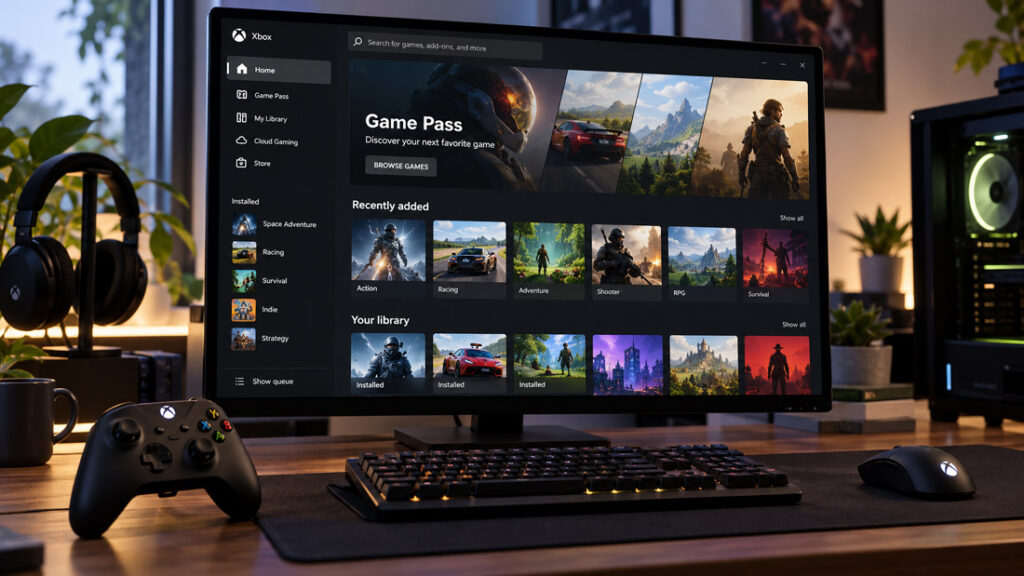
What Does the Xbox App Actually Do on PC?
The Xbox PC app is much closer to a full gaming launcher than a simple console companion.
On a Windows computer, you can browse games, install titles included with Game Pass, buy games, open games you already own, manage your Xbox profile, and keep up with friends.
Microsoft’s current PC experience also brings together more of your gaming library instead of limiting the app to games downloaded directly from Xbox. The company introduced an aggregated gaming library that can surface installed games from other PC storefronts alongside Xbox titles.
For someone with games spread across several services, that can reduce some of the launcher hopping that has become common on PC.
The app also ties into Xbox saves, achievements, your Microsoft account, Game Pass membership, and Xbox Play Anywhere support where available.
Current Xbox PC App Requirements
Microsoft currently lists these basic Xbox PC app requirements:
| Requirement | Current Minimum |
|---|---|
| Operating system | Windows 10 or Windows 11 |
| Windows version | 22H2 or newer |
| Storage for app | About 150 MB |
| Display | 720p minimum |
Individual games can demand far more powerful hardware than the app itself, of course. The Xbox app launching successfully does not mean every downloadable PC game will run well on that machine.
You can get the current Windows version from the official Xbox PC app page.
Xbox Mode Makes the PC App Feel More Like a Console
One of the bigger changes in 2026 is Xbox mode on Windows 11.
Microsoft began rolling Xbox mode out to Windows 11 PCs in selected markets in April 2026. The idea is to give desktops, laptops, tablets, and handheld PCs a controller-friendly, full-screen gaming interface that feels closer to using a console.
Instead of sitting at the Windows desktop and opening launchers with a mouse, players can browse their library, recent games, Game Pass content, and other gaming options through a controller-optimized interface.
You can still switch back to the normal Windows desktop when you need it.
This makes particular sense on Windows handheld devices, where desktop interfaces and tiny menus can be awkward to navigate with analog sticks.
Xbox mode is not a new console operating system. It is a gaming-focused Windows experience designed to make the Xbox ecosystem easier to use from the couch or on handheld hardware.
What Is Xbox Cloud Gaming?
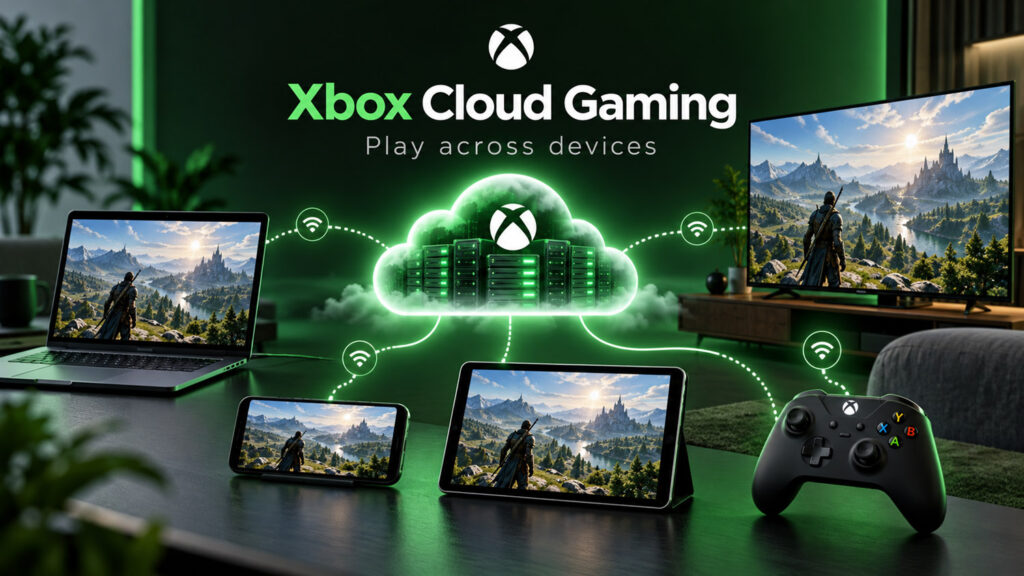
Xbox Cloud Gaming lets the game run remotely on Microsoft’s gaming infrastructure while the video and audio are streamed to your device.
Your controller input travels in the opposite direction.
That means your laptop, phone, tablet, TV, or streaming device does not necessarily need enough local graphics power to render the game itself. What matters much more is having a supported device, a supported game, the correct account or subscription, and a fast, stable internet connection.
Microsoft currently supports cloud play across a broad range of devices, including:
- Windows PCs
- Apple and Android phones and tablets
- Xbox consoles
- Selected Samsung, LG, and VIDAA-powered smart TVs
- Selected Amazon Fire TV devices
- Some Meta Quest headsets
- Supported web browsers
The exact list changes over time, so checking Microsoft’s current compatibility information is safer than buying a device based on an old YouTube video or forum post.
You can browse currently playable games at the official Xbox Cloud Gaming page.
Xbox App vs. Xbox Cloud Gaming vs. Remote Play
These three things are commonly mixed together, but they are not the same.
| Feature | Xbox App | Xbox Cloud Gaming | Xbox Remote Play |
|---|---|---|---|
| Where game runs | Your PC or cloud depending on game | Microsoft cloud servers | Your own Xbox console |
| Xbox console required | No | No | Yes |
| Game installation required locally | Usually for PC games | No | Game must be accessible on your console |
| Internet needed | Depends on activity | Yes | Yes |
| Useful away from home | Yes | Yes | Yes, if setup allows |
| Main benefit | Game/library management | Play without local install | Stream your own console |
This distinction matters.
If you use cloud gaming, the Xbox in your living room is not doing the work. Microsoft’s remote systems are running the game.
If you use remote play, your own Xbox console is the machine running the game and sending the video to your other device.
Remote play can be especially useful if you already own a console and want to access the games installed on it from another room or compatible device.
Microsoft currently directs mobile users to its browser-based remote-play experience and says remote features need to be enabled on the console.
What Happened to xCloud?
If you searched for xCloud, you are looking for what became Xbox Cloud Gaming.
“Project xCloud” was Microsoft’s earlier project name for the technology during its development and preview stages. Xbox’s own historical posts and archive still group those early cloud-gaming announcements under Project xCloud.
The consumer-facing name today is Xbox Cloud Gaming.
You may still see “xCloud” in:
- Older articles
- Reddit discussions
- YouTube videos
- Old Microsoft announcements
- Product descriptions
- Search queries
People also use it as convenient shorthand because “xCloud” is much quicker to type.
It is not a separate modern Microsoft cloud-gaming service. If someone says they are using xCloud today, they usually mean Xbox Cloud Gaming.
Is Xbox Cloud Gaming Still in Beta?
No.
This is another place where old search results can be misleading.
For years, Microsoft officially used the name Xbox Cloud Gaming (Beta). Many websites, screenshots, tutorials, and videos still contain that wording.
Microsoft stated in late 2025 that Xbox Cloud Gaming was out of beta. Its 2026 updates also describe the service as being out of beta while Microsoft continues improving streaming quality and the web interface.
So if you search for Xbox Cloud Gaming Beta, you will still find plenty of relevant information, but “Beta” no longer describes the service’s current status.
There can still be individual preview features. For example, Microsoft tested a refreshed Xbox Cloud Gaming browser interface through an Insider public preview in 2026. That does not mean the entire cloud-gaming service went back into beta.
How to Start Xbox Cloud Gaming
For most users, getting started is straightforward.
You generally need:
- A supported Microsoft/Xbox account
- A supported region
- A cloud-compatible device
- A supported game
- A suitable Game Pass plan for subscription games
- A compatible controller for games that require one
- A stable internet connection
Some games support touch controls or mouse and keyboard, so a controller is not always necessary. Microsoft specifically marks touch-compatible games in its cloud catalog.
For browser play, open the official Xbox cloud-gaming site, sign in, choose a supported title, and start the stream.
On a Windows PC, you may also be able to launch cloud-supported games through the Xbox app.
How Fast Does Your Internet Need to Be?
Cloud gaming responds very differently to network problems than watching Netflix.
A movie can buffer several seconds ahead. An interactive game cannot do that because the service has to react immediately when you press a button.
Microsoft currently lists a minimum download speed of around 10 Mbps for Xbox Cloud Gaming and notes that some devices may need 20 Mbps for the best experience. A 5 GHz Wi-Fi connection is recommended.
That number alone does not tell the whole story.
A 200 Mbps connection with unstable latency, packet loss, or overloaded Wi-Fi can feel worse than a stable 30 Mbps connection.
If cloud gaming feels blurry or controls seem delayed, try:
- Moving closer to your Wi-Fi router.
- Using 5 GHz Wi-Fi instead of a crowded 2.4 GHz connection.
- Connecting by Ethernet where possible.
- Pausing large downloads elsewhere in the house.
- Disconnecting unnecessary bandwidth-heavy devices.
- Trying another browser or the Xbox app on PC.
- Checking whether Xbox services are experiencing problems.
Cloud gaming cannot eliminate the laws of networking. Distance from the data center and the quality of your ISP’s routing can still affect latency.
Can You Play Fortnite With Xbox Cloud Gaming?
Yes.
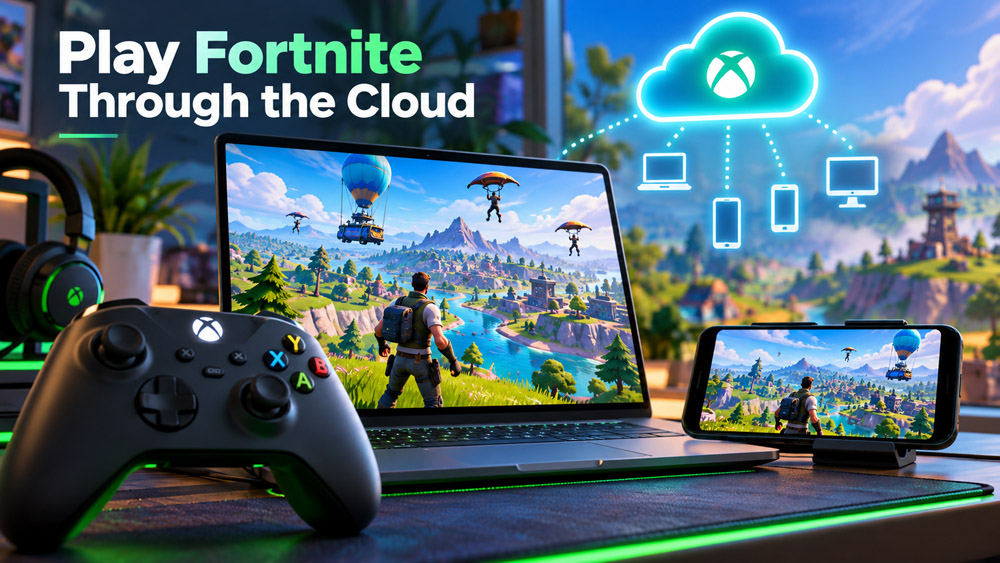
Xbox Cloud Gaming Fortnite support is one of the easiest ways to try Microsoft’s streaming technology because Fortnite is one of the supported free-to-play exceptions.
Microsoft currently says selected free-to-play games such as Fortnite can be played through cloud gaming with a free Microsoft account in supported regions. A paid Game Pass subscription is not required for that specific free-to-play cloud experience.
Fortnite’s current Xbox cloud page supports multiple control methods, including controller, touch, and mouse and keyboard where supported.
To try it, open the official Fortnite Xbox Cloud Gaming page and sign in with your Microsoft account.
Do You Need to Install Fortnite?
Not when you are playing it through Xbox Cloud Gaming.
The game runs in Microsoft’s cloud environment, so you do not need to download Fortnite’s full local installation to the device you’re using.
That can be useful on:
- A laptop with limited storage
- A tablet
- A phone
- A supported smart TV
- A temporary computer
- A lower-powered system that would struggle to run the PC version locally
You still need a strong internet connection because the game is being streamed continuously.
Can You Use Xbox Cloud Gaming on an iPhone or iPad?
Yes, but the experience may not work the way a new user expects.
Microsoft currently directs iPhone and iPad users to Safari and xbox.com/play for cloud gaming rather than telling them to launch games directly inside the normal Xbox mobile app.
You can add the cloud-gaming web experience to the iPhone or iPad Home Screen so it behaves more like a dedicated app shortcut.
That distinction is worth knowing because downloading the Xbox mobile app and then searching inside it for a big “Play Cloud Game” button can lead to confusion.
The mobile Xbox app is still useful for chat, parties, purchases, achievements, captures, and managing your Xbox experience. Cloud play itself is primarily accessed through the browser on mobile.
Can You Use Xbox Cloud Gaming on Android?
Yes.
Microsoft supports cloud gaming on compatible Android phones and tablets. As with iPhone, the current official guidance allows players to open a supported browser and go to Xbox’s cloud-gaming website.
Some games include touch controls, while others are much better with a Bluetooth or USB controller.
If you plan to play action games regularly on a phone, a controller grip or mobile gaming controller can make a large difference compared with balancing the phone somewhere while holding a full-size gamepad.
Can You Play Xbox Games on a Mac?
Yes, through supported cloud gaming.
You do not install the Windows Xbox PC app on macOS. Instead, Microsoft’s current guidance is to use Safari or another supported browser and access Xbox Cloud Gaming through the web.
This does not turn every Xbox game into a Mac game. The game is running remotely in the cloud.
That difference is exactly why cloud gaming can make console titles accessible on hardware that does not have a native version of the game.
What Games Can You Stream?
The cloud library changes.
Xbox currently offers many Game Pass titles for streaming and also supports a growing Stream Your Own Game catalog, where selected games you own can be streamed even when they are not part of the subscription library.
Do not assume every Xbox title you own can be streamed.
A game can be:
- Available in Game Pass and cloud playable.
- Available in Game Pass but not cloud playable.
- Purchasable and eligible for “Stream Your Own Game.”
- Purchasable but not currently supported for cloud play.
- Removed from Game Pass while still purchasable separately.
Licensing and technical support vary from game to game.
The safest approach is to check the live cloud library rather than using a static game list from an old article.
Can Xbox Cloud Gaming Replace a Console?
For some people, maybe.
For others, not yet.
Cloud gaming makes the most sense when convenience matters more than getting the absolute best local performance.
A cloud-first setup can be attractive if you:
- Play casually.
- Move between devices frequently.
- Do not want large downloads.
- Have excellent internet.
- Want to play on a TV without buying a console.
- Mostly play cloud-supported games.
A console or gaming PC still has advantages if you:
- Want the lowest possible input latency.
- Play competitive shooters seriously.
- Have unreliable internet.
- Want offline play.
- Want maximum image quality.
- Play games that are not cloud supported.
- Regularly exceed the future monthly cloud-hour allowance.
That last point becomes much more important after Microsoft’s announced November 2026 changes.
Do You Need a “Cloud Gaming Box”?
No special cloud gaming box is required for Xbox Cloud Gaming.
The whole point of the service is that many devices people already own can act as the screen and controller endpoint.
For a television, options currently include selected smart TVs with built-in Xbox support and certain Amazon Fire TV devices. Microsoft lists compatible Samsung, LG, and VIDAA-based TVs along with Fire TV hardware.
So if someone searches for an “Xbox cloud gaming box,” what they may actually need is one of three things:
- A supported smart TV with the Xbox app built in.
- A compatible streaming device such as a supported Fire TV model.
- An Xbox console, PC, or other supported device connected to the display.
There is no requirement to buy a dedicated Xbox-branded cloud box just to access the service.
Xbox Cloud Gaming on Smart TVs
Smart TV support is one of the clearest examples of Microsoft’s “play without a console” strategy.
The current Xbox TV experience supports selected:
- Samsung smart TVs and monitors
- LG smart TVs
- VIDAA OS-powered TVs
- Amazon Fire TV devices
Exact model years and software requirements vary. For example, Microsoft’s current compatibility page lists selected Samsung 2020-and-newer TVs, certain LG models, supported VIDAA hardware, and specific generations of Fire TV Stick and Fire TV Cube devices.
The basic experience is simple: open the Xbox app, connect a supported controller, sign in, and stream.
Microsoft also says supported controllers extend beyond Xbox controllers and can include certain PlayStation controllers and other compatible hardware.
What Is Xbox Live Now?
The phrase Xbox Live is still deeply connected with Xbox because it was the name gamers used for Microsoft’s online gaming service for many years.
You may still see “Xbox Live” listed in older games, store metadata, player conversations, compatibility descriptions, and historical documentation.
However, Microsoft’s modern language more often refers to the Xbox network, Xbox services, and Game Pass memberships.
There is also an important difference between Xbox Live and Xbox Live Gold.
Xbox Live Gold was the paid membership historically associated with online console multiplayer and Games with Gold. Microsoft replaced Xbox Live Gold with Xbox Game Pass Core in September 2023.
Since then, Microsoft’s Game Pass lineup has continued evolving. Its current 2026 consumer plans include Game Pass Essential, Premium, Ultimate, and PC Game Pass.
So when an older guide tells you to “buy Xbox Live,” check what it actually means. It may be referring broadly to Xbox online services, or it may be referring to Xbox Live Gold, which is an outdated subscription name.
Does the Xbox App Require Xbox Live?
Not simply to open and use the app.
The Xbox app can be used for browsing, purchasing, managing your library, viewing your profile, messaging friends, and other features without an old Xbox Live Gold subscription.
Individual games and services can have their own multiplayer or subscription requirements.
Cloud gaming also has separate requirements depending on the title. Most subscription-based cloud games require an eligible Game Pass plan, while supported free-to-play cloud titles such as Fortnite can be available with a free Microsoft account.
Xbox Cloud Gaming Quality
Cloud quality has steadily improved, but it can differ by subscription tier, platform, region, device, and current network conditions.
In February 2026, Microsoft began rolling out streams of up to 1440p with higher bitrate for Game Pass Ultimate members on supported Xbox consoles. The company said this improvement joined cloud support across the Xbox PC app, handhelds, browsers, selected Fire TV devices, LG TVs, and Samsung TVs.
Do not read that as a promise that every game on every device will always stream at 1440p.
Actual quality can be affected by:
- Your device
- Subscription level
- Game support
- Region
- Server availability
- Network bandwidth
- Wi-Fi quality
- Latency
- Temporary congestion
Cloud gaming can look surprisingly good under the right conditions, but a local console still does not have to compress the entire game into a live internet video stream before showing it on your television.
What Happens to Your Game Saves?
One of the more useful parts of the Xbox ecosystem is that supported games can carry progress between devices.
Microsoft describes Xbox saves and progression as moving across compatible devices, allowing you to continue from another platform instead of restarting every time you change screens.
Imagine playing a game on an Xbox console at home, later opening it through cloud gaming on a laptop, and then returning to the console.
For games that properly support Xbox cloud saves and cross-device progression, that can feel almost seamless.
Be aware that cross-progression can differ between games. Do not assume every PC version, console version, third-party account, and cloud version automatically uses exactly the same save data.
Xbox Play Anywhere Is Different From Cloud Gaming
Xbox Play Anywhere is another term that sometimes gets mixed into the cloud discussion.
A supported Xbox Play Anywhere title can generally let you buy an eligible digital game once and play supported Xbox console and Windows PC versions while carrying supported saves, achievements, and progress between them.
That can work with locally installed games.
Cloud gaming is different because the game is streamed from remote hardware.
A title can support Play Anywhere, cloud gaming, both, or neither.
Microsoft has continued investing in Play Anywhere because it fits the company’s broader goal of letting players move among PC, console, handheld, and cloud experiences.
Xbox App on PC vs. Mobile: Which One Do You Need?
The answer depends on what you are trying to do.
If your main goal is installing and playing PC games, use the Windows Xbox app.
If your goal is chatting, checking achievements, sharing captures, buying games, or managing your console from a phone, install the Xbox mobile app.
If your goal is cloud gaming on an iPhone or Android phone, open xbox.com/play in a supported browser.
If your goal is streaming games installed on your own Xbox, use remote play.
If you want to stream to a supported smart TV, install or open the Xbox app available for that television platform.
There is no single Xbox app installation that behaves identically across every device.
Xbox App Features Worth Using
Once the basics are set up, a few features are particularly useful.
Game Pass Browsing
The Windows app makes it easier to explore the Game Pass catalog and install PC-compatible titles.
Cloud Saves
Supported games can synchronize progress across compatible Xbox experiences.
Friends and Chat
The Xbox app lets you see friends, send messages, and stay connected across Xbox console, PC, and mobile.
Parties
The mobile app supports Xbox parties, which can be convenient when you want to use your phone’s headset rather than a console headset.
Captures
Screenshots and clips from your Xbox experience can be accessed and shared from the mobile app.
Remote Installation
You can tell your Xbox console to download a game ahead of time, so it can be ready when you get home.
Purchases
Microsoft has restored game and add-on purchasing inside the Xbox mobile app, allowing users to shop without leaving the app.
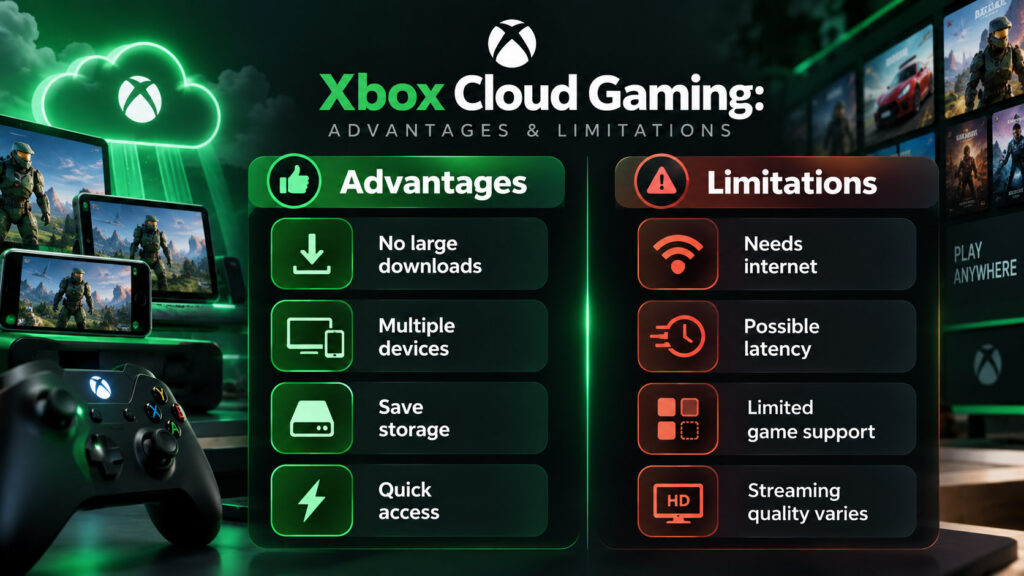
Xbox Cloud Gaming Advantages and Limitations
No cloud platform is perfect. Whether Xbox Cloud Gaming is useful depends on what you expect from it.
| Advantages | Limitations |
|---|---|
| No large game download | Requires reliable internet |
| Works on many devices | Input latency can be noticeable |
| Can save device storage | Image quality depends on connection |
| Lets you try games quickly | Not every Xbox game is supported |
| Works on some TVs without console | Availability varies by country |
| Supports cross-device play | Server queues may occur |
| Fortnite can be played free via cloud | Future monthly cloud-hour limits |
| Can stream select owned games | Local play is still better for some games |
The biggest benefit is convenience.
The biggest weakness is that the experience is only as strong as the path between your controller, internet connection, Microsoft’s servers, and your display.
Common Xbox Cloud Gaming Problems
Cloud gaming usually works without much setup, but several problems show up repeatedly.
The Game Looks Blurry
This often happens when the connection cannot consistently maintain the bitrate needed for a sharp stream.
Try Ethernet or 5 GHz Wi-Fi, stop large downloads, and test closer to the router.
Controls Feel Delayed
Latency matters more than raw download speed.
A wired controller, Ethernet connection, stronger Wi-Fi, and lower network congestion may help.
Cloud Option Is Missing
Check whether the game actually supports cloud play, whether your account has the required Game Pass plan, whether cloud gaming is available in your region, and whether the device is supported.
The Browser Experience Is Not Working Properly
Try an officially supported browser such as Edge, Chrome, or Safari.
Fortnite Asks for an Account
You still need a Microsoft account to use Xbox Cloud Gaming, even when the game itself does not require a paid Game Pass subscription.
My Phone Has the Xbox App but I Can’t Find Cloud Games
On current iOS and Android guidance, Microsoft directs mobile cloud play through xbox.com/play in the browser. The normal mobile Xbox app focuses primarily on community, purchases, console management, and your gaming activity.
Is Xbox Cloud Gaming Worth Using?
It costs nothing extra to experiment with Fortnite if you are in a supported region and already have a free Microsoft account, making that one of the best ways to see whether the latency and image quality work well on your connection.
For Game Pass subscribers, cloud gaming can be useful for testing a game before downloading it or continuing something on a device away from your main setup.
Its value changes somewhat in November 2026 because of the announced monthly cloud-hour limits. A player who streams one or two short sessions a month may barely notice the change. Someone who treats cloud gaming as their primary gaming platform may need to think more carefully about additional cloud hours and cost.
That is why cloud gaming should be evaluated based on how you actually play rather than as a simple “console replacement.”
Frequently Asked Questions
What is the Xbox app?
The Xbox app is Microsoft’s gaming software for Windows and mobile devices. On Windows it can install and launch games, manage Game Pass, connect with friends, and access cloud gaming. The mobile version focuses on purchases, Game Pass browsing, parties, chat, captures, achievements, and console management.
Is the Xbox app free?
The app itself can be downloaded without buying Game Pass. Individual games, subscriptions, and services may cost money.
What is Xbox Cloud Gaming?
Xbox Cloud Gaming streams supported console games from Microsoft’s remote hardware to compatible PCs, phones, tablets, consoles, TVs, browsers, and other supported devices.
Is xCloud the same as Xbox Cloud Gaming?
Yes, in normal modern usage. Project xCloud was the earlier development and preview name for Microsoft’s cloud-gaming technology. The current consumer name is Xbox Cloud Gaming.
Is Xbox Cloud Gaming still beta?
No. Microsoft said Xbox Cloud Gaming had moved out of beta by late 2025. Older pages and search results may still use “Xbox Cloud Gaming (Beta).”
Can I play Fortnite using Xbox Cloud Gaming?
Yes. Fortnite is supported, and Microsoft currently allows selected free-to-play cloud games such as Fortnite to be played with a free Microsoft account in supported regions.
Do I need Game Pass for Xbox Cloud Gaming Fortnite?
Not for Fortnite’s supported free cloud experience. A free Microsoft account is enough in supported regions. Other cloud games may require an eligible Game Pass plan or ownership.
Can I use cloud gaming without an Xbox console?
Yes. A console is not required. Supported PCs, phones, tablets, TVs, Fire TV devices, and other hardware can access Xbox Cloud Gaming.
Do I need a cloud gaming box?
No dedicated Xbox cloud gaming box is required. You can use supported devices you already own, although a compatible streaming stick can add Xbox cloud gaming to certain TVs.
Is Xbox Live still a subscription?
Xbox Live Gold is not. Microsoft replaced Xbox Live Gold with Game Pass Core in 2023, and its Game Pass lineup has continued evolving since then. “Xbox Live” may still appear as a broad or legacy term related to Xbox’s online network.
Can I play cloud games on iPhone?
Yes. Microsoft directs iPhone users to Safari and xbox.com/play. The cloud experience can also be added to the Home Screen.
Can I use Xbox Cloud Gaming on Mac?
Yes. Mac users can access supported cloud games through a compatible browser rather than installing the Windows Xbox app.
Will Xbox Cloud Gaming have a time limit?
Microsoft says that beginning in November 2026, Game Pass Ultimate will include 15 cloud hours per month, Premium 10 hours, and Essential 5 hours. Additional cloud time will be purchasable, subject to market availability and Microsoft’s final pricing details.
🔥 Related Posts
Minecraft Education Download — Your Complete Guide to Getting Started

The Most Downloaded Mobile Games of All Time: A Deep Dive into the Global Phenomenon
What is Xbox Live? Complete Guide, Features, Benefits & Tips (USA)
Google Dinosaur Game: The Complete Guide to the Internet’s Most Addictive Offline Game
Amazon Prime Gaming: Complete Guide to Free Games, Twitch Benefits, Luna, and More