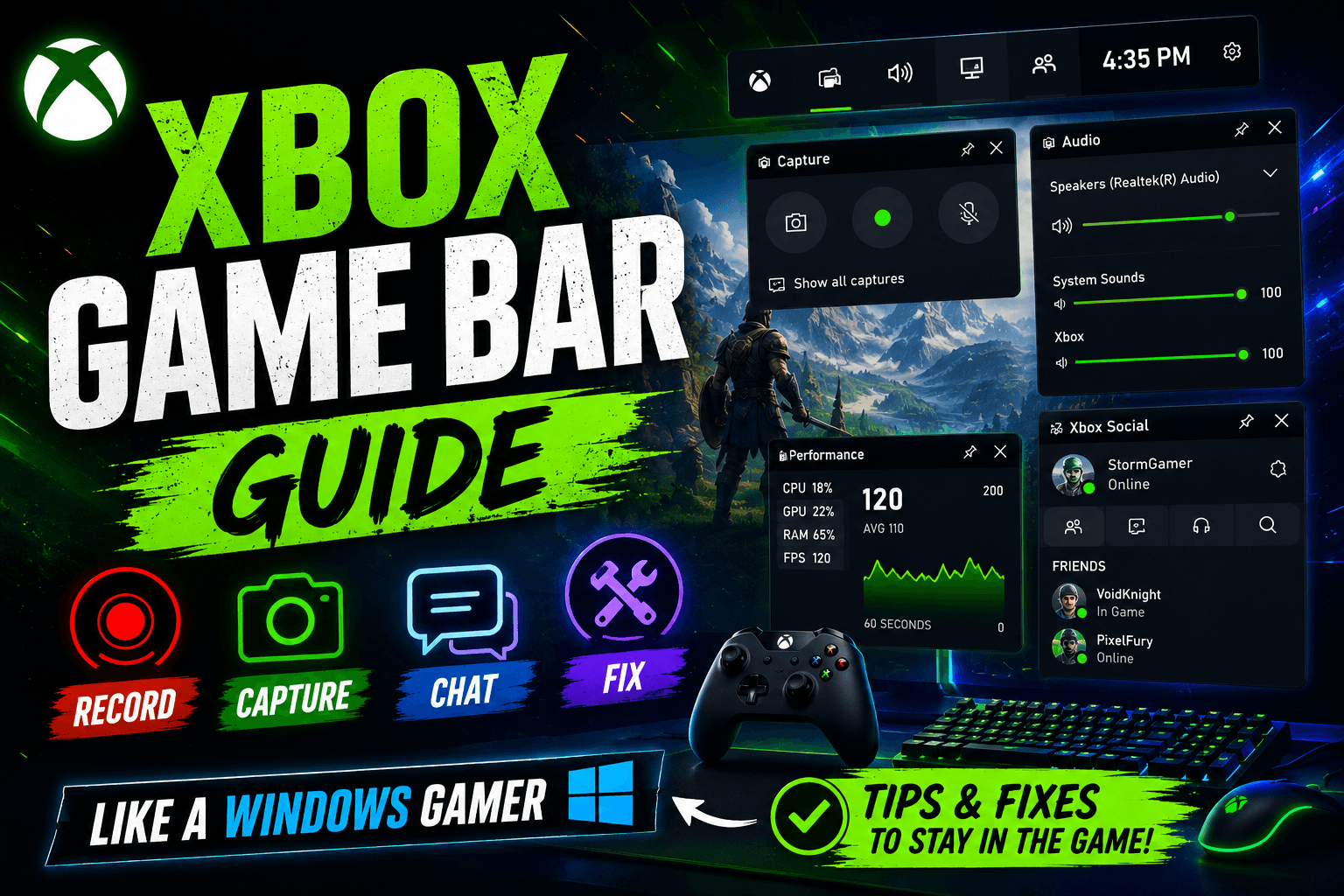
Xbox Game Bar is the built-in Windows gaming overlay that lets you record clips, take screenshots, adjust audio, check performance, and use gaming widgets without leaving your game. The main shortcut is Windows key + G. Microsoft describes it as a customizable gaming overlay that works with most PC games and gives quick access to capture, sharing, and Xbox social widgets.
That is the clean version.
The real version is this: Xbox Game Bar is the button you wish you knew before that perfect headshot, funny glitch, boss kill, or “how did that even happen?” moment disappeared forever.
This guide walks through how to use it properly.
What Is Xbox Game Bar?
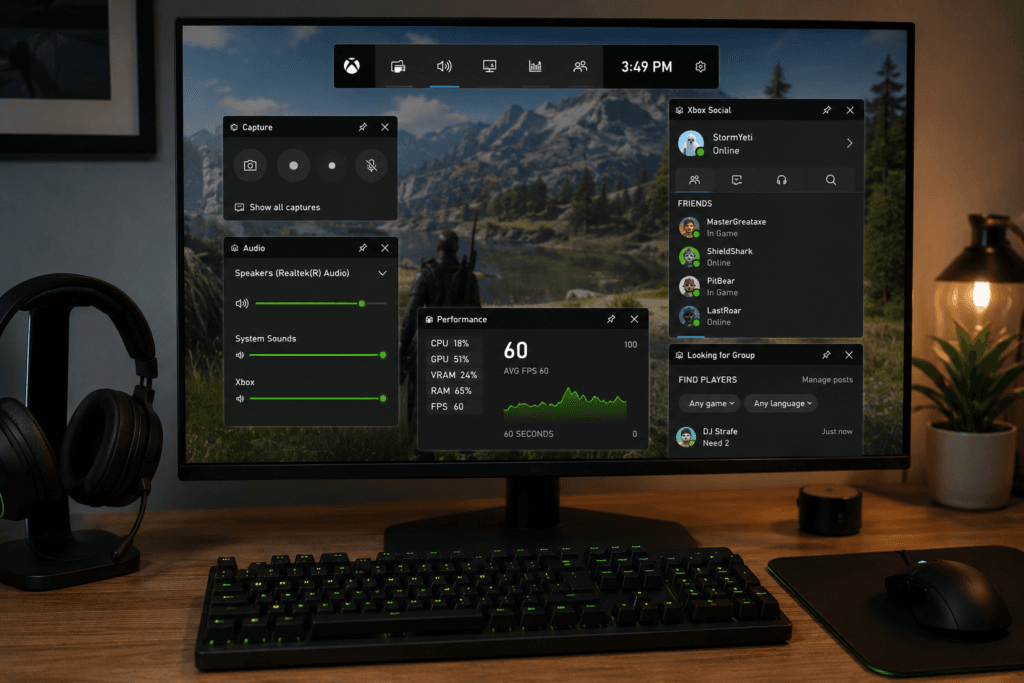
Xbox Game Bar is a Windows overlay made for players who want quick tools while gaming. You can open it over most PC games, grab a screenshot, start a recording, check system performance, manage sound, or chat with Xbox friends without closing the game.
It is not only for Xbox consoles. It is built into Windows PCs.
Think of it as a small control room that appears on top of your game.
You press:
Windows key + G
The overlay opens.
From there, you can record, capture, pin widgets, change audio, and check what your PC is doing while the game runs.
What Can Xbox Game Bar Do?
| Feature | What It Does | Best For |
|---|---|---|
| Screen recording | Records gameplay or app activity | Game clips, tutorials, bug reports |
| Screenshot capture | Saves a still image from your game | High scores, glitches, achievements |
| Audio control | Adjusts app, game, and mic sound | Balancing game and voice audio |
| Performance widget | Shows CPU, GPU, RAM, and FPS info | Checking lag and frame drops |
| Xbox Social | Connects with Xbox friends | Chatting and party features |
| Widget system | Adds and manages extra tools | Customizing the overlay |
| Compact Mode | Makes Game Bar easier on small screens and handhelds | Windows handhelds, controller users |
Game Bar is not as advanced as OBS Studio, but it is faster to start. For most casual recordings, it is enough.
How to Open Xbox Game Bar
Open any game or app you want to capture.
Then press:
Windows key + G
Microsoft lists Windows key + G as the shortcut to open Game Bar.
Once the overlay opens, you will usually see widgets such as Capture, Audio, Performance, Resources, and Xbox Social.
The layout can be moved around. You can drag widgets, close the ones you do not need, and pin useful ones so they stay visible while you play.
Xbox Game Bar Keyboard Shortcuts
These shortcuts are the ones worth remembering.
| Shortcut | Action |
|---|---|
| Windows key + G | Open Xbox Game Bar |
| Windows key + Alt + R | Start or stop recording |
| Windows key + Alt + M | Turn microphone on or off during recording |
| Windows key + Alt + Print Screen | Take a screenshot |
| Windows key + Alt + G | Record the last 30 seconds, when enabled |
| Windows key + Shift + R | Record a selected screen region with Snipping Tool, not Game Bar |
Microsoft’s Game Bar recording instructions list Windows key + Alt + R for recording, Windows key + Alt + M for microphone toggle, and Windows key + Alt + Print Screen for screenshots.
How to Enable Xbox Game Bar
Sometimes Game Bar does not open because it is turned off.
To enable it:
- Open Settings.
- Go to Gaming.
- Open Game Bar or Xbox Game Bar.
- Turn on the Game Bar option.
Microsoft’s support instructions also describe enabling Xbox Game Bar from Windows Settings by searching for Xbox and turning on the Game Bar toggle for recording clips, chatting with friends, and receiving game invites.
After that, press Windows key + G again.
How to Record Gameplay With Xbox Game Bar
There are two simple ways to record.
Method 1: Use the Overlay
- Open your game.
- Press Windows key + G.
- Open the Capture widget.
- Click the round Record button.
- Play the game.
- Click Stop recording when finished.
Microsoft’s Game Bar page says you can select Record from now to start a clip and Stop recording to end it.
Method 2: Use the Shortcut
Press:
Windows key + Alt + R
Recording starts.
Press the same shortcut again to stop.
This is the faster method when something is already happening and you do not want to open the overlay.
Where Xbox Game Bar Saves Recordings
Xbox Game Bar recordings are saved here by default:
Videos > Captures
Microsoft says recorded videos are saved under the Videos folder in a folder called Captures as MP4 files.
Screenshots are also saved in the Captures folder, usually as PNG files.
Quick File Guide
| Capture Type | File Format | Default Location |
|---|---|---|
| Gameplay recording | MP4 | Videos > Captures |
| Screenshot | PNG | Videos > Captures |
To find your clips manually:
- Open File Explorer.
- Go to Videos.
- Open Captures.
That is where your recordings should be.
How to Take a Screenshot With Xbox Game Bar
Use this shortcut:
Windows key + Alt + Print Screen
Or open Game Bar with Windows key + G and click the camera icon in the Capture widget. Microsoft says the camera icon takes a picture of what is happening in the game.
Screenshots are useful for:
- Game achievements
- Scoreboards
- Bugs and glitches
- Settings screens
- Cool in-game scenes
- Tutorial images
For regular desktop screenshots, Snipping Tool may be better. For gaming screenshots, Game Bar keeps everything neatly inside the Captures folder.
How to Record the Last 30 Seconds
This is one of the best Xbox Game Bar features.
You are playing. Something happens. You were not recording.
Instead of losing the moment, press:
Windows key + Alt + G
Windows can save the last 30 seconds, when the feature is enabled. Microsoft lists this shortcut as “Record the last 30 seconds.”
This is useful for:
- Surprise kills
- Funny fails
- Bugs
- Speedrun moments
- Sports game goals
- Racing finishes
- Random chaos worth saving
This feature usually depends on background recording being turned on in capture settings. Keep in mind that background recording can use extra system resources.
How to Record Your Voice
To include your microphone:
- Open Xbox Game Bar.
- Go to Settings.
- Open Capturing.
- Check the audio options.
- Use Windows key + Alt + M to turn the mic on or off while recording.
Microsoft lists Windows key + Alt + M as the shortcut to toggle the microphone during recording.
Microphone Not Recording?
Check these:
| Problem | What to Check |
|---|---|
| No voice in clip | Mic may be muted in Game Bar |
| Wrong mic recorded | Windows input device may be wrong |
| Low voice volume | Microphone level may be too low |
| Game audio recorded but not mic | Capture audio setting may exclude mic |
| Mic works elsewhere but not here | App permission or Game Bar setting may need adjustment |
Before recording something important, make a short 10-second test clip.
How to Record Game Audio
Game Bar can record game audio, microphone audio, and system sound depending on your capture settings.
To check audio capture:
- Press Windows key + G.
- Open Settings.
- Go to Capturing.
- Choose the audio option that matches what you want.
Microsoft’s recording instructions include selecting All in the audio capture settings when you want computer sounds included.
Use that when you want the full sound of the game, app, voice chat, and system audio.
Be careful with music. Clips with copyrighted music may cause problems on YouTube, TikTok, Facebook, or other platforms.
Xbox Game Bar Widgets: What Each One Is For
Widgets are the small panels inside Game Bar.
They are the reason Game Bar feels more like a dashboard than a plain recorder.
| Widget | Use It For |
|---|---|
| Capture | Recording clips and taking screenshots |
| Audio | Changing volume for apps, game sound, mic, and system audio |
| Performance | Viewing CPU, GPU, RAM, and FPS |
| Resources | Seeing which apps are using system power |
| Xbox Social | Friends, messages, party features |
| Gallery / Captures | Viewing saved clips and screenshots |
| Widget Store | Finding and managing extra widgets |
The three most useful widgets for most players are Capture, Audio, and Performance.
How to Pin a Widget
Pinning keeps a widget visible after you close the main overlay.
To pin a widget:
- Press Windows key + G.
- Open the widget you want.
- Click the pin icon.
- Close Game Bar.
Pinned widgets are useful for performance monitoring. For example, you can keep FPS on screen while changing graphics settings.
Do not pin too many widgets. A cluttered screen makes games harder to play.
How to Check FPS and Performance
The Performance widget helps you see how your PC is handling a game.
Use it to watch:
- FPS
- CPU usage
- GPU usage
- RAM usage
- VRAM usage, where available
A simple reading:
| What You See | What It May Mean |
|---|---|
| GPU near 100% | Graphics settings may be too high |
| CPU very high | Game, background apps, or streaming may be stressing the processor |
| RAM nearly full | Close browsers, launchers, or unused apps |
| FPS unstable | Lower graphics settings or check background tasks |
| Recording stutters | Reduce recording quality or stop background capture |
The widget does not magically fix performance, but it tells you where to look.
Compact Mode: Game Bar for Handhelds and Controllers
Compact Mode is made for smaller screens, Windows handhelds, and controller navigation. Xbox announced that Game Bar Compact Mode became available for all PC players on Windows in September 2024. It simplifies navigation, supports controller-friendly switching between widgets, and can be turned on in Game Bar Settings under the General tab.
Use Compact Mode when:
- You play on a Windows handheld.
- You use a controller from the couch.
- The normal Game Bar feels too large.
- You want easier widget navigation.
- You prefer a cleaner overlay.
To turn it on:
- Open Game Bar.
- Go to Settings.
- Open General.
- Turn on Compact Mode.
Xbox Game Bar vs OBS Studio
Xbox Game Bar and OBS Studio are not really enemies. They are built for different people.
| Feature | Xbox Game Bar | OBS Studio |
|---|---|---|
| Easy to start | Very easy | Needs setup |
| Built into Windows | Yes | No |
| Best for quick clips | Yes | Yes, but more setup |
| Streaming | Limited | Strong |
| Scenes and overlays | Limited | Strong |
| Multi-track audio | Limited | Strong |
| Webcam layouts | Limited | Strong |
| Best user | Casual player | Creator or streamer |
Use Xbox Game Bar when you need quick clips.
Use OBS when you need serious production control.
Xbox Game Bar vs Snipping Tool
Windows also has Snipping Tool. It is better for general screen capture.
| Tool | Best For |
|---|---|
| Xbox Game Bar | Game clips, screenshots, FPS overlay, gaming widgets |
| Snipping Tool | Desktop screenshots, selected area recording, quick annotations |
Microsoft’s shortcut page says Windows key + Shift + R records a selected region and opens the recording in Snipping Tool.
Use the right tool for the job:
Game recording: Xbox Game Bar
Selected desktop region: Snipping Tool
Best Xbox Game Bar Settings for Most Players
Here is a practical setup.
| Setting | Recommended Choice | Why |
|---|---|---|
| Game Bar | On | Enables shortcut access |
| Background recording | Off unless needed | Saves system resources |
| Record last 30 seconds | On only if you use it | Useful, but can affect performance |
| Microphone | Off by default | Prevents unwanted voice recording |
| Audio capture | Game/system audio as needed | Avoids silent clips |
| Capture location | Drive with enough space | Prevents failed recordings |
| Performance widget | Pin only when testing | Keeps screen clean |
Do a quick test recording after changing settings.
That one habit prevents most recording surprises.
Xbox Game Bar Not Working: Fixes That Usually Help
When Game Bar fails, it is usually one of a few common issues.
1. Check That Xbox Game Bar Is Enabled
Go to:
Settings > Gaming > Game Bar
Turn it on.
Microsoft’s support page explains enabling Game Bar from Windows Settings for recording clips, chatting with friends, and receiving invites.
2. Try the Shortcut Again
Press:
Windows key + G
Some full-screen games need a second attempt or a restart.
3. Restart the Game
Close the game completely.
Open it again.
Try Game Bar again.
4. Update Game Bar
Open Microsoft Store.
Check for app updates.
Microsoft’s Windows keyboard shortcut page notes that Game Bar can be updated through the Microsoft Store.
5. Update Windows
Go to:
Settings > Windows Update
Install updates.
Restart the PC.
6. Check Storage Space
Recordings can fail if your drive is full.
Open:
Videos > Captures
Move or delete old recordings.
7. Repair or Reset Game Bar
Go to:
Settings > Apps > Installed apps > Xbox Game Bar > Advanced options
Try Repair first.
Use Reset only when repair does not help.
8. Test Another Game
Game Bar works with most PC games, not necessarily every single game. Microsoft uses the wording “most PC games” on its Game Bar page.
Test another game. If Game Bar works there, the issue may be with that specific game, overlay conflict, display mode, or anti-cheat behavior.
Xbox Game Bar Recording Has No Sound
This is one of the most common problems.
Use this checklist.
| Symptom | Likely Cause | Fix |
|---|---|---|
| No game sound | Audio capture setting wrong | Change capture audio settings |
| No mic sound | Mic muted or wrong input selected | Toggle mic, check Windows input |
| Voice too quiet | Mic level too low | Increase mic input volume |
| Discord not recorded | Audio capture excludes app audio | Use broader system audio setting |
| Clip completely silent | Output device conflict | Check Windows sound settings |
Make a short test clip before recording a long session.
Xbox Game Bar Recording Is Laggy
Laggy recordings usually mean your PC is doing too much at once.
Try this:
- Lower game graphics settings.
- Close browser tabs.
- Stop unused launchers.
- Turn off background recording.
- Record shorter clips.
- Save captures to a faster drive.
- Update graphics drivers.
- Check CPU, GPU, and RAM with the Performance widget.
A game that already runs poorly will usually record poorly too.
When Xbox Game Bar Is the Right Tool
Use Xbox Game Bar for:
- Quick gameplay clips
- Screenshots
- Bug reports
- Casual YouTube clips
- Social media highlights
- Short tutorials
- Game performance checks
- Recording a problem to show support
It is strongest when speed matters.
You see something worth saving, press a shortcut, and keep playing.
When Xbox Game Bar Is Not Enough
Use stronger software when you need:
- Livestreaming
- Webcam scenes
- Professional overlays
- Separate voice and game audio tracks
- Custom bitrate control
- Long-form recording
- Green screen setups
- Multi-source layouts
For those jobs, OBS Studio or dedicated GPU capture tools are usually better.
Xbox Game Bar is a quick blade, not a full workshop.
FAQ: Xbox Game Bar Guide
What is Xbox Game Bar?
Xbox Game Bar is a built-in Windows gaming overlay for recording clips, taking screenshots, checking performance, managing audio, and using widgets while playing games.
How do I open Xbox Game Bar?
Press Windows key + G. Microsoft lists this shortcut for opening Game Bar.
How do I record with Xbox Game Bar?
Press Windows key + Alt + R to start recording. Press it again to stop.
Where are Xbox Game Bar recordings saved?
Recordings are saved in Videos > Captures as MP4 files.
How do I take a screenshot with Xbox Game Bar?
Press Windows key + Alt + Print Screen. The screenshot is saved in the Captures folder as a PNG file.
How do I record my microphone?
Use Windows key + Alt + M to turn the microphone on or off during recording.
Why is Xbox Game Bar not opening?
It may be disabled, outdated, blocked by the game, or affected by Windows settings. Start by checking Settings > Gaming > Game Bar, then update Game Bar and Windows.
Is Xbox Game Bar good for YouTube?
Yes, for simple gaming clips and basic tutorials. For professional videos with scenes, webcam overlays, and separate audio tracks, OBS Studio is better.
Does Xbox Game Bar work on Windows 11?
Yes. Xbox Game Bar is part of the Windows gaming experience and Microsoft’s support content covers Game Bar recording on Windows.
Final Take
Xbox Game Bar is not complicated, and that is its best feature.
Press Windows key + G and the gaming dashboard appears. Press Windows key + Alt + R and recording starts. Press Windows key + Alt + Print Screen and the screenshot is saved.
That is the whole charm.
It is fast, built into Windows, and useful enough for most players. Learn the shortcuts, check your audio before recording, keep an eye on the Captures folder, and use the Performance widget when games feel rough.
The next time something worth saving happens on screen, you will not be staring at it too late.
🔥 Related Posts

Waffle Word Game: How to Play, Rules, Tips, Strategy, and Why It Is So Addictive

Virtual Reality Gaming Experience: The Complete Guide to Playing Games That Feel Real

High-Tech Gaming Consoles Review: The Smart Buyer’s Guide to Next-Level Gaming

Crazy Games Free Play: The Ultimate 2025 Guide to the Best Free Browser Games

The Best Instant Gaming Deal: How to Find Cheap Games Without Wasting Money