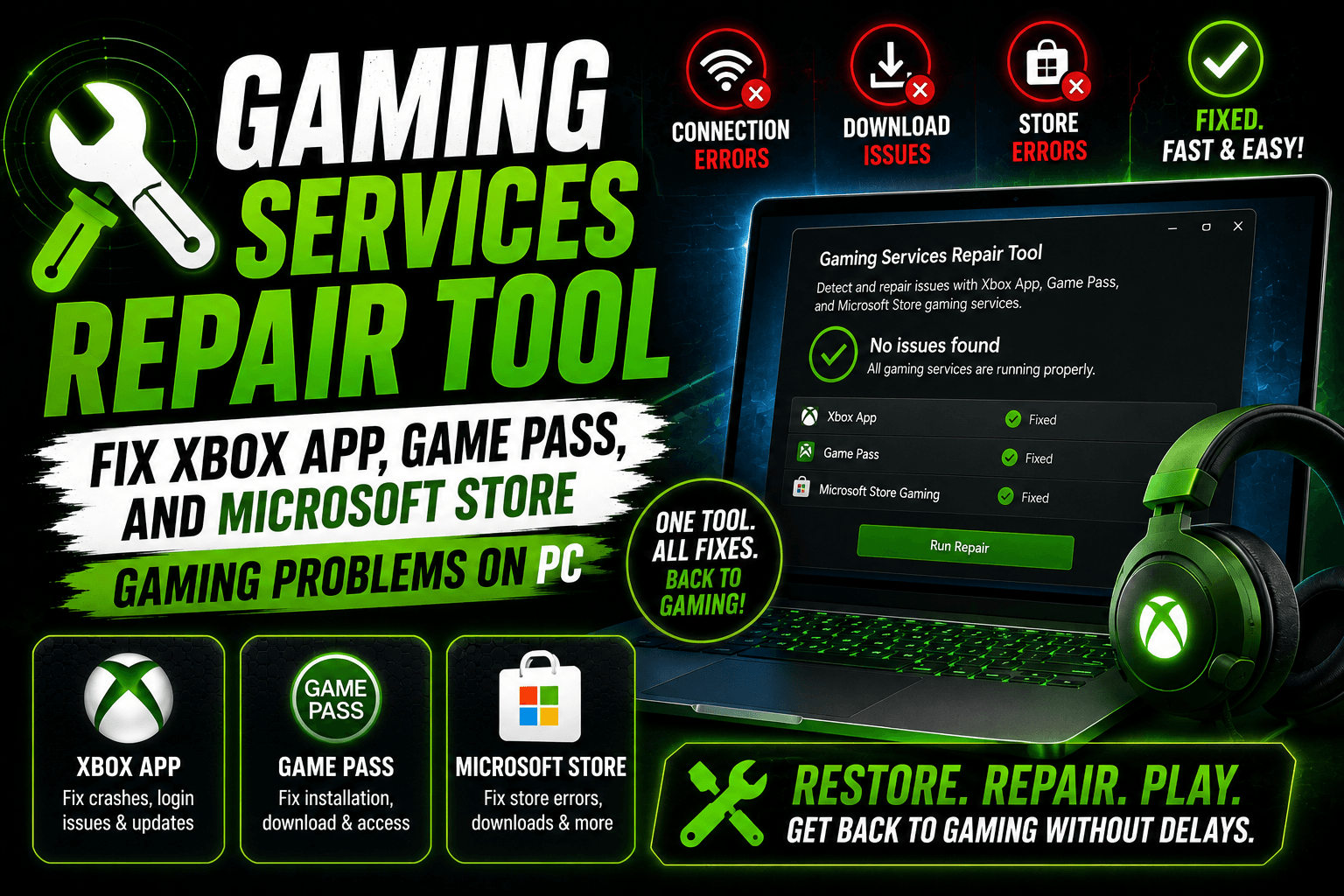
The Gaming Services Repair Tool is a Microsoft/Xbox troubleshooting tool made for Windows PC gamers who are having problems with the Xbox app, PC Game Pass games, Microsoft Store game installs, or the Gaming Services component itself.
If you have ever clicked a Game Pass game and nothing happened, got pushed back to the Microsoft Store, saw a strange Gaming Services error, or watched the Xbox app get stuck while installing a game, this tool is one of the first fixes you should try.
Gaming Services is a background component that helps Windows handle Xbox app games, Microsoft Store games, PC Game Pass installs, licensing, updates, and launch behavior. When it breaks, the problem can feel confusing because the game may not be the real issue. The Xbox app may not be the real issue either. The broken part may be Gaming Services running behind the scenes.
That is why the Gaming Services Repair Tool matters. It gives PC gamers a cleaner way to repair that background layer without immediately jumping into risky commands, registry edits, or a full Windows reinstall.
Quick Answer: What Does the Gaming Services Repair Tool Fix?
The Gaming Services Repair Tool can help fix Xbox app and PC gaming problems related to broken, outdated, missing, or corrupted Gaming Services on Windows.
It is useful when:
- Xbox app games will not launch
- PC Game Pass games fail to install
- Microsoft Store games get stuck
- Gaming Services keeps opening in the Microsoft Store
- The Xbox app shows install or update errors
- A game says it needs Gaming Services
- Downloads are stuck, paused, or failing
- Windows gaming components are damaged
- You see errors like 0x80073D26 or 0x8007139F
In simple words:
The Gaming Services Repair Tool repairs the Windows gaming component that helps Xbox app, Game Pass, and Microsoft Store games run properly on PC.
Gaming Services Repair Tool Overview
| Feature | Details |
|---|---|
| Tool Name | Gaming Services Repair Tool |
| Platform | Windows PC |
| Main Use | Repair Gaming Services problems |
| Best For | Xbox app, PC Game Pass, Microsoft Store games |
| Skill Level | Beginner-friendly |
| Risk Level | Low compared with manual PowerShell fixes |
| Common Problems Fixed | Game launch errors, install issues, update failures, Xbox app problems |
| Requires Admin Permission? | Often yes |
| Internet Required? | Yes, especially for updates or reinstalling components |
| Best First Step? | Yes, before advanced manual fixes |
Why Gaming Services Breaks on Windows PC
Gaming Services can break for several reasons. Sometimes it happens after a Windows update. Sometimes it happens after a failed Xbox app update. Sometimes the Microsoft Store cache becomes messy. Other times, a game install fails halfway and leaves the system stuck.
The frustrating part is that the error message does not always explain the real problem. You may think your game is broken, but the real issue is Gaming Services. You may reinstall the Xbox app and still get the same error because the broken component remains in Windows.
Common causes include:
- Corrupted Gaming Services package
- Outdated Xbox app
- Broken Microsoft Store cache
- Failed PC Game Pass installation
- Windows update conflict
- Damaged app permissions
- Wrong drive permissions
- Gaming Services stuck in the Microsoft Store
- Missing background services
- Multiple Microsoft accounts causing sync issues
- Interrupted game download or update
This is why a repair tool is helpful. It targets the gaming layer instead of forcing you to guess.
Signs You Need the Gaming Services Repair Tool
You should consider running the Gaming Services Repair Tool if your Windows PC shows any of these symptoms.
| Problem | What It Usually Looks Like |
| Xbox app game will not launch | You click Play, but nothing happens |
| Game opens Microsoft Store | You are redirected to Gaming Services page |
| PC Game Pass install fails | Download starts, then stops or errors |
| Game stuck on preparing | Xbox app never moves forward |
| Gaming Services error appears | Windows says Gaming Services is missing or broken |
| Game update fails | Update gets stuck or loops |
| Xbox app crashes | App closes or freezes after opening |
| Microsoft Store install error | Game refuses to install from Store |
| Error 0x80073D26 | Common Gaming Services install/start error |
| Error 0x8007139F | Common Gaming Services-related error |
The repair tool is especially useful when the Xbox app looks normal but games still refuse to install, update, or open.
How to Run the Gaming Services Repair Tool
The easiest way to run the Gaming Services Repair Tool is through the Xbox app on your PC.
Method 1: Run It From the Xbox App
Follow these steps:
- Open the Xbox app on your Windows PC.
- Click your profile picture.
- Select Support.
- Find Gaming Services Repair Tool.
- Click Start Troubleshooting.
- Let the tool complete the repair process.
- Restart your PC.
- Open the Xbox app again.
- Try launching or installing the game again.
This is the best method for most users because it is simple and does not require commands.
Method 2: Download the Gaming Services Repair Tool
If the Xbox app will not open, freezes, or crashes before you can access the Support menu, you may need to download and run the repair tool directly from Xbox Support.
This method is useful when:
- Xbox app will not launch
- Xbox app gets stuck on loading
- The Support menu is not accessible
- Gaming Services is too broken for the Xbox app method
- You are stuck in a Microsoft Store redirect loop
After running the downloaded tool, restart your PC and reopen the Xbox app. In many cases, Windows will reinstall or refresh the Gaming Services component automatically.
Method 3: Repair Gaming Services Through Windows Settings
If the repair tool does not solve the problem, you can also try repairing or resetting related apps inside Windows.
Repair Xbox App
- Open Settings.
- Go to Apps.
- Select Installed apps.
- Search for Xbox.
- Click the three-dot menu.
- Select Advanced options.
- Click Repair.
- If Repair does not work, click Reset.
Repair Microsoft Store
- Open Settings.
- Go to Apps.
- Select Installed apps.
- Search for Microsoft Store.
- Open Advanced options.
- Click Repair.
- If needed, click Reset.
Repair Gaming Services
- Open Settings.
- Go to Apps.
- Search for Gaming Services.
- Open Advanced options if available.
- Try Repair first.
- Use Reset only if Repair does not work.
Repair keeps app data when possible. Reset is stronger and may remove local settings for that app.
Method 4: Update Xbox App, Microsoft Store, and Gaming Services
Sometimes the repair tool is not enough because your Xbox app or Microsoft Store is outdated. Before trying advanced fixes, update everything.
Update Through Microsoft Store
- Open Microsoft Store.
- Go to Library.
- Click Get updates.
- Update Xbox app, Gaming Services, Microsoft Store, and Gaming-related apps.
- Restart your PC.
This simple step fixes more problems than many users expect.
If your PC has an outdated Xbox app trying to work with an updated Gaming Services package, or the other way around, installs and launches can fail.
Method 5: Reset Microsoft Store Cache
If Microsoft Store keeps opening the Gaming Services page or refuses to update, reset the Store cache.
How to Reset Store Cache
- Press Windows key + R.
- Type:
wsreset.exe
- Press Enter.
- Wait for the blank command window to close.
- Microsoft Store should reopen.
- Restart your PC.
- Try the Xbox app again.
This does not delete your games. It clears the Store cache that may be blocking installs or updates.
Advanced Fix: Reinstall Gaming Services With PowerShell
Use this only if the normal repair methods fail. PowerShell fixes are more advanced, so do not start here unless you are comfortable following commands carefully.
Before using PowerShell:
- Restart your PC first
- Close Xbox app and Microsoft Store
- Make sure Windows is updated
- Create a restore point if possible
- Copy commands carefully
- Run PowerShell as Administrator
PowerShell Reinstall Method
Right-click Start and open Windows Terminal (Admin) or PowerShell (Admin).
Run this command:
Get-AppxPackage *gamingservices* -allusers | remove-appxpackage -allusers
Then run:
start ms-windows-store://pdp/?productid=9MWPM2CQNLHN
This should open the Microsoft Store page for Gaming Services. Install it again, restart your PC, then open the Xbox app.
When to Use This Method
| Situation | Use PowerShell? |
| Repair tool worked | No |
| Xbox app works after restart | No |
| Microsoft Store updates fixed it | No |
| Gaming Services is missing | Yes |
| Gaming Services install is corrupted | Yes |
| Error keeps returning after repair tool | Maybe |
| You are not comfortable with commands | Avoid it |
PowerShell should be treated as a last step, not the first step.
Error Codes Related to Gaming Services
Gaming Services problems often show confusing error codes. Here are some common ones users search for.
| Error Code | Possible Meaning | Suggested Fix |
| 0x80073D26 | Gaming Services install/start issue | Run repair tool, update Windows, reinstall Gaming Services |
| 0x8007139F | Gaming Services or app service issue | Run repair tool, restart PC, update Store apps |
| 0x80073CF6 | Microsoft Store app install problem | Reset Store cache, update Store, repair Xbox app |
| 0x80070005 | Permission or access issue | Run as admin, check drive permissions |
| 0x80070002 | Missing files or broken install path | Repair app, change install drive, reinstall game |
| 0x80070424 | Missing service issue | Repair Gaming Services and check Windows services |
| 0x80073CF9 | App package install failure | Reset Store, check storage, reinstall app |
| 0x80070199 | Game install or update issue | Repair game, repair Xbox app, run repair tool |
Error codes help, but they do not always tell the full story. If the Xbox app, Microsoft Store, or PC Game Pass is involved, the Gaming Services Repair Tool is a smart early step.
Best Order to Fix Gaming Services Problems
Do not jump randomly between fixes. Follow this order for the best chance of solving the issue without making things worse.
| Step | Fix | Why It Helps |
| 1 | Restart PC | Clears stuck background processes |
| 2 | Update Windows | Fixes system-level gaming bugs |
| 3 | Update Microsoft Store apps | Updates Xbox app and Gaming Services |
| 4 | Run Gaming Services Repair Tool | Repairs the main broken component |
| 5 | Repair Xbox app | Fixes app-level issues |
| 6 | Reset Microsoft Store cache | Clears Store install problems |
| 7 | Reset Xbox app | Stronger app reset |
| 8 | Reinstall Gaming Services | Advanced fix for corrupted installs |
| 9 | Reinstall the game | Use only after system components work |
| 10 | Create new Windows profile | Tests if your user profile is broken |
This order keeps the safest steps first and saves advanced fixes for later.
Gaming Services Repair Tool vs Xbox App Repair
Some users confuse the Gaming Services Repair Tool with the regular Xbox app repair button in Windows Settings. They are not the same thing.
| Feature | Gaming Services Repair Tool | Xbox App Repair |
| Main Target | Gaming Services component | Xbox app installation |
| Best For | Game launch, install, update issues | Xbox app crashes or UI problems |
| Access Point | Xbox app Support or Xbox Support download | Windows Settings |
| Fixes Background Gaming Services? | Yes | |
| Fixes Xbox app data? | Sometimes indirectly | |
| Beginner Friendly? | Yes | |
| Should You Try It First? | Yes, for game install/launch problems |
If your problem is with games not launching or installing, start with the Gaming Services Repair Tool. If the Xbox app itself is crashing, repair the Xbox app too.
Gaming Services Repair Tool vs Microsoft Store Reset
The Microsoft Store reset clears Store cache and Store behavior. The Gaming Services Repair Tool repairs the gaming component used by Xbox and PC Game Pass.
| Fix | Best For |
| Gaming Services Repair Tool | Broken Game Pass launches, install failures, Gaming Services errors |
| Microsoft Store Reset | Store cache issues, stuck updates, broken Store page behavior |
| Xbox App Repair | Xbox app crashes, loading issues, broken app settings |
| PowerShell Reinstall | Severe Gaming Services corruption |
For many users, the best combination is:
Run Gaming Services Repair Tool → Restart PC → Update Microsoft Store apps → Try game again
Why Xbox App Keeps Opening Gaming Services in Microsoft Store
This is one of the most common and annoying problems.
You click a game in the Xbox app. Instead of launching, Windows opens the Microsoft Store page for Gaming Services. You install it, restart, try again, and the same page opens again.
This usually means Windows believes Gaming Services is missing, broken, outdated, or not registered correctly.
Try these fixes in order:
- Restart your PC.
- Open Microsoft Store and click Get updates.
- Run the Gaming Services Repair Tool.
- Reset Microsoft Store cache with
wsreset.exe. - Repair the Xbox app.
- Reset the Xbox app.
- Reinstall Gaming Services using PowerShell if nothing else works.
Do not keep clicking Install again and again without changing anything. If Windows is stuck in a loop, you need to repair or re-register the component.
What If the Gaming Services Repair Tool Fails?
If the repair tool fails, do not panic. It means the problem may be deeper than the tool can fix automatically.
Try this checklist:
- Restart the PC
- Run the tool as administrator if possible
- Update Windows
- Update Microsoft Store apps
- Repair Xbox app
- Reset Microsoft Store cache
- Check if Microsoft Store opens correctly
- Check if you are signed into the correct Microsoft account
- Temporarily disable VPN
- Make sure date and time are correct
- Check if your drive has enough free space
- Try installing to the main C: drive
- Create a new Windows user profile and test the Xbox app there
If the Xbox app works in a new Windows profile, your original user profile may be damaged. That is different from a Gaming Services-only issue.
What If PC Game Pass Games Still Will Not Install?
If PC Game Pass games still refuse to install after using the Gaming Services Repair Tool, the issue may involve your storage drive, account, subscription, or Microsoft Store permissions.
Check these areas:
1. Subscription Status
Make sure your PC Game Pass or Game Pass Ultimate subscription is active.
2. Microsoft Account
Use the same Microsoft account in:
- Xbox app
- Microsoft Store
- Windows account if possible
Mismatched accounts can cause licensing confusion.
3. Install Drive
Try installing the game to the C: drive first. External drives, secondary drives, or old WindowsApps folders can cause problems.
4. Storage Space
Make sure you have more space than the game requires. Large games often need extra room during installation.
5. Windows Update
Some Game Pass games need newer Windows components. Update Windows before blaming the game.
Should You Delete Gaming Services Manually?
You should avoid manually deleting Gaming Services folders or registry entries unless you are following official instructions or you know what you are doing.
Manual deletion can create new problems, especially if you remove the wrong package or registry key. Most users should use safer repair options first:
- Gaming Services Repair Tool
- Xbox app Repair
- Microsoft Store Reset
- Windows Update
- Microsoft Store app updates
- PowerShell reinstall only when needed
The goal is to repair Windows gaming, not damage Windows apps.
Is the Gaming Services Repair Tool Safe?
Yes, when downloaded from official Xbox/Microsoft support channels or used through the Xbox app, the Gaming Services Repair Tool is a safe troubleshooting option for Windows PC gaming issues.
Avoid downloading “Gaming Services repair” files from random websites, forums, file-sharing pages, or unknown YouTube descriptions. Fake repair tools can contain malware or unwanted software.
Safe rule:
Use the repair tool only from the Xbox app or official Xbox Support.
How Long Does the Gaming Services Repair Tool Take?
The tool usually takes only a few minutes, but the total repair process can take longer if Windows needs to update or reinstall Gaming Services.
A normal repair may look like this:
| Step | Estimated Time |
| Launch tool | Under 1 minute |
| Run troubleshooting | 1–5 minutes |
| Restart PC | 1–3 minutes |
| Update Store apps | 2–10 minutes |
| Test game launch | 1–5 minutes |
If your Microsoft Store is broken or your internet connection is slow, the process may take longer.
Can the Repair Tool Delete Games or Save Files?
The Gaming Services Repair Tool is designed to repair gaming services, not delete your personal game saves. However, anytime you troubleshoot app installations, there is always some risk with local game files, especially if a game stores saves locally instead of in the cloud.
Before doing advanced fixes, it is smart to:
- Sync cloud saves
- Back up important local saves
- Avoid uninstalling games unless needed
- Do not delete WindowsApps folders manually
- Check game-specific save locations
For most users, running the repair tool itself should not remove saved games.
Gaming Services Repair Tool for Windows 10 vs Windows 11
The Gaming Services Repair Tool is relevant for both Windows 10 and Windows 11 PC gaming, especially for Xbox app and PC Game Pass issues.
| Feature | Windows 10 | Windows 11 |
| Xbox app support | Yes | Yes |
| PC Game Pass support | Yes | Yes |
| Gaming Services issues | Possible | Possible |
| Microsoft Store dependency | Yes | Yes |
| Repair tool usefulness | High | High |
| Best practice | Keep Windows updated | Keep Windows updated |
Windows 11 usually provides a more modern PC gaming environment, but Gaming Services problems can still happen on both systems.
Common Mistakes to Avoid
Many users make the problem worse because they panic and try too many fixes at once.
Avoid these mistakes:
- Do not download repair tools from unknown websites
- Do not delete registry keys unless necessary
- Do not uninstall random Xbox components
- Do not remove Microsoft Store
- Do not keep switching Microsoft accounts
- Do not install games to a broken external drive
- Do not ignore Windows updates
- Do not skip restarting after repairs
- Do not reset your PC before trying simpler fixes
A calm step-by-step approach works better than random commands.
Best Practical Fix for Most Users
If you want the shortest safe path, use this fix order:
- Restart your PC.
- Open Microsoft Store.
- Go to Library and select Get updates.
- Open Xbox app.
- Go to profile picture → Support.
- Run Gaming Services Repair Tool.
- Restart again.
- Try launching or installing the game.
- If it still fails, repair/reset Xbox app.
- If needed, reinstall Gaming Services with PowerShell.
This solves many Xbox app and PC Game Pass problems without forcing a full Windows reset.
Troubleshooting Table: Problem and Best Fix
| Problem | Best First Fix | Next Fix |
| Game Pass game will not launch | Run Gaming Services Repair Tool | Repair Xbox app |
| Xbox app redirects to Gaming Services | Update Store apps | Reinstall Gaming Services |
| Game stuck on installing | Reset Store cache | Change install drive |
| Xbox app crashes | Repair Xbox app | Reset Xbox app |
| Gaming Services missing | Run repair tool | PowerShell reinstall |
| Microsoft Store not updating | Run wsreset.exe | Repair Microsoft Store |
| Error 0x80073D26 | Update Windows and run repair tool | Reinstall Gaming Services |
| Error 0x8007139F | Run repair tool | Reset Xbox app |
| Game downloads slowly | Check network and Store updates | Try different drive |
| Tool fails to repair | Restart and update Windows | Test new Windows profile |
Final Verdict: The Gaming Services Repair Tool Should Be Your First Xbox PC Fix
The Gaming Services Repair Tool is one of the most useful fixes for Xbox app, PC Game Pass, and Microsoft Store gaming issues on Windows. It is safer than jumping straight into PowerShell, easier than editing the registry, and faster than reinstalling Windows.
If your Xbox app games will not launch, your Game Pass installs are stuck, or Windows keeps sending you to the Gaming Services page in Microsoft Store, run the repair tool first.
For most users, the best solution is not complicated:
Update Windows, update Microsoft Store apps, run the Gaming Services Repair Tool, restart the PC, and test the game again.
If that does not work, then move to Xbox app repair, Store cache reset, and finally Gaming Services reinstall.
PC gaming on Windows can feel messy when Xbox app components break, but the fix does not have to be confusing. Start with the repair tool, follow the steps in order, and avoid risky shortcuts unless you truly need them.
🔥 Related Posts

Most Downloaded App on Play Store: A Deep Dive into America’s Favorite App

Free Horror Games: The Ultimate Guide to Scary Games You Can Play Without Paying

How to Download SoundCloud Mod APK for Android

Microsoft Game Pass: The Real-World Guide for US Players

Modded Apps for Photography Enthusiasts – Capture Like a Pro